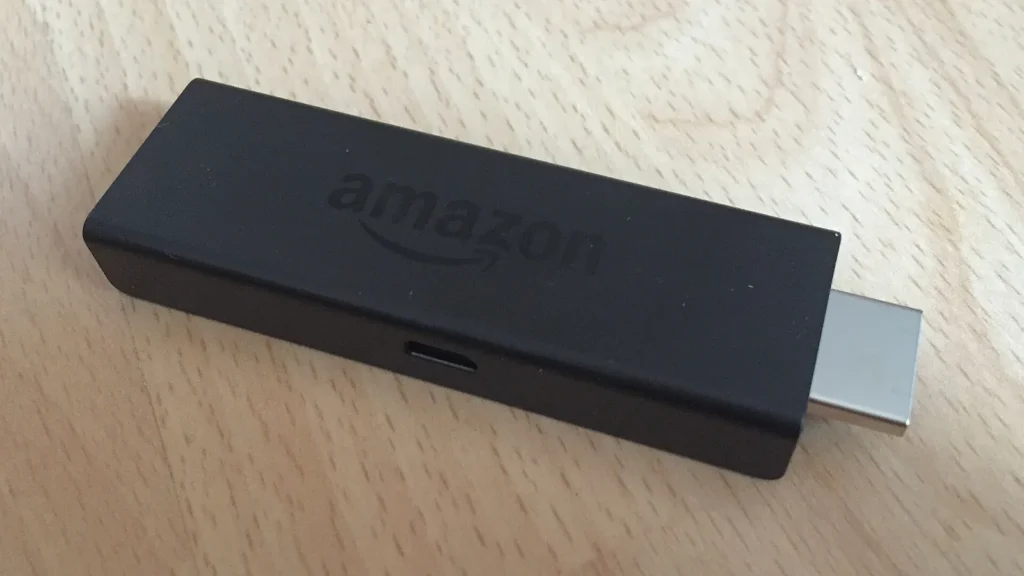
Picture a familiar autumn scene. Someone in Leeds or Bristol buys a brand-new Fire TV Stick, plugs it into the telly, signs in, then goes looking for the IPTV player their provider recommended. It isn’t there, and there is no setting to install it any other way. The stick works perfectly. It just cannot run the one app they bought it for.
That is the single most expensive mistake UK viewers can make in 2026. For years, choosing the best device for IPTV was mostly about speed, storage and remote controls. Now it is a software question first. Some of the newest streaming sticks run operating systems that only accept apps from their own store, and that changes which boxes are genuinely worth buying.
This guide works backwards from the app you need to the hardware that will run it. It explains the Fire TV split, compares the main options honestly, and finishes with a short test plan, so the device you buy matches the service you use. If you are still comparing services as well as hardware, the British IPTV Sub homepage gives an overview of how a typical UK subscription is delivered.
The Short Answer for Busy Readers
If you only read one section, read this. These recommendations assume you will use a standard IPTV player app with an M3U link or Xtream Codes login, which is how most UK services are delivered.
- Most people with one TV: the Fire TV Stick 4K Max (2nd Gen). It is currently the last Android-based Fire TV stick on sale, so it can still run the widest range of IPTV players.
- Anyone who wants a wired connection without adapters: the Google TV Streamer, which has a built-in Ethernet port.
- Enthusiasts with a large 4K TV and several apps: the NVIDIA Shield TV Pro remains capable, though it is now an older design.
- People who want no extra box at all: your smart TV’s built-in apps can work, but only if the specific player you need is in your TV’s own app store.
- What to avoid: any newer Fire TV Stick running Vega OS if you rely on a third-party IPTV player, and unbranded “fully loaded” Android boxes from marketplaces.
The rest of this article explains why, and how to check each point before you spend money.
Why the Best Device for IPTV Is Now a Software Decision
An IPTV subscription is not an app. It is a set of login details, usually an M3U playlist link or an Xtream Codes username, password and server address. You then need a player app to turn those details into a channel list and a programme guide. Popular players include IPTV Smarters Pro, TiviMate, IBO Player and Smart IPTV, and each one is available on some platforms and not others.
So the real question is not “which box is fastest?” but “which box will let me install the player I want, and keep letting me install it?” Three changes over the past year have made that question much harder to answer from a product listing alone.
Amazon’s Fire TV range has split in two
For a decade, every Fire TV Stick ran Fire OS, a version of Android. That meant you could install Android apps from outside the Amazon Appstore, a process known as sideloading. Many IPTV players have historically been installed this way.
Amazon has since introduced Vega OS, a Linux-based system that does not run Android apps. It arrived first on the Fire TV Stick 4K Select, and Amazon has said that all future Fire TV Sticks will use it. At the end of September 2026, Amazon announced a new third-generation Fire TV Stick 4K running Vega OS, which cannot sideload Android apps. According to the same report, the Fire TV Stick 4K Max remains on sale as the last Android-based stick in the range.
In practical terms, a Fire TV Stick bought in late 2026 might run either system. The packaging looks similar, the remote looks similar, and the price difference may be small. The capability difference for IPTV is enormous.
Amazon is also screening sideloaded apps on Fire OS
Even on Fire OS devices, sideloading is no longer a free-for-all. In early 2026, Amazon began blocking the installation of certain sideloaded apps, showing a message that the app “has been blocked because it provides access to unlicensed content”. Amazon’s position is that it will not make exceptions.
This targets apps Amazon has identified as piracy tools, not the general idea of an IPTV player. But it is a useful reminder that a device platform can change its rules after you have bought the hardware. When you choose the best device for IPTV, favour players that are listed in the device’s official app store over those that rely entirely on sideloading.
Google’s developer verification is coming, but not to UK TVs yet
Google is introducing developer verification for Android apps installed outside official stores. Under the published timeline, protections began on 30 September 2026 for certified Android devices in Brazil, Indonesia, Singapore and Thailand only, with a global expansion planned for 2027 and beyond. Google also describes an “advanced flow” for experienced users who still want to install unverified apps.
Google’s page does not set out a separate timetable for TV devices. For a UK buyer today, sideloading on Google TV and Android TV works as before. Over the life of a device bought now, though, apps from verified developers and official stores are the safer long-term bet.
How to Tell Which Fire TV System You Are Buying
Because the two Fire TV platforms look so alike, it is worth knowing how to check before the returns window closes.
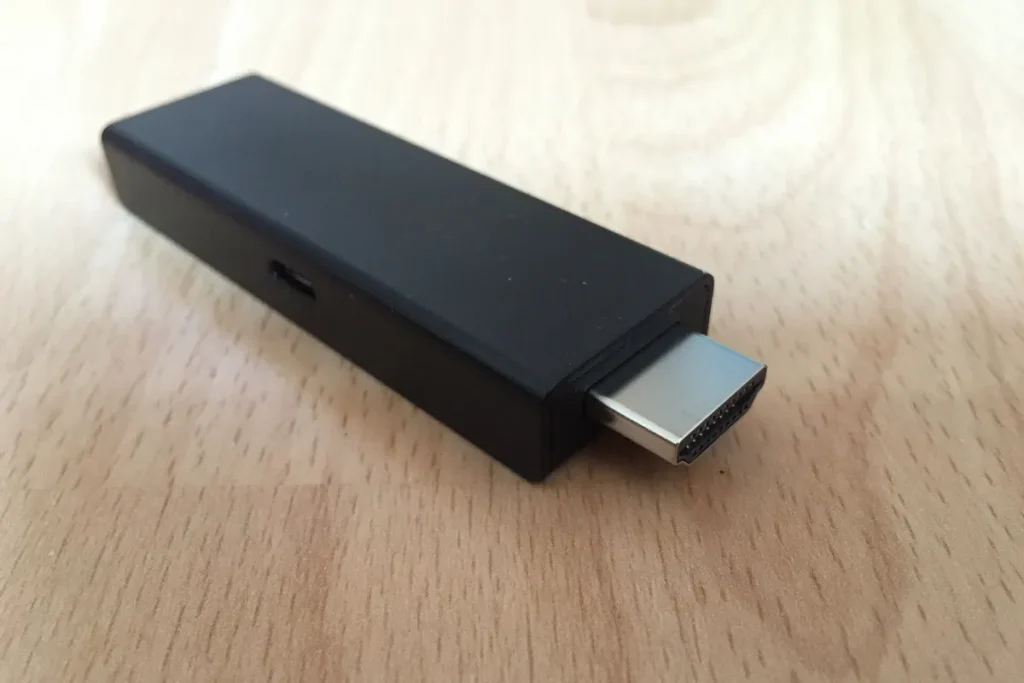
- Read the full model name. “Fire TV Stick 4K Max (2nd Gen)” runs Fire OS. “Fire TV Stick 4K Select” and the new “Fire TV Stick 4K (3rd Gen)” run Vega OS. Treat any unfamiliar new stick as Vega until you have confirmed otherwise.
- Search the listing for the operating system. Listings and technical details often mention “Fire OS” or “Vega OS”. A statement that only Amazon Appstore apps are available is a clear Vega signal.
- Check the settings menu once it is set up. On Fire OS, go to Settings > My Fire TV > About to see the Fire OS version. On Fire OS devices you can also enable Developer Options from this area. If there is no route to Developer Options or “Install unknown apps”, assume you have a Vega device.
- Search the Appstore for your player. Before setting anything else up, search for the exact player your provider recommends. If it is not available, you are still inside the return period and can swap the device.
Four Questions to Answer Before You Choose a Device
Most guides to the best IPTV device start with a ranked list of gadgets. A better approach is to answer four questions about your home first, then let the answers point you towards the best device for IPTV in your situation.
1. Which player app will you actually use?
Ask your provider which players they support and check which of those are available on each platform you are considering. A provider that supports several apps gives you more freedom of hardware. If you already like a particular player’s guide layout or favourites system, that preference should drive the device choice, not the other way round.
2. How will you log in?
Most players accept an M3U link, Xtream Codes details, or both. Xtream logins are usually easier to type with a TV remote and tend to bring in the programme guide and on-demand sections more neatly. Dedicated set-top boxes such as Infomir’s MAG range work differently: they use a portal address, and the provider links your account to the box’s MAC address. If you want a MAG-style box, confirm that your provider supports portal logins before you buy it.
3. Can the device reach your router with a cable?
Live channels are less forgiving than on-demand films, because the player cannot download minutes of video in advance. If your router sits in the hallway and the TV is two brick walls away, a device with an Ethernet port, or an adapter that adds one, can matter more than any processor upgrade. There is more on this below.
4. How many screens need to work at the same time?
A household with a living-room TV, a bedroom TV and a teenager’s tablet needs more simultaneous connections than a single viewer. That affects both how many devices you buy and which plan you need. On our site, you can compare subscription options by number of devices, from one to five, before deciding how much hardware to buy.
Best Device for IPTV: The Main Options Compared
The table below summarises how each type of device handles the things that matter most for IPTV. It deliberately avoids invented speed scores: the figures listed come from the manufacturers’ published specifications.
| Device | Operating system | Installing IPTV players | Wired connection | Best suited to |
|---|---|---|---|---|
| Fire TV Stick 4K Max (2nd Gen) | Fire OS (Android-based) | Amazon Appstore, plus sideloading | Via Amazon’s Ethernet adapter, sold separately | Most single-TV homes |
| Fire TV Stick 4K Select / 4K (3rd Gen) | Vega OS (Linux-based) | Amazon Appstore only | Check the listing | Mainstream streaming apps, not third-party IPTV players |
| Google TV Streamer | Google TV (Android TV OS) | Google Play, plus sideloading | Built-in gigabit Ethernet | Wired setups and Google households |
| NVIDIA Shield TV Pro | Android TV | Google Play, plus sideloading | Built-in gigabit Ethernet | Large 4K TVs and power users |
| Samsung (Tizen) or LG (webOS) smart TV | Manufacturer’s own | TV’s own app store only | Usually a built-in Ethernet port | Viewers who want no extra box |
| MAG-style set-top box | Linux-based | Built-in portal software | Ethernet port | Users who prefer a traditional set-top-box feel |
Device by Device: Who Each One Really Suits
Fire TV Stick 4K Max (2nd Gen): the sensible default, while it lasts
For many UK households, this is still the best device for IPTV, simply because it combines a familiar interface, a low price and an Android-based system that runs most popular players. It supports Wi-Fi 6E for compatible routers, AV1 video decoding and 4K HDR, and its remote can control the TV’s power and volume, which keeps things simple for less technical family members.
The caveats are worth stating plainly. Amazon has said future sticks will move to Vega OS, so this model is on borrowed time as a product line. Players that are only available through sideloading may also face more restrictions in future. Buy it if it suits you today, but favour a player you can install from the Appstore where possible.
Once the device is in place, the steps are the same whichever app you choose. Our installation tutorial for IPTV players walks through entering your M3U or Xtream details on a Fire TV and other devices.
Vega OS Fire TV Sticks: fine for Netflix, risky for IPTV
There is nothing wrong with Vega devices as streaming sticks. Amazon says they launch apps quickly, and they handle the major streaming services. The problem is narrower. If the IPTV player you want is not in the Amazon Appstore for Vega, you have no workaround. For anyone buying a stick specifically for an IPTV subscription, that makes them a poor choice unless you have confirmed your player is available.
Google TV Streamer and older Chromecast devices
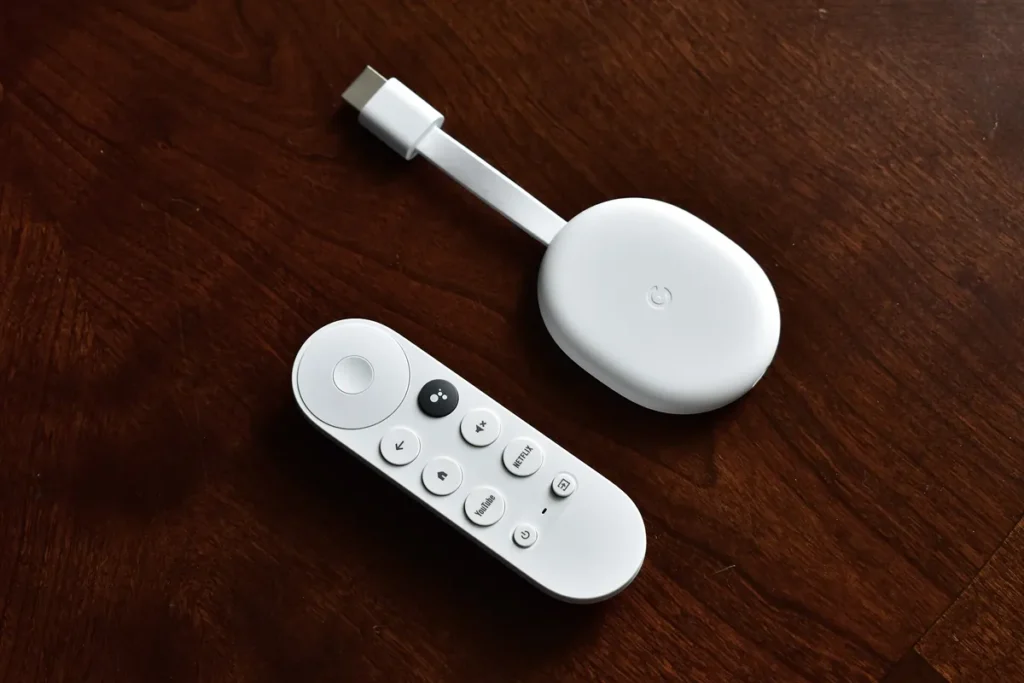
Google’s current box is the most straightforward way to get a wired connection without dongles. According to Google’s UK specifications, the Google TV Streamer has 4 GB of RAM, 32 GB of storage, a gigabit Ethernet port and HDMI output up to 4K HDR, and Google lists it at £99. Google Play carries a wide range of IPTV players, and Android sideloading is still available in the UK.
Plenty of UK homes also have the earlier Chromecast with Google TV, which has since been replaced by the Streamer. It runs the same Google TV interface, but it has no Ethernet port of its own. If you already own one, it is worth trying your player on it before buying something new.
NVIDIA Shield TV Pro: powerful, but think about its age
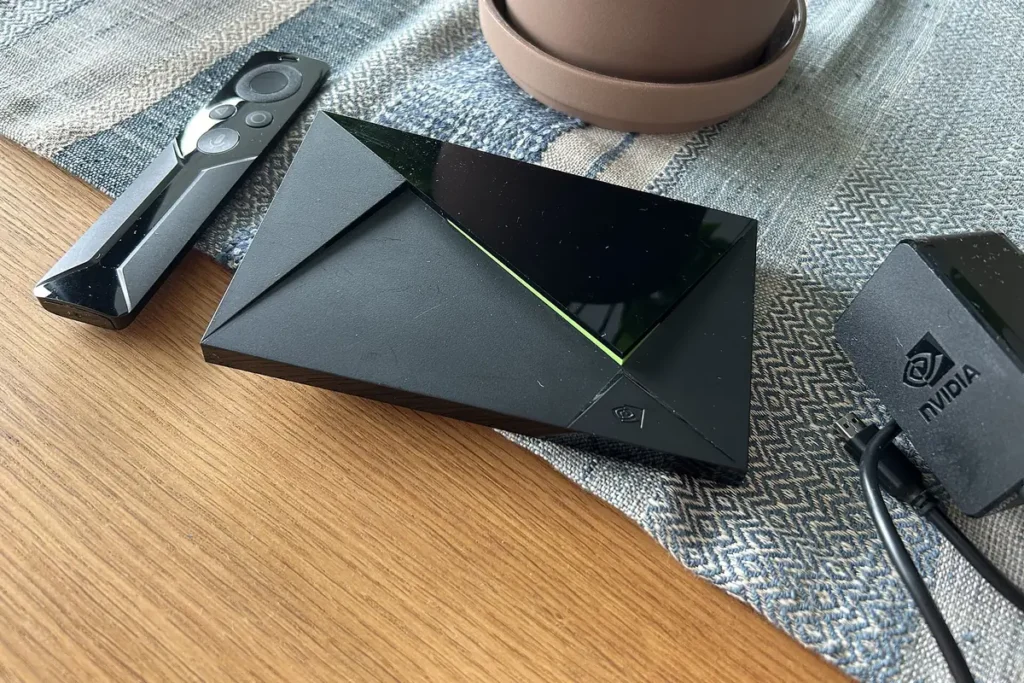
The Shield TV Pro has long been the enthusiast’s choice. NVIDIA’s specifications list 3 GB of RAM, 16 GB of storage, gigabit Ethernet and two USB 3.0 ports. That makes it comfortable running several apps and attaching extra storage. Its AI upscaling is well regarded for improving lower-resolution channels on a large 4K screen.
The current model was released in 2019, and its chip pre-dates hardware AV1 decoding, a newer video format that some services are adopting. It is still an excellent device, but at its price it makes most sense for people who will use the extra power for more than IPTV. That might mean running a home media server, playing games, or using demanding apps.
Smart TV apps: no extra box, fewer choices
Samsung TVs run Tizen and LG TVs run webOS. Neither runs Android apps, so you are limited to the players listed in the TV’s own app store. Several IPTV players are published for these platforms, often with a small activation fee and a device code that links the app to your playlist. Availability does change, though, and older TV models sometimes stop receiving app updates.
Many Sony, Philips and TCL smart TVs, and some Hisense models, run Google TV or Android TV instead. These behave much like the Google TV Streamer: Google Play is available and sideloading is possible. Check the TV’s settings menu or manual to see which system yours uses.
The honest summary is that a built-in app is fine when it works well, and a £50–£100 streaming device is a cheap fix when it does not.
Dedicated IPTV set-top boxes
Boxes such as MAG and Formuler models are designed around live TV rather than general app use. They offer a channel-surfing experience that feels closer to a traditional satellite box. They suit viewers who mainly watch live channels and want a conventional remote. The trade-offs are cost, a smaller app ecosystem for MAG’s Linux-based models, and the need to confirm that your provider supports the login method the box uses.
Unbranded Android boxes from online marketplaces
Cheap, unbranded boxes with big specification claims are the riskiest category. Many run outdated Android versions with no security updates and lack Google certification, which can mean no Play Store. Some are sold with unauthorised content already loaded. The UK Intellectual Property Office’s guidance on illicit streaming devices warns that sales phrases such as “fully loaded”, “jail broken”, “plug and play” or “subscription gift” are giveaways. It also notes that some of these devices have failed electrical safety standards.
Wi-Fi or Ethernet: Why the Cable Often Matters More Than the Chip
When people blame a device for buffering, the device is often not the culprit. Typical UK homes put plenty in the way of a Wi-Fi signal: solid brick or block internal walls, routers left by the front door where the broadband line enters, and neighbours’ networks crowding the same channels in flats and terraces. Even the best device for IPTV will struggle on a weak wireless signal.
Live IPTV is especially sensitive to this because the player keeps only a small buffer. A brief dip in Wi-Fi that an on-demand app would never reveal can show up as a stutter during a live match or news broadcast.
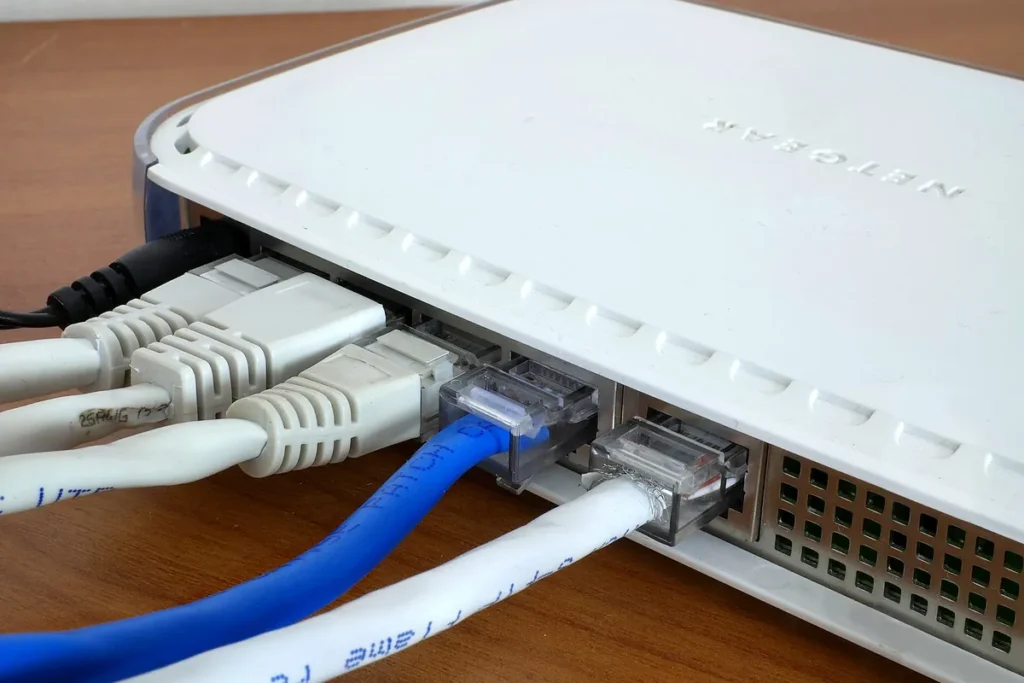
Your options, from simplest to most involved:
- Choose a device with a built-in Ethernet port, such as the Google TV Streamer or Shield TV Pro, if the router is within cable reach.
- Add an official Ethernet adapter to a Fire TV Stick 4K Max. It connects through the stick’s power port and adds a wired socket.
- Use powerline adapters, which carry a network connection through your home’s electrical wiring. Results vary with the age and layout of the wiring, so buy from a retailer with an easy returns policy.
- Improve the Wi-Fi itself with a mesh system or by moving the router to a more central, raised position.
Broadband speed matters too, but it is rarely the whole story. Our IPTV FAQ recommends a minimum of 16 Mbps for stable streaming. Remember that this needs to be available at the TV, not just at the router, and that other people in the house are sharing the same connection.
Finding the Best Device for IPTV in Your Home: Five Scenarios
Real households rarely fit neatly into a ranking. These scenarios show how the four questions above play out in practice.
The renter with one TV and a tight budget
A Fire TV Stick 4K Max is usually the right call. It is portable when you move, needs no installation work and runs most players. If the router is in the same room, add the Ethernet adapter. If not, try Wi-Fi first and only spend more if live channels stutter.
The family with three TVs in different rooms
In a multi-TV home, the best device for IPTV is often the one you can repeat in every room. Using the same device and the same player on every TV means one set of instructions, one interface for everyone to learn, and easier troubleshooting. Put the device with Ethernet in the room furthest from the router. Make sure your plan’s connection allowance matches the number of screens likely to be in use at once.
The live-sport viewer whose router is two rooms away
This viewer gains most from fixing the connection rather than upgrading the processor. A Google TV Streamer on a powerline adapter, or a Fire TV Stick 4K Max with its Ethernet adapter on the same setup, will often do more for match-day reliability than any premium box on Wi-Fi.
The older relative who wants it to “just work”
Prioritise a simple remote with TV power and volume buttons, a player with a clear programme guide, and a device you can talk them through over the phone. Set up favourites in advance. A box that turns on with the TV and opens straight into the guide matters far more than raw performance.
The owner of a 2018 Samsung or LG TV
Try the built-in route first. Check whether a supported player is listed in the TV’s app store and whether it still receives updates. If the app is missing, sluggish or awkward with the TV remote, a separate streaming device usually solves all three problems for a modest outlay.
Good Signs and Red Flags When Buying an IPTV Device
Whichever device you are considering, these listing details tell you a lot before you pay.
| Good signs | Red flags |
|---|---|
| A named brand, model number and operating system | Vague names and specifications that don’t match a known chip |
| Sold by an established UK retailer with a clear returns policy | “Fully loaded”, “jail broken” or “free channels forever” |
| Official app store access (Google Play, Amazon Appstore, the TV maker’s store) | No app store, or a store you have never heard of |
| A stated period of software and security updates | An Android version several years out of date |
| UK plug and safety markings | Imported power supplies with no visible certification |
| Ethernet port or official adapter available | Claims of “no buffering ever” with no explanation |
A 20-Minute Test Before You Commit
Even after careful research, the only real proof that you have found the best device for IPTV is a test in your own home. Retailers’ return windows and short subscriptions exist for a reason, so use them. Once your new device arrives, run through this check before you commit to a longer plan:
- Install the exact player your provider recommends, from the official store if possible.
- Log in and load the full guide. Large playlists and programme guides can take a few minutes on first load. Note whether they finish cleanly.
- Change channels repeatedly for a few minutes, including between HD and 4K channels if you have them, and watch for freezes or crashes.
- Watch a live channel for 15 minutes at a busy time, such as a weekday evening, rather than mid-morning.
- Test the same channel on Wi-Fi and on Ethernet, if you can, so you know which variable matters in your home.
- Try catch-up or on-demand content if those features matter to you.
If you are testing a new service at the same time as new hardware, change one thing at a time. Our guide to testing an IPTV trial without wasting money covers what to check during a short trial, so you can separate a device problem from a service problem.
A Word on the Law: The Device Is Not the Problem
Streaming sticks, Android boxes and IPTV players are legitimate products. The IPO’s guidance is clear that devices are lawful when used to watch legitimate content. They become a problem when they are adapted to stream content without the copyright owner’s permission. A VPN does not change that: it affects your privacy and routing, not the legal status of what you watch.
The practical takeaway is simple. Buy mainstream hardware from reputable retailers. Install players from official stores where you can. Make sure any service you subscribe to is one you are comfortable using lawfully.
Frequently Asked Questions
What is the best device for IPTV in the UK right now?
For most single-TV households, the Fire TV Stick 4K Max (2nd Gen) offers the best balance of price, simplicity and app compatibility, because it still runs the Android-based Fire OS. If you want a wired connection without an adapter, the Google TV Streamer is the stronger choice.
Can I use IPTV on the new Fire TV Stick 4K?
The third-generation Fire TV Stick 4K runs Vega OS, which only installs apps from the Amazon Appstore. You can only use an IPTV player on it if that player is published there. Check the Appstore before relying on it.
Is a smart TV good enough for IPTV?
Often, yes, provided a supported player is available in your TV’s app store and runs smoothly. Samsung and LG TVs cannot install Android apps. Smart TVs running Google TV or Android TV have access to Google Play.
Do I need Ethernet for IPTV?
Not always, but it is the most reliable option for live channels. If you get occasional stuttering on Wi-Fi, a wired connection, or a powerline adapter where cabling is impractical, is usually the first thing to try.
Will sideloading stop working on Android TV boxes?
Google’s developer verification began in four countries in September 2026 and is planned to expand globally from 2027. Google describes an advanced option for experienced users who want to install unverified apps. Choosing players from official stores or verified developers is the safest way to future-proof your setup.
The Bottom Line
The best device for IPTV is the one that runs your preferred player today and is likely to keep running it. In 2026 that means reading the operating system before the price tag. Favour official app stores, and give live TV a wired connection whenever you can. Choose the app first, check the platform second, and only then compare hardware.
If you are unsure whether a particular TV or streaming device will work with your chosen player, contact the provider’s support team before you buy. A two-minute question is far cheaper than a device you cannot use.