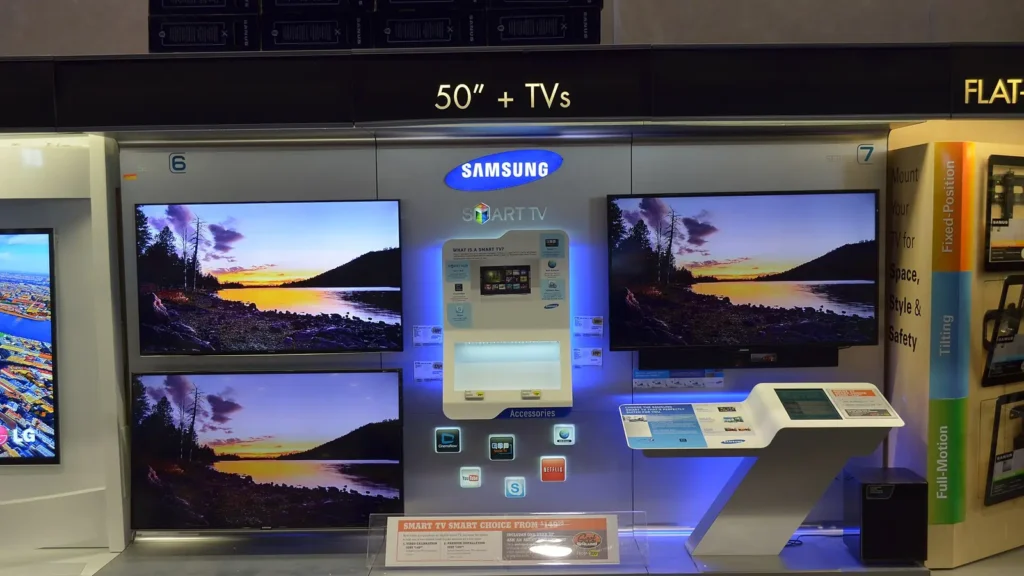
In July 2026, one of the longest-standing IPTV players for Samsung televisions released a new version for 2022 and later models. Owners could not simply update it. According to the developer, the new release had to be installed from scratch from Samsung’s app store, alongside the old one. It is a small story, but it captures what running IPTV on Samsung TV models is really like. The television is excellent, the platform is closed, and the apps you depend on change on someone else’s timetable.
That doesn’t make a Samsung a bad choice for IPTV. It means the order of operations matters. This guide walks through three checks to make before you pay for anything, then the setup itself step by step. It finishes with the snags Samsung owners most often hit and a clear point at which a plug-in streaming stick becomes the better route. If you are still weighing up services, the British IPTV Sub homepage explains how a typical UK IPTV subscription is delivered.
First, a Quick Clarification: Samsung TV Plus Is a Different Thing
Many Samsung owners already see live channels on their TV without having set anything up. That is usually Samsung TV Plus, Samsung’s own free, ad-supported service. Samsung describes it as automatically installed on Samsung Smart TVs in select regions, including the UK. It needs no subscription.
Using IPTV on Samsung TV sets is something else. You install a separate player app, and that app plays the channels from a subscription you have arranged with a provider. Keep the two apart in your head and the rest of this guide makes a lot more sense.
Check One: Know Exactly Which Samsung You Own
“A Samsung smart TV” covers more than a decade of different software. App availability, menu layouts and supported video formats all depend on the model year. So the first job is to find your exact model code.
Samsung’s UK support page explains how to find the model code and software version: open Settings, choose Support, then About This TV. On some recent models, Support sits inside an All Settings menu first. The model code, serial number and software version appear on screen. If the TV is wall-mounted and the menus won’t cooperate, the same details are printed on a sticker on the back.
Write the model code down. Everything about IPTV on Samsung TV models depends on it. You will want it when you check app compatibility, when you ask a provider a question, and if you ever need Samsung’s support team.
Check Two: Confirm the Player Is in Your TV’s Store Before You Pay
This is the check that saves the most money. Samsung TVs run Tizen, Samsung’s own operating system. Unlike Android-based TVs and streaming sticks, Tizen does not let ordinary users install apps from outside Samsung’s store. There is a developer mode intended for app developers testing their own software, but it is not a practical or supported route for everyday viewing. In plain terms: if the player is not in your TV’s app store, you cannot use it on that TV.
Availability also varies by model year and changes over time. Smart IPTV’s developer, for example, lists a new version for Samsung Tizen 6.5+ TVs (2022+ models) that must be installed fresh from the Apps store rather than updated. Its FAQ even includes an entry for owners who can no longer find the app in Samsung’s store. Other players come and go in the same way. Any list of apps for IPTV on Samsung TV models, including the examples in this article, can only ever be a starting point.
So do it in this order:
- Ask your provider, or a provider you are considering, which players they support on Samsung TVs.
- Search for those exact names in the Apps section of your own TV.
- Install one and confirm it opens and shows its setup screen.
- Only then choose a subscription. You can compare subscription options knowing the player already runs on your TV.
One more caution. Smart IPTV’s developer warns that copies of its app listed in a different app store are fakes. Impersonation is a known problem with popular IPTV players. Install from your TV’s official store, and check the developer’s own website if a listing looks odd or charges an unexpected subscription.
Check Three: Will the TV Keep Getting Updates?
Apps follow the operating system, and that shapes how long IPTV on Samsung TV models keeps working smoothly. When a TV stops receiving software updates, developers gradually stop supporting it, and new player versions tend to target newer Tizen releases. The Smart IPTV example above, with a new app for 2022 and later models, is exactly that pattern.
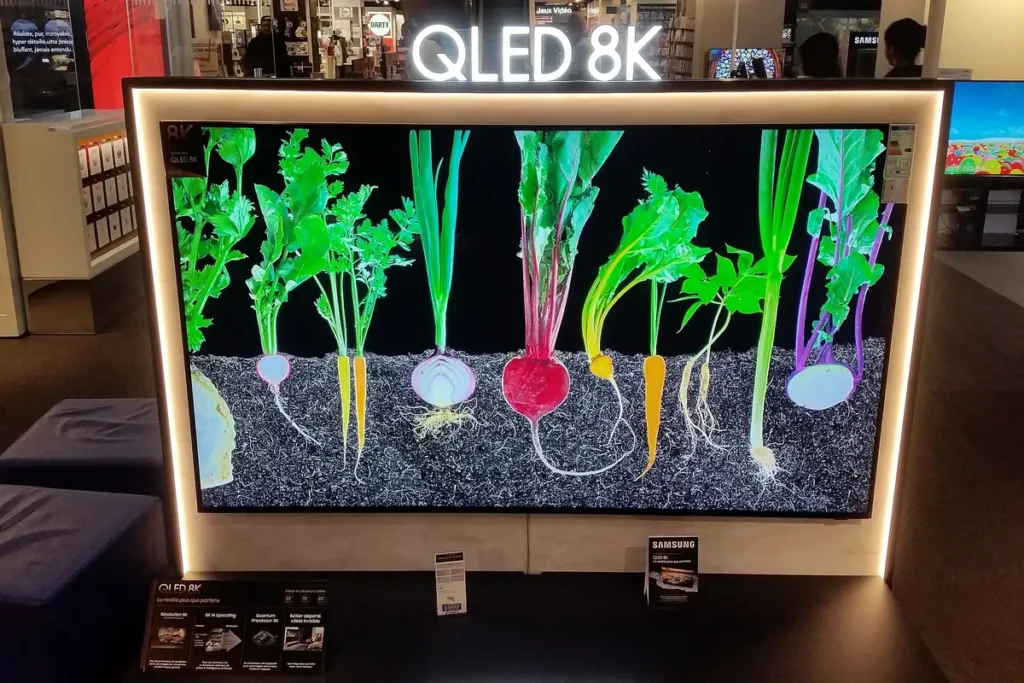
The good news is for recent buyers. In August 2024, Samsung committed to seven years of Tizen OS updates for its 2024 TVs and some 2023 models, which What Hi-Fi? reported as support until 2031. Older sets were not included in that promise. If your TV is from 2023 or later, you are in a strong position. If it pre-dates 2022, plan on the built-in route working for now, and keep a cheap streaming stick in mind as the long-term answer.
Setting Up IPTV on Samsung TV, Step by Step
With the three checks done, setting up IPTV on Samsung TV models takes most people ten to twenty minutes. Menu names vary a little between model years, so treat the wording below as a guide rather than a script.
Step 1: Sign in to a Samsung account on the TV
Samsung’s support page on Smart Hub notes that you need to be signed in to a Samsung account to get the most from it, including downloading apps. If you skipped this when the TV was first set up, you will find the account option in the settings menu. A free account is all that’s needed.
Step 2: Find and install the player
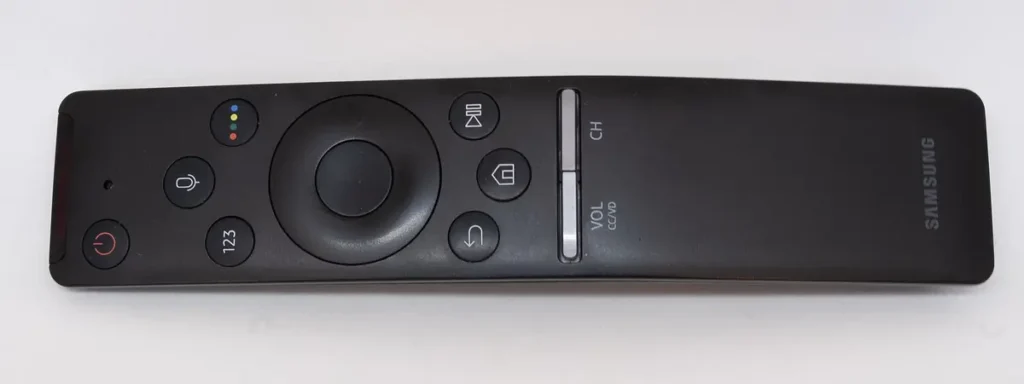
Press the Home button, open Apps, and use the search icon to type the player’s name. Select it, then choose Install. Once it has installed, you can add it to the Home screen so it sits alongside your other streaming apps.
Step 3: Note the device details the app shows you
Most Samsung IPTV players fall into one of two styles. Some let you type your login straight into the app. Others display a device identifier, often the TV’s MAC address or an app-generated device ID. You then add your playlist through the developer’s website, which links it to that identifier. Photograph the screen with your phone; you will need these details again in a moment, and possibly later if you ever contact support.
Step 4: Add your playlist or Xtream login
Your provider will send either an M3U playlist link, Xtream Codes details (a server address, username and password), or both. Where a player accepts Xtream details, they are usually the easier option. There is less to type, and players generally pull in the TV guide, films and box sets automatically from an Xtream login. Typing long web addresses with a TV remote is tedious, so if the app offers a website upload, use a phone or laptop for this step. Our installation tutorial shows where these details go in the most common players.
Step 5: Use the trial properly, then activate
Many Samsung IPTV players run as a free trial and then ask for a one-off activation fee per TV. Smart IPTV, for instance, lists a one-time fee of 5.49 EUR for each TV or device after the trial, payable through its activation system. This fee is for the player only. It does not include any channels, and the developer is explicit that the app is just a media player. Use the trial to confirm that the app behaves well on your particular TV before paying for either the player or a longer subscription.
Step 6: Organise before you settle in
A raw playlist can contain an overwhelming number of channels. Spend ten minutes building a favourites list of the channels your household actually watches. Hide categories you’ll never use if the app allows it, and check that the programme guide is showing the right times. It’s also worth comparing what you see with the provider’s published channel list, so you know whether something missing is a setup issue or simply not in the package. A tidy favourites list is the difference between a TV the whole family can use and one only you can operate.
Getting a Better Picture From IPTV on Samsung TV Sets
Once channels are playing, a few minutes in the picture menu pays off. Samsung’s default picture modes are tuned to look bright in a showroom, which is rarely ideal for an evening in a living room. None of these changes affects the stream itself, but they change how it looks.
- For films and dramas, try Filmmaker Mode on models that offer it, or the Movie picture mode on older sets. Both aim to show the picture closer to how it was graded, with less artificial sharpening.
- For live sport, motion processing is where personal taste comes in. Samsung calls it Picture Clarity on recent models and Auto Motion Plus on older ones. A moderate setting can smooth fast camera pans; turning it off avoids the slightly artificial “soap opera” look some viewers dislike.
- Leave Game Mode off for TV viewing. It reduces input lag for consoles, which IPTV doesn’t need, and can switch off some picture processing.
- Prefer the Ethernet port if the router is within reach. Live channels can’t preload video the way on-demand apps do, so a stable connection matters more than a fast one.
Changes in these menus usually apply per input or per app, so set them while an IPTV channel is actually playing.
Running IPTV on Samsung TV Sets in More Than One Room
Households with a Samsung in the lounge and another in a bedroom often assume one setup covers both. Two separate limits apply, and it helps to keep them apart.
The first is the player. Where an app charges a one-off activation per TV, as Smart IPTV does, each television needs its own activation once its trial ends. The second is your subscription’s connection allowance: how many screens can play at the same moment. Installing the player on two TVs is easy. Watching on both at once only works if your plan allows two simultaneous connections. If it doesn’t, one of the streams may stop or stall, which is easy to mistake for a fault with the TV.
Mixed households are common too: a recent Samsung in one room, an older one or a different brand elsewhere. Nothing stops you using the built-in app on the newer TV and a streaming stick on the older one, with the same subscription on both. When choosing a plan, the number that matters is how many of those screens will be playing on a busy evening, not how many exist in the house.
Snags Samsung Owners Run Into, and What Fixes Them
Most problems with IPTV on Samsung TV sets fall into a handful of patterns. Here are the common ones, matched to the fix most likely to work.
“The app has vanished from the store”
Apps are sometimes withdrawn, re-released under a new listing, or limited to newer Tizen versions. Check the developer’s own website for news. As the Smart IPTV case shows, a “missing” app may simply have moved to a new listing for newer models. If the app now supports only newer TVs, an older set will need a different player or a streaming stick.
“Some channels play, others show a black screen”
Smart IPTV’s FAQ makes a point that applies to every player: each TV make and model supports different stream formats and codecs. It is one of the more confusing quirks of IPTV on Samsung TV sets: a channel that plays perfectly on a streaming stick may not play at all through a particular Samsung’s built-in decoder. If a few specific channels fail while the rest work, this is the likely reason. If your playlist offers the same channel in another quality or as a backup feed, try that version. If not, report it to your provider with your model code.
“It worked yesterday and now it won’t load”
Before anything else, switch the TV off at the wall for a minute rather than using standby, then try again. If the app shows your device details, check they still match what is registered on the developer’s website. Then confirm that your subscription is active and that you haven’t exceeded its connection allowance on another screen.
“The picture stutters, but Netflix is fine”
Live channels are less forgiving of a weak connection than on-demand apps, which can preload minutes of video. Most Samsung smart TVs have an Ethernet port, and using it is the single most effective test. A cable straight from the router removes Wi-Fi from the equation entirely.
When a Streaming Stick Is the Smarter Route
Built-in IPTV on Samsung TV sets is tidy: one remote, no extra box, nothing to power. But it isn’t always the right answer, and there’s no shame in plugging a small device into one of the TV’s HDMI ports. It makes sense when:
- the player you want, or your provider supports, is not available for your TV’s Tizen version;
- your TV is older than 2022 and no longer receives meaningful updates;
- the built-in app feels sluggish with a large channel list;
- certain channels won’t play because of the TV’s format support.
A stick also adds something a Samsung can’t offer: access to Android-based players. Choose carefully, though, because not every new streaming stick can install third-party apps any more. We have compared which streaming devices still run third-party IPTV players, including the Fire TV models that no longer can.
One point that applies whichever route you take: these players are only software for playing a playlist. The apps are legitimate products, but whether what you watch through them is lawful depends entirely on the service supplying the channels. Choose a provider you are comfortable using within UK law.
Your Samsung Decision Path
If you’ve read this far, choosing how to run IPTV on Samsung TV comes down to a short sequence. Work through it in order and stop at the first line that applies:
- Your TV is from 2022 or later and the supported player is in its store: install it, run the trial, and use the built-in route.
- The player is in the store, but the TV is older: use the built-in route now, and expect to add a streaming stick eventually.
- The player isn’t in the store, or key channels won’t play: skip the built-in app and plug in a streaming stick that can run your provider’s preferred player.
- You’re not sure which applies: send your model code to the provider and ask which player they recommend for it before you subscribe.
Handled in that order, getting IPTV on Samsung TV models working is a straightforward job rather than a gamble. The ten minutes spent finding your model code and checking the store are what make the difference.