
The most common fix for IPTV buffering is also the one most likely to waste money: upgrading to faster broadband. People do it because the spinning wheel feels like a speed problem. Often it isn’t. A 500 Mbps line will still stutter if the TV is fighting for Wi-Fi through two brick walls, if the app has filled the stick’s storage, or if the stream itself is struggling before it ever reaches your home.
This guide treats IPTV buffering as an investigation rather than a checklist of random tips. Each section narrows the fault down to one of four places: your account and stream, your home network, your broadband line, or the device and app. By the end, you will know where the problem lives in your home and what to do about it. Whether you watch through British IPTV Sub or another service, the diagnosis works the same way.
Start Here: What Exactly Did the Screen Do?
“It keeps buffering” can describe five quite different failures. Before changing anything, watch the next one closely and note which of these you actually saw.
- A loading spinner, then playback resumes. This is buffering in the true sense: the player ran out of video and paused while it waited for more.
- A frozen picture with no spinner. The data may still be arriving, but something failed to decode or deliver part of it. Packet loss and overworked hardware are the usual suspects.
- Blocky, smeared or pixelated video. The stream is arriving damaged or at a lower quality than the screen expects.
- Sound carries on while the picture stops, or the other way round. This is commonly a decoder or app issue rather than a network one.
- The app closes or returns to the menu. This is usually the app or device, not the connection.
Then add two more observations: when it happens, and what else is affected. A fault that only appears on Saturday evenings points somewhere different from one that happens on every channel at 11am. A problem on one channel only is a different case from one that affects every channel.
| What you notice | Most likely location | First test |
|---|---|---|
| One channel stutters, others are fine | That stream at the source | Try the same channel’s backup or alternative version, if the playlist has one |
| Everything stutters when a second TV is on | Account connection limit or home bandwidth | Turn the second screen off and watch for ten minutes |
| Fine in the morning, poor in the evening | Broadband line or provider capacity at peak | Keep the three-evening log described below |
| Worse in the bedroom than next to the router | Wi-Fi coverage | Watch the same channel with the device near the router or on a cable |
| Stutters when someone uploads, games or video-calls | Bufferbloat on the router | Run a bufferbloat test during a busy moment |
| Frozen frames, app crashes, gets worse over weeks | Device or app | Clear the app cache and check free storage |
Place One: Your Account and the Stream Itself
Begin with the causes of IPTV buffering that no amount of home networking can fix. They are quick to rule in or out, and they explain a surprising share of complaints.
The connection limit nobody remembers
Most IPTV subscriptions allow a set number of simultaneous connections. If your plan covers one screen and a second device starts playing, perhaps a phone in another room or a forgotten tablet left on a channel, the service may cut or throttle one of the streams. That looks exactly like IPTV buffering on the main TV, and it will never respond to router changes.
Close the app completely on every device except one, then watch for ten minutes. If the problem vanishes, the fix is administrative rather than technical. Either keep to your allowance, or move to a plan that matches how many screens your household really uses. You can compare plans by the number of devices they cover to see what a multi-room setup would need.
One channel, or every channel?
IPTV buffering confined to a single channel, while others play smoothly on the same device and connection, is almost certainly not caused by your home. That stream is having trouble upstream, at the source or on the provider’s server. Many playlists list alternative versions of popular channels, often labelled by quality or as backups. Switching to one of these is the quickest test. If no alternative exists, report the channel to your provider with the time it happened.
Quality labels matter too. A 4K version of a channel needs considerably more bandwidth than an HD one. If your connection is marginal, the HD version may play perfectly where the 4K one stutters. For reference, Netflix publishes recommended internet speeds of 5 Mbps for Full HD and 15 Mbps for 4K. IPTV bitrates vary by provider and channel, so treat those figures as a rough guide. Live streams also leave less room for error than on-demand video.
Place Two: How Your Home Network Causes IPTV Buffering
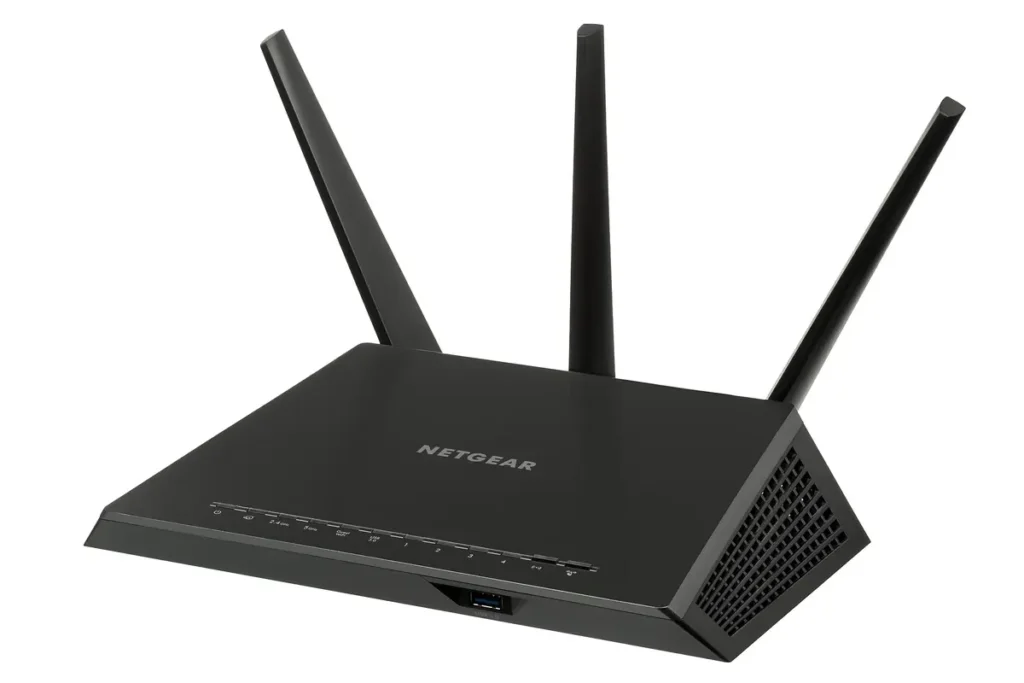
Your broadband arrives at the router. The stream then has to travel the last few metres to the TV, and in a typical British home those metres can be the hardest part of the trip. Routers are often installed by the front door or in a hallway cupboard, wherever the line enters the house. Internal walls in older properties are frequently solid brick, which absorbs Wi-Fi far more than plasterboard does.
Ofcom’s guidance on improving your wifi experience makes two points worth keeping in mind. Where the router sits affects your wifi, and no matter how good your wifi is, it can never outperform the broadband service behind it. So you need to answer both questions separately: is the line good enough, and is the Wi-Fi delivering it?
Easy Wi-Fi changes that cost nothing
- Get the router out of the cupboard. An open shelf at chest height, as central as the wiring allows, usually beats a hidden corner by a wide margin.
- Use the 5 GHz band for the TV device when it is within reasonable range. It is faster and less crowded, though it travels less well through walls than 2.4 GHz.
- Restart the router occasionally. It clears temporary faults and may move the router to a less congested channel.
- Keep the streaming device clear of metal and clutter. A stick pushed into the back of a wall-mounted TV sits behind a large metal panel. A short HDMI extension cable can lift it into open air.
The cable test: the most useful ten minutes you will spend
If you do only one test from this guide, make it this one. Take the streaming device to the router, or run a long Ethernet cable temporarily across the floor. Then watch the same channel at the same time of day that usually causes trouble.
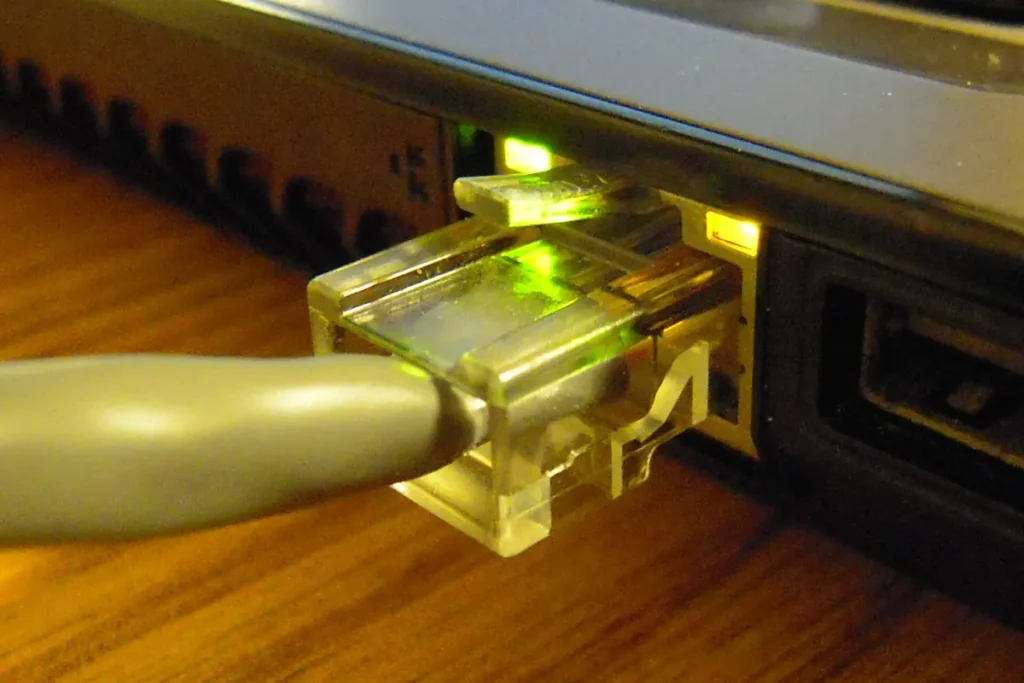
The result is usually decisive:
- Smooth on the cable, poor on Wi-Fi: your IPTV buffering lives in the last few metres. Skip to the options below for getting a wired-quality connection to the TV.
- Just as poor on the cable: your Wi-Fi is innocent. Move on to the broadband line and the device.
When you can’t run a cable to the TV
Few people want a permanent cable across the landing. These are the realistic alternatives, roughly from cheapest to most involved:
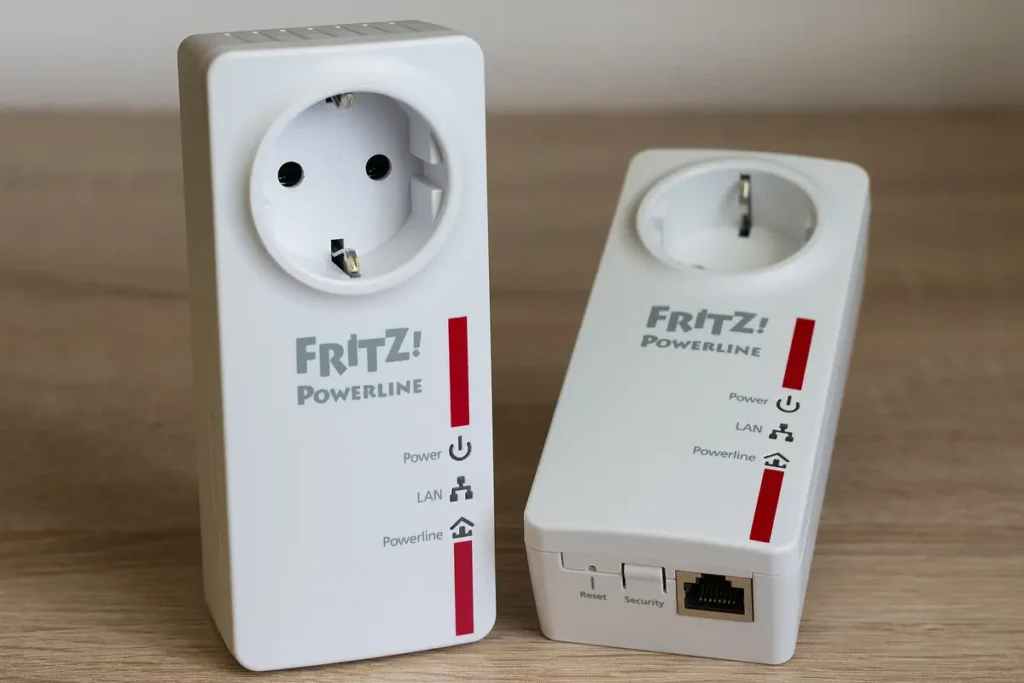
Powerline adapters use the mains circuits already in your walls as a network cable. One plugs in near the router, the other near the TV, and the device connects to it by a short Ethernet cable. How well they perform varies from house to house: newer wiring and sockets on the same circuit help, while extension leads and surge-protected strips tend to hurt. Keep the receipt and judge them on a busy evening, not a quiet afternoon.
Mesh Wi-Fi systems replace one router’s signal with several units spread around the home. A mesh point with an Ethernet port near the TV gives you the best of both: wireless across the house, cabled for the last metre.
Wi-Fi extenders are the cheapest option, but simple models can reduce the speed of everything connected through them. They are worth trying only if the TV is just beyond the router’s comfortable range.
Place Three: Your Broadband Line
If a wired test still stutters, look at the line itself. A line fault tends to cause IPTV buffering on every device in the house at once. Two quite different problems hide here, and only one of them is about speed.
Speed at the moment it matters
Run a speed test on the streaming device itself, or on a laptop connected the same way, at the time the buffering normally happens. A daytime test tells you very little about Saturday at 8pm. Our FAQ puts the minimum at 16 Mbps for a steady picture. That figure needs to be available to the TV at the time, and every other screen, console and phone in the house is sharing the same connection.
Bufferbloat: when a fast line still stutters
This is the cause of IPTV buffering that most generic guides miss. Bufferbloat is the delay that builds up when a router or other network equipment buffers too much data. Imagine someone in the house starting a large upload, such as a phone backing up photos to the cloud, a games console downloading an update, or a video call. The router queues so much traffic that everything else waits in line, including your live stream. Your line’s headline speed hasn’t changed, but the stream is suddenly late.
The giveaway is IPTV buffering that coincides with other activity in the house rather than with the time of day. Free online bufferbloat tests measure how much your connection’s response time rises while it is busy. If yours climbs sharply under load, look in your router’s settings for a feature called smart queue management, SQM, or something similar. Some routers supplied by broadband providers don’t offer it, and a router with better traffic management can make a noticeable difference.
Place Four: The Device and the App
Device-side IPTV buffering tends to look different from network trouble. Frozen frames, crashes and a slow decline in performance over weeks point at the box behind the TV rather than the connection. Streaming sticks are small computers with limited memory and storage, and IPTV players ask a lot of them: large channel lists, programme guides covering thousands of channels, and continuous video decoding.
Clear the cache before you blame the hardware
Players store temporary data, and a stick that is nearly full slows down noticeably. On a Fire TV, Amazon’s help pages direct you to Settings > Applications > Manage Installed Applications, then the app, then Clear Cache. On a Google TV Streamer or Chromecast with Google TV, Google’s support page explains how to clear cached data for all apps from the storage menu. Google notes that this removes only temporary data and keeps you signed in. Clearing data as well as cache goes further: it resets the app, so you will need your login details again.
Try the player’s other video settings
Many IPTV players let you choose between hardware and software decoding, or between different built-in playback engines. If you get frozen pictures with no spinner, or sound that carries on without video, switching this setting is a quick, reversible test. Also check the player’s buffer size setting, where one is offered. A slightly larger buffer trades a moment’s delay when you change channel for more tolerance of brief network dips.
Heat, age and whether an upgrade is justified
A streaming stick tucked behind a TV can run hot, and an overheating device slows itself down. If the problem gets worse the longer you watch, an HDMI extension cable that moves the stick into open air is a cheap test. Very old or bargain-basement boxes may simply lack the power for high-bitrate channels. If every other test has passed and the device is several years old, an upgrade may be justified. Our guide to the best device for IPTV in the UK explains what to check before buying, including why some new Fire TV Sticks can’t install third-party players at all.
IPTV Buffering on Match Days: When It Isn’t Your Setup at All
Some buffering appears only during the biggest live events, while everything else plays perfectly. There are two explanations, and they call for very different responses.
The first is capacity. Huge numbers of people tune in to the same live event at once, and a service whose servers are stretched will show it then and at no other time. No home fix can solve a provider’s capacity problem. The only real remedies are a provider that runs enough capacity, or a lower-quality version of the channel.
The second is legal. Since 2017, the Premier League has obtained High Court orders requiring major UK broadband providers to block servers that deliver infringing live streams of its matches. The first of these, in Football Association Premier League v British Telecommunications [2017] EWHC 480 (Ch), was a “live” blocking order that only takes effect while matches are being broadcast. If a stream comes from a blocked server, it can stall or fail at exactly the moments that matter, and look just like IPTV buffering. No router setting changes that, and using a VPN does not make watching unauthorised streams lawful. The reliable answer is a lawfully provided source for the content you want to watch.
If your diagnosis keeps pointing back to the provider, at peak times or across many channels, your setup is not the weak link. At that point it is reasonable to compare services properly. Our guide on how to choose an IPTV service in the UK sets out how to test a provider in a busy period before committing.
The Three-Evening Log
Intermittent IPTV buffering is hard to solve from memory. For three evenings, including one weekend evening, jot down a line each time the picture stutters. It takes seconds and turns vague frustration into evidence.
- The time, and the channel you were watching.
- What the screen did: spinner, frozen frame, pixelation or crash.
- Which device, and whether it was on Wi-Fi or a cable.
- What else was happening in the house: other TVs, gaming, uploads or video calls.
- Whether switching to an alternative version of the channel helped.
Patterns usually appear quickly. Problems clustered around one room point to Wi-Fi. Problems that line up with someone’s upload point to bufferbloat. Problems at 8pm on every device point beyond your front door.
Hand Your Provider a Diagnosis, Not a Complaint
Support teams can only act on specifics. “It keeps buffering” invites a list of generic suggestions you have already tried. A message built from your tests and your log gets to the real cause far faster. Copy this outline and fill in the gaps:
Device and app: [for example, Fire TV Stick 4K Max, IPTV Smarters Pro]. Connection: [Wi-Fi or Ethernet], broadband speed at the time of the problem: [result]. Symptom: [spinner / frozen frame / pixelation / crash]. Affected channels: [one channel, or all]. Times: [dates and times from your log]. Already tried: cable test, cache cleared, alternative channel versions, other screens switched off.
If you are a British IPTV Sub customer, send that to us through the contact page, and we can look at your account and the channels involved with the details already in hand. Whatever service you use, the principle holds: IPTV buffering is rarely a mystery once you know which of the four places to look. The cable test and a few evenings of notes will usually tell you more than any amount of extra broadband speed.