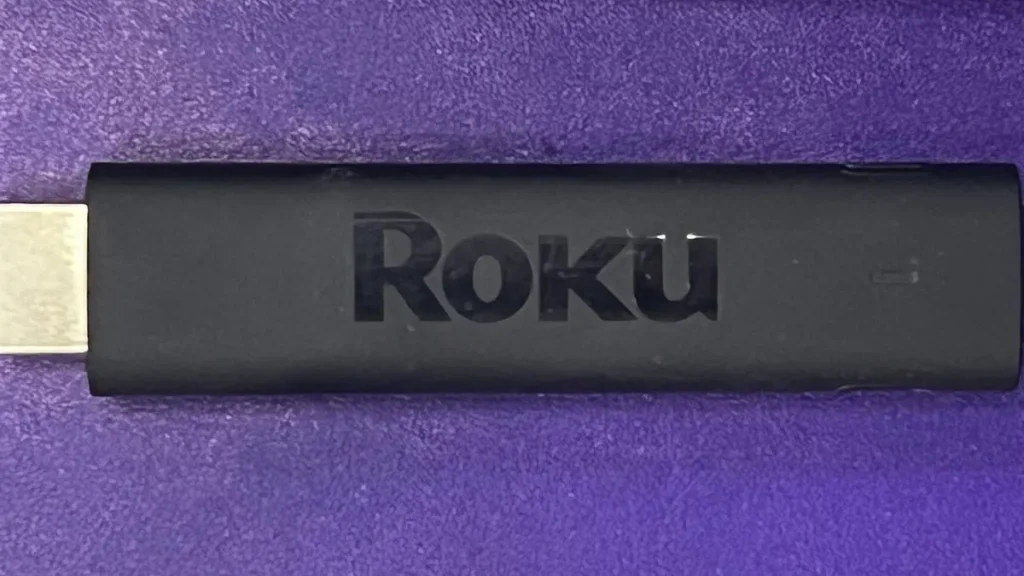
A Roku stick is probably the simplest streaming device you can plug into a British television. It is also one of the most locked down. Both facts come from the same design decision: Roku decides which apps exist on its platform, and you install them only from its own store. If you mainly watch BBC iPlayer, ITVX and the big film services, that makes life easy. If your IPTV provider’s setup email talks about downloading a player app from anywhere you like, it changes the picture completely.
This guide explains which Roku stick models are sold in the UK now, how to identify the one in your drawer, how to set it up in the order Roku itself uses, and what genuinely works for IPTV on a Roku stick without hacks. Every Roku menu path and requirement comes from Roku’s own support and developer pages, checked on 30 October 2026. We sell IPTV subscriptions, and the British IPTV Sub homepage explains what ours includes, so we have an interest here; that is exactly why the IPTV section says plainly where a Roku stick falls short.
What a Roku Stick Is Built to Do
Every Roku stick is a small computer that plugs into an HDMI port and runs Roku OS, Roku’s own operating system. It is not Android, it is not Fire OS and it does not use Google Play. Apps (Roku used to call them channels) come from the Roku Streaming Store, which Roku curates. There is no general setting that lets an ordinary owner install an app file from a website.
That closed design is the reason people like a Roku stick. The home screen is a plain grid of app tiles, settings are shallow, and there is very little to break. It is also the reason the platform can feel restrictive: if an app is not in Roku’s store, the stick will not normally run it.
Like any streaming device, the stick supplies no programmes itself. Live channels, films and series come from the services you sign in to, whether that is a free catch-up app, a paid film service or an IPTV plan such as those on our IPTV plans and pricing page. Before you buy anything, check that the service you intend to use actually supports the device you have.
The Roku Stick Range in the UK Today
Roku reshaped its UK line-up in 2025. The two Express players, small boxes that sat beside the TV, were replaced by two new sticks that plug straight into the HDMI port. With the existing 4K model, that leaves three current Roku stick options.
| Model | Picture | Replaced | Best for |
|---|---|---|---|
| Roku Streaming Stick | Full HD (1080p) | Roku Express | HD TVs, bedrooms, kitchens |
| Roku Streaming Stick Plus | 4K with HDR | Roku Express 4K | Most 4K TVs |
| Roku Streaming Stick 4K | 4K, HDR incl. Dolby Vision | (top model) | Dolby Vision TVs, weaker Wi-Fi |
The entry model is the right choice only for a Full HD television. Plug it into a 4K set and the TV will upscale, but the stick itself never sends a 4K picture.
The Plus is the sensible default for a 4K television. UK reviewers list HDR10+ and HLG support, and HLG is the HDR format the BBC uses for its 4K broadcasts. It can draw power from the TV’s own USB socket, so there is no plug to find behind the cabinet.
The 4K model adds Dolby Vision, which matters only if your TV supports it, and is the one to choose when the router is a long way from the television.
Old Express units can still turn up while retailer stock lasts. They work, but buying one in 2026 means buying the design Roku has already retired.
Which Roku Stick Do You Already Have?
Many readers are not shopping at all: they own a Roku stick, or inherited one, and want to know what it can do. The shape tells you something. A flat box with a separate HDMI cable is an Express or an older player; a device that hangs straight off the HDMI port is a stick.
The reliable answer is on the screen. Press Home on the remote, then go to Settings > System > About. That page shows the model name, the model number and the Roku OS version. Write the model number down, because Roku’s support pages use it to say which features each device has.
- 3810 or 3811: Roku Streaming Stick+, the older 4K stick.
- 3820 or 3821: Roku Streaming Stick 4K and 4K+.
- 3700 or 3710: Roku Express and Express+.
- 3940 or 3941: Roku Express 4K and Express 4K+.
Those numbers come from Roku’s AirPlay compatibility list, which is useful in its own right: if your model appears on it, an iPhone or iPad can send video to it (more on that below). If your model is not listed, the feature is not available on it.
Setting Up a Roku Stick in Roku’s Own Order
Roku’s setup guide for streaming players and sticks follows the same sequence for every model. Doing it in that order avoids the most common snag, a remote that will not pair because the stick is still waiting for power or an update.
- Plug the Roku stick into an HDMI port on the TV. If the port is cramped, use the HDMI extender supplied with your model, if it came with one.
- Connect power with the USB cable supplied: either to the TV’s USB socket or to a mains adapter.
- Switch the TV to the HDMI input the stick is plugged into.
- Pair the remote. Voice remotes show on-screen pairing instructions; a simple remote may just need fresh batteries.
- Choose your language, then your Wi-Fi network.
- Let the software update finish. Do not unplug the stick while it runs.
- Set the display type to Automatic so the stick detects what your TV can show.
- Activate the stick with a free Roku account, verifying your email on a phone or computer.
The one step people get wrong is the last. Roku says on its scam-protection page that it never charges to create an account, activate a device or provide support. Fake activation sites appear when people type the activation address into a search engine instead of the browser’s address bar, then ask for a fee or a phone call. Type the address shown on your TV directly, and never pay anyone to activate a Roku stick.
Once you are on the home screen, the voice remote on some models can learn to control the TV’s power and volume. The guided setup offers this; accept it, because it saves you juggling two remotes every evening.
Roku Stick and IPTV: What Actually Works
This is the question most people searching for a Roku stick on an IPTV site want answered, so here is the short version first. It cannot run the popular IPTV players, such as TiviMate or IPTV Smarters Pro, in the way a Fire TV or Android TV device can. You have three realistic routes, and each one has limits.
Route one: an app from the Roku Streaming Store
Search the store on your Roku stick for the player your provider names. Third-party playlist players do appear in Roku’s store from time to time, but availability changes and features are usually thinner than on Android-based devices. Before paying for any app, ask your provider whether it supports that exact app on Roku. Our own installation guidance names IPTV Smarters Pro, TiviMate and SmartOne, and the guide to choosing an IPTV player explains how those apps differ and which screens each one runs on.
Route two: screen mirroring from an Android phone or Windows PC
Roku’s screen mirroring instructions cover Android devices and Windows computers. On Android you pull down the status bar and use the screen-casting option (Samsung calls it Smart View); on Windows 11 you press Win + K and choose your Roku. The TV then asks you to Allow, Always allow, Block or Always block the request.
It works, with three catches. The player app runs on the phone, so the phone must stay switched on and nearby for the whole programme. Picture quality depends on your Wi-Fi rather than on the stick. And Roku notes that some devices are excluded: Google-branded phones on newer Android versions, such as Pixel models, cannot mirror to a Roku stick this way.
Route three: AirPlay from an iPhone, iPad or Mac
Apple devices do not use Android-style mirroring. Instead, Roku supports AirPlay 2 on the models listed on its AirPlay and HomeKit page, including the Streaming Stick 4K and the Express 4K. Both devices must be on the same wireless network. As with Android mirroring, the IPTV app runs on the iPhone or iPad, which therefore has to stay awake for the whole match or film.
What about developer mode?
Online guides often suggest switching the device into developer mode to install an IPTV app. Roku’s developer documentation describes that mode as a tool for people building and testing their own apps after joining Roku’s developer programme. It allows only one sideloaded app at a time, and installing another replaces it. That is a test bench, not a dependable way to watch television, so we do not recommend it for everyday viewing.
Whichever route you use, only watch channels and streams you are entitled to view. The device does not change what a service is licensed to show.
When a Roku Stick Is the Wrong Choice
Nothing here is a criticism of the hardware. It is quick, cheap to run and easy for anyone in the house to use. The problem is fit: it is designed for apps Roku has approved, and live IPTV usually depends on an app chosen by you.
If IPTV is the main reason for the purchase, buy a device whose store carries the players your provider supports. That usually means a Fire TV stick or a certified Google TV or Android TV device. Our comparison of the best devices for IPTV goes through each platform and which apps it runs.
If you already own a Roku stick and love it, keep it for catch-up and film apps, and add a second, inexpensive device on another HDMI port for live IPTV. Switching inputs is a small price for keeping the interface everyone in the family already knows.
If you watch on one main TV and always have your phone in hand, mirroring or AirPlay can carry an occasional evening. It is awkward for weekly football, because a phone call or a sleeping screen interrupts the picture.
The Roku Stick Remote, Button by Button
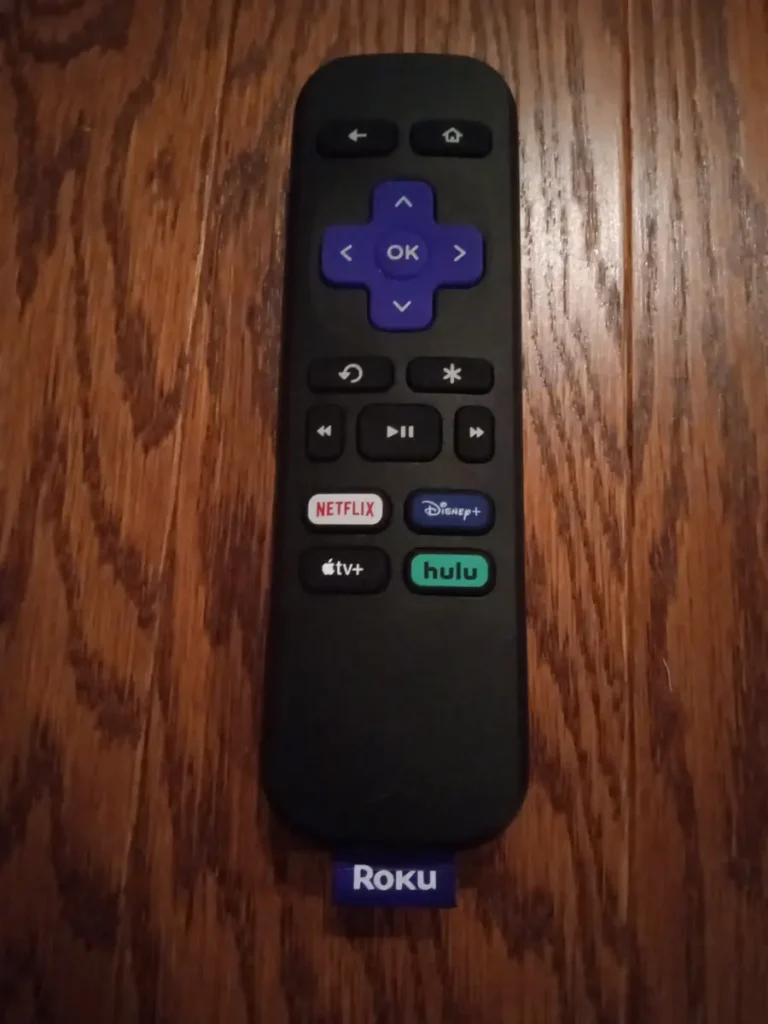
Roku remotes are deliberately sparse. Learning four buttons covers most of what you will ever do with a Roku stick.
- Home always returns to the app grid, whatever is playing.
- Back steps one screen back; inside some apps it also stops playback.
- The star (*) button opens an options menu for whatever is highlighted: move or remove an app tile, or change settings for the programme playing.
- Replay jumps back a few seconds, handy when you miss a line of dialogue.
The coloured shortcut buttons at the bottom vary by country and by year. UK remotes carry different shortcuts from the US remote in the photo above, so do not worry if yours shows other services. Voice remotes add a microphone button for searches such as “open ITVX”. The simplest remotes use infrared, so they need a clear line of sight to the stick; if yours works only when pointed carefully, a cabinet door or the TV itself may be in the way.
Older Roku Players and Inherited Boxes
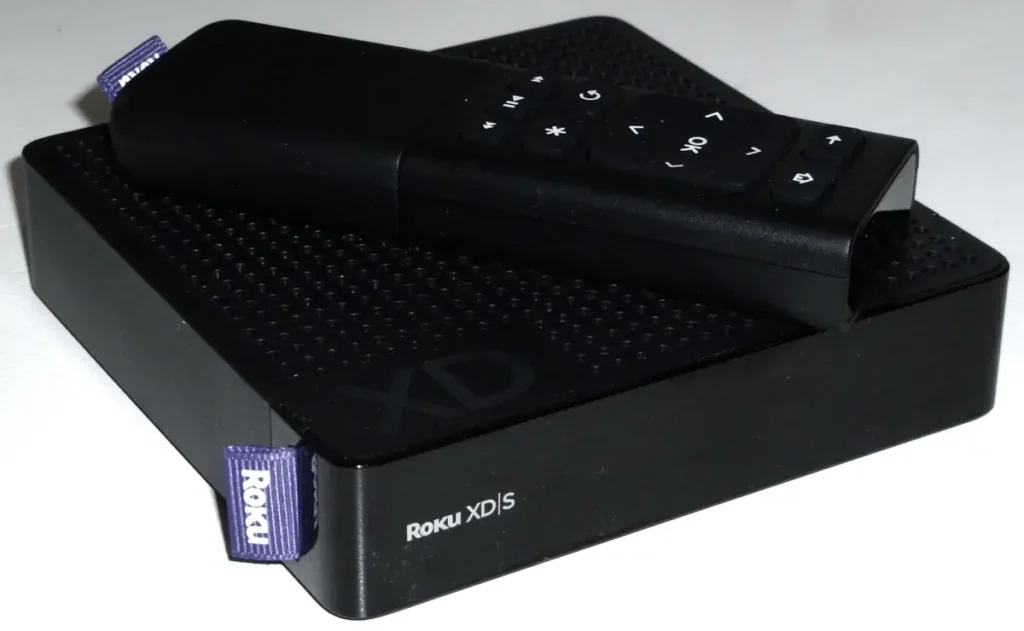
Roku has been selling players for well over a decade, and plenty of early boxes are still plugged in somewhere. An old box behaves differently from a current stick in two ways that matter.
Updates. According to Roku’s software update page, a device checks for new software when it powers on and then randomly every 24 to 36 hours. You can force a check with Settings > System > Software update > Check Now. If an old box repeatedly reports nothing new while the apps you need refuse to install or keep crashing, it has probably reached the end of its useful life for streaming.
Features. AirPlay, voice search and 4K are tied to specific models. Compare the model number from the About screen with Roku’s lists before you assume an older box can do what a current Roku stick does.
Every Roku stick and player can also run the free Roku Media Player app, which plays your own videos, music and photos from a USB drive or a media server on your home network. It is designed for personal files rather than live TV services, so treat it as a bonus rather than an IPTV solution.
Fixing Wi-Fi and Picture Problems on a Roku Stick
None of the sticks has an Ethernet port, so each one is only ever as good as the Wi-Fi reaching the back of your TV. Most complaints trace back to that, or to a power supply that is not quite enough.
“It keeps restarting or freezes on the logo.” Try the mains adapter instead of the TV’s USB socket. Some televisions supply too little power, or switch the socket off in standby, and the stick reboots when the TV changes mode.
“The picture is soft or keeps dropping quality.” Check the display type under Settings, then look at the network. Moving the router, using the 5 GHz band or adding a mesh point near the TV does more than any setting on the stick. The step-by-step IPTV buffering diagnosis shows how to work out whether the fault is the stick, the Wi-Fi, the broadband or the service.
“Mirroring connects, then the image stutters.” Bring the phone and the stick onto the same Wi-Fi band and keep the phone close to the router. Mirroring pushes every frame through the phone, so it is the first thing to struggle on a busy network.
“The remote does nothing.” Replace the batteries first. For a voice remote, re-pair it through the on-screen steps; for a simple infrared remote, clear the line of sight to the stick.
Keep It, Pair It or Swap It: Your Roku Stick Decision
Most readers fall into one of four situations. Find yours, and the next step follows.
| Your situation | Verdict | Next step |
|---|---|---|
| Mostly catch-up and film apps | Keep the Roku stick | Update it, set display to Automatic |
| Want regular live IPTV | Pair it with a second device | Add a Fire TV or Google TV device |
| Occasional match on an iPhone | Keep it | Use AirPlay on a listed model |
| Buying new, IPTV is the priority | Choose another platform | Choose a platform with your player app |
A Roku stick earns its place when the household wants a calm, simple screen for mainstream apps. It is a poor first choice when live IPTV is the point of the purchase, because the app you depend on has to come from Roku’s store or run on your phone. Know which of those two households you are, check the model number before relying on AirPlay or 4K, and activate it only through the address on your own TV screen.