You have a subscription, or you’re about to buy one, and the setup email says “install an IPTV player”. Then the questions start. Which app? Does it cost extra? Why does it ask for a “server URL” or a “MAC address”? And why do some apps show an empty screen even though the login looks right? An IPTV player is simply the app that plays the channels your service provides. Picking one that suits your screen, and setting it up properly, is the difference between a TV guide that just works and an evening spent fighting menus.
This guide covers what the app does and doesn’t do, how to match an IPTV player to the device you actually watch on, how to enter each type of login, which settings are worth changing on day one, and how to tell an app fault from a service fault. If you are new to British IPTV Sub, everything here applies to the login details we send after you order.
What an IPTV Player Actually Does, and What It Never Includes
Think of the arrangement as two separate products. The service (your subscription) supplies the channels, the on-demand library, the programme guide data and your account. The IPTV player is the software that signs in with your details, organises what the service sends, and plays it on your screen. It builds the channel list, draws the guide grid, decodes the video and keeps your favourites in order.
The app never comes with channels of its own. Reputable developers say so plainly in their store listings: TiviMate describes itself as “a media player only”, and GSE Smart IPTV states that it “is only a player and does not contain any preset channels or streams”. An IPTV player that claims to bundle hundreds of channels is not just a player, and that’s a reason to leave it alone.
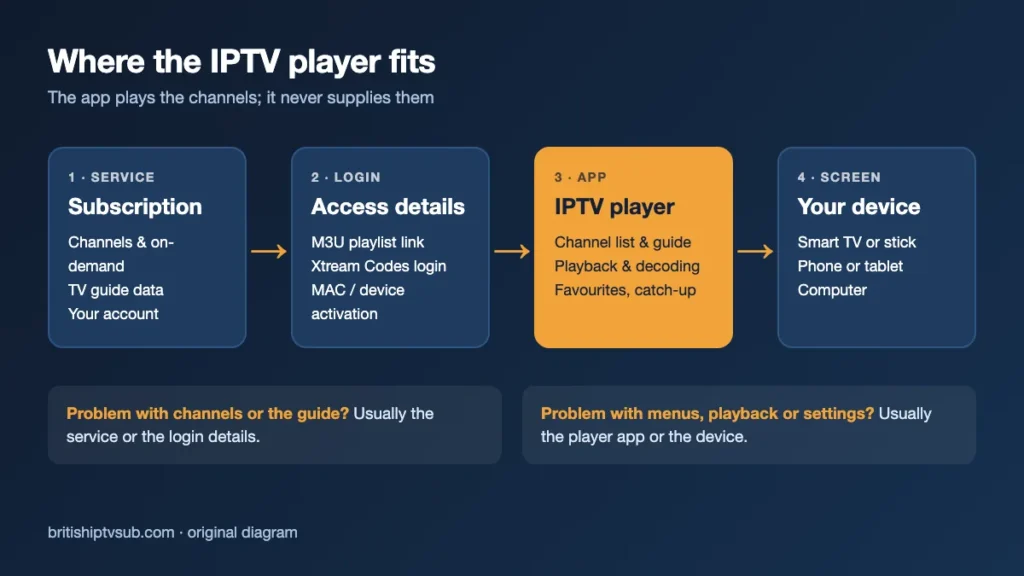
That split explains most of the confusion people run into. Paying for a premium version of an app unlocks features inside the app. It doesn’t buy you any television. The subscription is a separate purchase, and you can see every current plan on our IPTV subscription pricing page. Prices checked on 19 October 2026: the 1-device 3 Month Subscription costs £23.99, the 6 Month Subscription £34.99 and the 12 Month Subscription £49.99, all through online checkout. The 2-device 12 Month Subscription costs £95, also online, while 3, 4 and 5-device plans are ordered through WhatsApp. Plans come with a 7-day refund window, which gives you time to confirm your chosen IPTV player works on your screens.
The split also matters when something goes wrong. Missing channels or a blank guide usually point to the service or the login details. Clumsy menus, a picture that won’t fit the screen or an app that freezes usually point to the player or the device running it. Keep that in mind and you will fix problems in half the time.
Three Ways a Service Hands Over Its Channels
Before choosing an app, check which login format your provider gives you. Most services offer more than one, and the format decides which apps will accept it.
An M3U playlist link
An M3U link is a single web address that points to a text file listing every channel and the address of its stream. You paste the whole link into the app. It’s the most widely accepted format. The drawback is that the link is long and full of characters that are easy to mistype on a remote, so copy and paste it from a phone or computer wherever the app allows it. The programme guide often arrives as a second link (an EPG or XMLTV address), although some playlists carry it inside the file.
An Xtream Codes login
This format splits the same information into three short fields: a server address, a username and a password. It’s much easier to type with a remote, and apps that support it can usually fetch the guide, the on-demand library and series automatically. If your IPTV player offers an “Xtream Codes” or “Xtream API” option, it’s normally the less fiddly choice.
MAC address or device activation
Some TV apps show a MAC address or device ID on screen instead of a login form. You then go to the app developer’s website on another device, enter that ID and upload your playlist against it. Smart IPTV, a long-standing app for Samsung and LG televisions, works this way. Its website also offers a converter for people who only have a host, username and password. The catch is that the playlist is tied to that one TV, so each additional set needs its own activation.
Matching an IPTV Player to the Screen You Watch On
Your device decides your options far more than any “best app” list. A brilliant Android TV app is no use on a Samsung television, and an app designed for touch screens is awkward with a remote. Start with the screen, then choose the IPTV player.
| Screen | Player examples | Get it from |
|---|---|---|
| Android TV / Google TV box or stick | TiviMate, IPTV Smarters | Google Play Store |
| Samsung (Tizen) or LG (webOS) TV | Smart IPTV and similar TV apps | The TV’s own app store |
| Apple TV, iPhone, iPad | Smarters Player Lite, GSE Smart IPTV | Apple App Store |
| Android phone or tablet | Touch-friendly apps such as IPTV Smarters | Google Play Store |
| Windows, Mac or Linux computer | VLC media player (for testing a link) | videolan.org |
Android TV, Google TV and Android boxes
This is the platform with the widest choice. TiviMate’s Google Play listing says it is “designed for Android TV and remote control navigation” and “not optimized for touch devices such as phones or tablets”. It lists a TV guide, catch-up, recording, multiview and parental controls, with a paid upgrade that unlocks app features only. IPTV Smarters is the other name you will see on most setup pages, including our own installation guide.
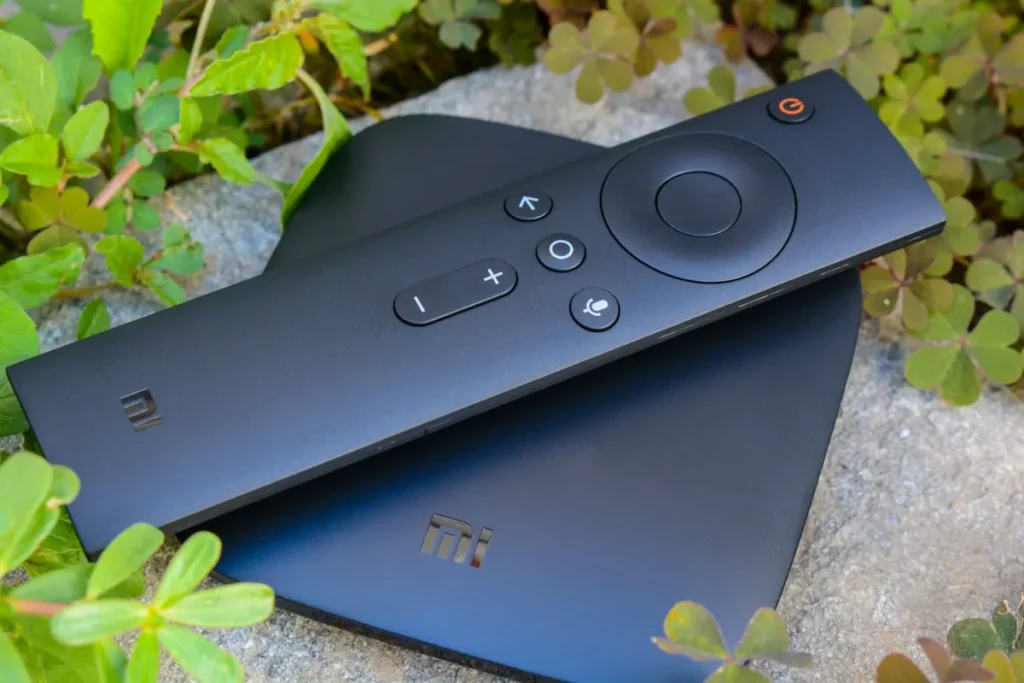
Amazon Fire TV devices need a little more care. Older and current Fire OS models are Android-based, but Amazon’s newest Vega OS hardware doesn’t run Android apps at all. Check which system a stick runs before you buy it with a particular IPTV player in mind. Our guide to the best device for IPTV explains how to tell the two apart.
Samsung and LG smart TVs
Televisions run their own operating systems, Tizen on Samsung and webOS on LG, so they only accept apps from their own stores. The choice is narrower and changes as apps come and go. Smart IPTV’s official site lists a newer app version for Samsung Tizen 6.5+ TVs (2022 and later models) and LG webOS 3.0+ TVs, and notes that it is a fresh installation rather than an update. It also charges a one-time activation fee per TV. The model year of your set therefore matters before you commit to any IPTV player on a built-in TV platform.
Apple TV, iPhone and iPad
Apple devices only install apps from the App Store, which keeps things tidy. Smarters Player Lite on the UK App Store is published by WHMCS Smarters, runs on iPhone, iPad and Apple TV, and describes itself as a standalone player. GSE Smart IPTV is free with in-app purchases, supports both M3U and Xtream Codes, and at the time of checking required iOS 16 or later. Check the “Compatibility” section of any listing against your device before installing.
Phones, tablets and computers
On a phone or tablet, pick an app built for touch rather than one designed around a remote. On a computer, VLC media player plays network streams on Windows, macOS, Linux, Android and iOS. It’s handy for checking whether a single stream link works, but it isn’t a full IPTV player with a polished channel guide.
Features That Separate a Good IPTV Player From a Frustrating One
Once you know which apps your device can run, compare them on the things you will use every evening rather than the longest feature list.
- A readable TV guide. A grid you can scroll quickly with a remote, with channel logos and correct times, matters more than anything else on a TV.
- Favourites and groups. Being able to hide categories you never watch and pin the channels you do turns a long list into something usable.
- Catch-up support. If your service offers catch-up on some channels, the app has to support it too, or the feature simply won’t appear.
- Login formats. Make sure the app accepts the format you were given: M3U, Xtream Codes or both.
- Several playlists or profiles. Useful if more than one person in the house has different favourites.
- Decoder and buffer options. These settings rescue playback on older or less powerful devices.
- Parental controls. A PIN on adult or late-night categories is essential in a family home.
- Active development. A recent “updated on” date in the store listing suggests problems get fixed.
Recording and multiview (several channels on one screen) are welcome extras, but they lean heavily on the device’s storage and processing power. If you are torn between the two most common apps on Android hardware, our TiviMate vs IPTV Smarters comparison goes through the differences you would notice in the first week. The right IPTV player is the one whose guide and menus you are happy to use daily; extra features you never open add nothing.
Setting Up an IPTV Player for the First Time
Menus differ from app to app, but the order of jobs is almost always the same. Doing them in this order avoids most first-night problems.
- Install from the official store. Search for the exact app name in your device’s store and check the developer name against the official listing.
- Have your details ready on another screen. Open the welcome email on a phone or laptop so you can copy the server address, username and password, or the full M3U link, exactly.
- Choose the matching login type. Select “Xtream Codes” if you have a server address, username and password, or “M3U URL” if you have one long link. For MAC-based TV apps, note the ID shown on screen and add your playlist on the developer’s website.
- Give the playlist a name. Something like “Living room” helps when you add more devices or playlists later.
- Let the first load finish. The initial download of channels and guide data can take a minute or two. Interrupting it is a common cause of half-empty lists.
- Check the guide. Open a few channels you know and compare the “now playing” programme with the real schedule. If times are an hour out, fix the time offset now (see the settings below).
- Tidy up straight away. Hide groups you don’t need and add your regular channels to favourites while you are still in setup mode.
Mistyped details cause more failed setups than anything else, usually a missing “http://”, a wrong port number after the colon, or a capital letter in the password. If the IPTV player says the login is invalid, re-enter everything from a copy rather than typing it again by hand. Samsung owners will find model-specific installation steps in our walkthrough on setting up IPTV on a Samsung TV.
A connection check pays off before the first big match or film night. Our FAQ recommends a 16 Mbps connection. A cable from the router to the TV or box helps more than any app setting if the Wi-Fi signal in your living room is weak.
Five Settings Worth Changing on Day One
Most apps work out of the box, but a few minutes in the settings menu makes a noticeable difference. Names vary, so look for the closest equivalent in your IPTV player.
1. Decoder: hardware or software
Hardware decoding uses the device’s video chip and is usually smoother and cooler. Software decoding uses the main processor and sometimes copes better with unusual streams. If a channel shows sound but no picture, or the picture is corrupted, switching the decoder is the first thing to try.
2. Buffer size
A larger buffer stores more video before playback starts. Channels take a moment longer to open, but short dips in your connection are less likely to freeze the picture. If changing channel feels slow and your connection is solid, a smaller buffer brings it back.
3. Guide updates and time offset
Set the guide to refresh automatically, typically once a day, and confirm the time zone. A guide that is exactly one hour out usually has a time offset or daylight-saving setting wrong, not a broken service.
4. Picture size and frame rate
If black bars appear or the picture is stretched, change the aspect ratio setting. Some apps can also switch the TV’s refresh rate to match the programme, which makes fast motion such as football look smoother on sets that support it.
5. Start-up behaviour and parental PIN
Choose whether the app opens on the last channel watched or on the guide, and set a PIN for any categories children shouldn’t browse. These small choices are what make an IPTV player feel like part of the television rather than an add-on.
When Your IPTV Player Misbehaves
Start every fault with one question: does it affect every channel, or just one? A single channel failing points to that stream. Everything failing points to the login, the network or the app. The table below pairs common symptoms with the most likely cause and the first thing to try.
| Symptom | Likely cause | Try first |
|---|---|---|
| Login refused or list empty | Typo in server, port or password | Re-enter the details from a copy |
| Guide blank or times wrong | Guide not loaded or time offset | Refresh the guide; check the time zone |
| Sound but black screen | Decoder mismatch | Switch hardware/software decoder |
| Every channel stutters | Wi-Fi, broadband or device | Test with a cable; restart the router |
| One channel fails, rest fine | That stream | Try later; report the channel name |
| App freezes or crashes | Outdated app or full cache | Update, clear cache, then reinstall |
If the problem survives a change of IPTV player, the app is off the hook. Try the same login in a second app on the same device. If both stutter, look at the network or the device. If only one struggles, adjust that app’s decoder and buffer or replace it. For stutter and freezing in particular, our IPTV buffering troubleshooting guide works through the network, broadband and device checks in order.
When you contact support, say which app, which device, which channels and what time the problem happened. A message like “the sports channels freeze every few minutes in TiviMate on an Android TV box over Wi-Fi, other channels are fine” can be acted on immediately; “it doesn’t work” can’t.
Free, Paid and “Lifetime” Players: What Your Money Buys
Player apps are paid for in different ways. Some are free with in-app purchases, some charge a subscription for a premium tier, and some TV apps charge a one-time activation fee per television. Whatever the model, the payment goes to the app developer and covers the software only. It never includes channels, and it isn’t a substitute for a subscription.
Before paying, check whether the developer offers a trial or a free tier you can test with your own login. Check whether a licence covers one device or several, and whether a “lifetime” purchase is tied to a single TV. Paying for the wrong platform is a common and avoidable mistake, so install the free version of your preferred IPTV player on the exact screen you plan to use first.
Installing Player Apps Safely
A media player is ordinary, lawful software, and the official store versions are the safest copies to install. Avoid modified apps from file-sharing sites, apps that ask for permissions unrelated to playing video, and anything that arrives preloaded with channels. Use any IPTV player only with content you are entitled to watch. The app doesn’t change what a service is licensed to provide.
Your Next Ten Minutes
Look up which system your TV or streaming device runs, open its official app store, and shortlist two apps that accept your login format. Install the free version of the first, enter your details from a copied source, let the guide load fully and spend an evening with it. If the menus feel clumsy or playback isn’t smooth after you’ve changed the decoder and buffer, try the second. A well-chosen IPTV player, set up once and carefully, should then fade into the background, leaving just your channels and a guide that tells you what’s on.