
Can you run Kodi on Firestick? On most sticks, yes: it takes about a quarter of an hour, and all you need is Amazon’s own settings, one free app from the Appstore and the official file from Kodi’s website. On the newest Vega-based sticks the answer is no, and no workaround changes that. The rest of this page shows how to tell which stick you have and how to install Kodi the official way. It also shows how to connect it to an IPTV service with Kodi’s own add-on, without the “builds” and wizards that fill most search results.
Every instruction below comes from Kodi’s official download data and add-on documentation, and from Amazon’s developer pages, checked on 22 October 2026. If you are new to us, the British IPTV Sub homepage explains what our service includes.
What Kodi Is, and What It Is Not
Kodi is a free, open-source media centre made by Team Kodi. It plays films, music and photos from your own storage, and with the right add-on it shows live TV channels and a programme guide. Its interface is designed for a television and a remote, which is why so many people want Kodi on Firestick in the first place.
What Kodi does not do is supply content. Team Kodi’s own article, Is Kodi legal?, is clear on this: the official app ships with no media and no media-providing add-ons installed. Add-ons from Kodi’s official repository are reviewed by the team, while third-party sources are switched off by default and need a warning to be accepted before they can be used.
For IPTV, that means Kodi on Firestick is the player, and your subscription provides the channels. The provider gives you an M3U playlist link and usually a programme-guide (EPG) link; Kodi reads them through an official add-on. Our pricing page lists our subscription plans for one to five devices, each with a 7-day refund window, and every plan comes with the login details Kodi needs.
Will Kodi on Firestick Work With Your Stick?
Kodi for Fire TV is an Android app. Amazon’s sticks run one of two systems: Fire OS, which is built on Android and can install Android apps from outside the Appstore, and Vega OS, Amazon’s newer system, which cannot. Amazon’s Fire TV device specifications list the system for every model, and also show that every Fire OS stick uses a 32-bit app interface. That detail decides which Kodi file you download later.
| Stick | System | Kodi on Firestick? |
|---|---|---|
| Fire TV Stick 4K Max (2021 and 2023) | Fire OS 7 / 8 | Yes, ARMV7A (32-bit) |
| Fire TV Stick 4K (2018 and 2023) | Fire OS 6 / 8 | Yes, ARMV7A (32-bit) |
| Fire TV Stick 4K Plus (2025) | Fire OS 8 | Yes, ARMV7A (32-bit) |
| Fire TV Stick HD (2024), Stick (2020), Lite (2020) | Fire OS 7 | Yes, ARMV7A (32-bit) |
| Fire TV Stick 4K Select (2025), 4K 3rd Gen (2026), HD (2026) | Vega OS | No |
Watch the names. The 2024 and 2026 Fire TV Stick HD share a name but not a system, and so do the 2023 and 2026 Fire TV Stick 4K. To check yours, go to Settings > My Fire TV > About: a Fire OS stick shows its Fire OS version there. Our guide to every Firestick 4K model explains how to tell them apart in more detail.
Installing Kodi on Firestick: Three Places, Nine Actions
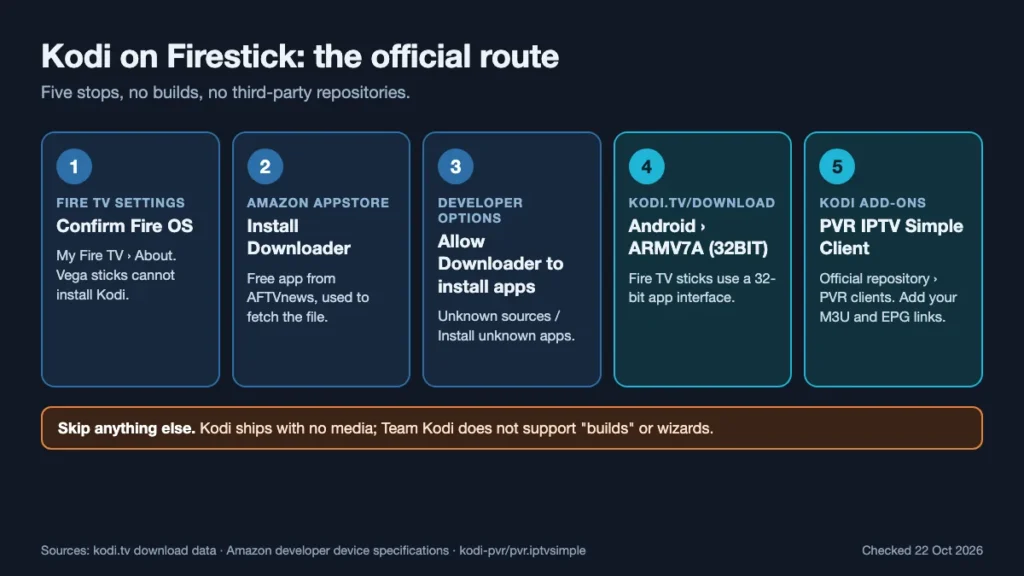
Kodi’s official download page offers the app through Google Play, Huawei AppGallery and direct Android files. Amazon’s Appstore is not on that list, so installing Kodi on Firestick means fetching the file yourself. The work happens in three places: the Fire TV menus, the Downloader app and Kodi’s download page.
In the Fire TV menus
- Install Downloader. Search the Amazon Appstore for “Downloader”, a free app published by AFTVnews, and install it.
- Reveal Developer Options if it is hidden. Amazon’s guide to enabling Developer Options on Fire TV notes that on some software versions you open Settings > My Fire TV > About and click your device’s name seven times.
- Allow installs. In Settings > My Fire TV > Developer Options, turn on Apps from Unknown Sources. On newer software this appears as Install unknown apps, where you switch it on for Downloader only.
In Downloader
- Open Kodi’s site. Type kodi.tv/download into Downloader’s address box and choose Android.
- Pick the right file. Under Recommended, select ARMV7A (32BIT). Kodi’s Android download page currently lists Kodi v21.3 “Omega” as the recommended release.
- Install. When the file finishes downloading, choose Install, then Done. Back in Downloader, delete the installation file if it offers to; you no longer need it, and the space is better used by apps.
On the Fire TV home screen
- Find Kodi. It appears under Your Apps & Channels; highlight it, press the menu button on the remote and choose Move to bring it to the front.
- First launch. Kodi opens in its standard Estuary interface. Accept any permission request it shows, and expect the first start to take longer than later ones.
- Switch installs off again (optional). Turning the unknown-sources setting off after installation does not remove Kodi, and it closes the door to accidental installs.
If you choose the 64-bit ARMV8A file by mistake, the stick usually reports “App not installed”. Go back and pick ARMV7A.
Connecting Kodi on Firestick to an IPTV Service
Kodi handles live TV through PVR client add-ons. The one built for IPTV playlists is the PVR IPTV Simple Client, maintained by Kodi’s PVR team and available in Kodi’s official repository. It reads an M3U playlist for the channels and an XMLTV file for the programme guide.
Install the add-on
In Kodi, open Settings (the cog) > Add-ons > Install from repository > PVR clients > PVR IPTV Simple Client, and choose Install. You never need to add a third-party source for this; the add-on comes from the same official repository as Kodi itself.
Enter your links
Open the add-on, choose Configure, and fill in the settings below. The names match the add-on’s own documentation; some only show when the settings level at the bottom of the dialog is set higher than Basic.
| Setting | What to enter |
|---|---|
| General › Location | Remote path (internet address) |
| General › M3U play list URL | The M3U link from your welcome email |
| General › Auto refresh mode | Once per day, so channel changes are picked up |
| EPG › Location | Remote path |
| EPG › XMLTV URL | The EPG (guide) link from your provider |
The add-on asks for links, not a username and password. If your provider has only sent Xtream Codes details, ask them for the M3U and EPG links for the same account. Treat those links like a password: they usually contain your account details, so never post a screenshot of this screen or share the links in a forum. Kodi then restarts the add-on and loads your channels; with a large playlist the first load can take a minute or two.
Everyday Viewing With Kodi on Firestick
Once the add-on is configured, a TV entry appears in Kodi’s main menu. That is where your channels, the guide and any recordings live.
Getting around Kodi on Firestick takes a few minutes to learn. The direction ring moves between items, the centre button selects, and Back steps out one level at a time. A long press on the centre button opens Kodi’s context menu on most remotes, which is where options such as adding a channel to favourites live.
- Channel groups. Kodi builds groups from the group-title tags in the M3U, so if your provider sorts channels into categories, those categories appear as groups you can browse.
- The guide. The TV guide fills from the XMLTV link. If the guide stays empty, the EPG link is missing or wrong; the channels themselves still play.
- Pausing and rewinding. The add-on’s documentation explains that pausing, seeking and timeshift depend on both the provider’s streams and the playback component Kodi uses; with inputstream.ffmpegdirect, live streams can be timeshifted from the moment playback began.
- Catch-up. IPTV Simple supports catch-up and archive streams, but only where the provider offers them for that channel.
- More than one playlist. Since Kodi 20, the add-on can hold several M3U and EPG pairs via Configure > Add add-on configuration.
Kodi on Firestick is also a capable player for your own files. Videos on a home network share or a USB drive (with an adapter) appear in the same interface, which is a large part of Kodi’s appeal for people who already keep a media library.
Making Kodi on Firestick Feel Quicker
A streaming stick has far less memory and storage than a computer, and IPTV playlists can be very large. A few of the add-on’s own options make a noticeable difference to how quickly Kodi on Firestick starts and how smoothly the channel list scrolls.
Load only the groups you watch. Under Groups, the TV group mode can be set to “Some groups” (up to five) or “Custom groups” (a list kept in a file). Loading the categories you actually use, rather than every channel the provider offers, shortens start-up and keeps the guide manageable. Group names are case-sensitive and must match the playlist exactly.
Choose between caching and auto refresh. The add-on can cache the M3U and XMLTV files on the stick, which speeds up later starts. The documentation notes that caching is switched off when auto refresh is in use, so pick one approach: daily refresh if your provider changes channels often, caching if the line-up rarely changes.
Keep storage free. Most Fire OS sticks have 8 GB, shared with the system and every other app. Remove apps you no longer use and clear old installation files from Downloader. Kodi on Firestick slows down noticeably when storage is nearly full.
Give it a steady connection. Our FAQ recommends 16 Mbps for a smooth IPTV stream, and a stick placed behind a television often gets a weak Wi-Fi signal. If the router is close, a wired adapter is worth considering; if not, moving the router or the stick a short distance can help more than any Kodi setting.
Setting up more than one TV. Each stick needs its own copy of Kodi and its own IPTV Simple configuration; settings do not sync between devices. Set one stick up fully, note the links and options you used, then repeat them on the second. Remember that every screen watching at the same time counts towards the number of devices on your plan.
When Kodi on Firestick Misbehaves
Most problems in the first week fall into a handful of patterns. Each line below names the symptom, then the cause to check first.
- “App not installed”. Usually the 64-bit file on a 32-bit stick, or too little free storage. Use ARMV7A and uninstall apps you no longer use.
- Downloader cannot install anything. The unknown-sources permission is off, or it was granted to a different app. Recheck Developer Options and make sure Downloader specifically is allowed.
- No Developer Options at all. Try the seven clicks on your device’s name in About. If the menu still never appears, check the About page: you may have a Vega stick, which cannot run Kodi.
- “No PVR client” or no TV menu. IPTV Simple is installed but disabled, or the M3U link was not saved. Open the add-on, check it is enabled and re-enter the link.
- Channels load but the guide is blank. The XMLTV URL is empty or wrong. Copy it again from your provider’s email.
- Channels stall in the evening. Usually network or Wi-Fi congestion rather than Kodi. Our IPTV buffering guide walks through how to find the cause.
Keeping Kodi on Firestick Up to Date
Because Kodi did not come from the Appstore, it does not update itself. When a new stable version appears, repeat the Downloader steps and install the new official ARMV7A file over the existing one. Back up anything you care about first, such as favourites or a custom configuration.
As of 22 October 2026, the current stable release on Kodi’s official GitHub releases page is 21.3 “Omega”. Kodi v22 “Piers” reached Release Candidate 1 at the end of September 2026; Kodi describes its pre-releases as builds for wider testing, so a stick you rely on for live TV is better left on the stable version until v22 is final. The IPTV Simple add-on updates through Kodi’s repository, so it keeps itself current.
To start again from scratch, or to remove Kodi on Firestick altogether, go to Settings > Applications > Manage Installed Applications, select Kodi and choose Uninstall. That removes the app together with its settings, add-ons and cached playlists, so a fresh installation afterwards behaves exactly like a first one.
Builds, Wizards and Unofficial Add-ons
Many guides to Kodi on Firestick go on to install a “build”: a preconfigured Kodi bundle with dozens of third-party add-ons. Team Kodi does not support builds. In its own words they take away the user’s choice over what is installed, and there have been examples of malware bundled into them. Its guidance on spotting a bad deal is simple: be suspicious of anything offering paid-for channels, films or events for free, and of sites that insist you need a VPN to “cover your tracks”.
The setup on this page avoids all of that: official Kodi, one official add-on and links from a subscription you pay for. Keep it that way, and only add add-ons from Kodi’s official repository unless you know exactly who wrote them and why.
Kodi or a Dedicated IPTV Player?
Kodi on Firestick suits people who want one interface for live TV and their own media library, and who are happy to spend a little time on settings. A dedicated IPTV player is usually quicker to set up, accepts Xtream Codes logins directly and is designed around channel lists and the guide. Our installation page names IPTV Smarters Pro, TiviMate and SmartOne, and our IPTV player guide compares how those apps work.
Nothing stops you from using both. Many people keep Kodi on Firestick for their films and a dedicated player for live channels, all signed in with the same subscription.
The Short Version
Check that the stick runs Fire OS. Install Downloader from the Appstore and allow it to install apps. Fetch the ARMV7A file from kodi.tv, then add the PVR IPTV Simple Client from Kodi’s own repository with your M3U and EPG links. That is the whole job: Kodi on Firestick with nothing on it you did not choose, and everything on it working the way Team Kodi designed it.