Pick up a Firestick 4K today and the box tells you less than you think. Amazon has used the “4K” name on five different streaming sticks since 2018, and the two newest ones run a completely different operating system from the rest. For most people that difference is invisible. For anyone planning to watch IPTV, it decides whether the player app their service recommends can be installed at all.
This guide is for UK viewers who either own a Firestick 4K already or are about to buy one. It shows how to tell the models apart, what your TV and broadband need before 4K picture appears, how to set the stick up for an IPTV service, and which model makes sense for which home. Every specification below comes from Amazon’s own device documentation, checked on 21 October 2026. If you are new to us, the British IPTV Sub homepage explains what our service includes before you go further.
Five Sticks Have Carried the Firestick 4K Name
“Firestick 4K” is what most people type, but Amazon’s retail name is “Fire TV Stick 4K”, sometimes with “Max”, “Plus” or “Select” added. Amazon’s device specifications page for Fire TV streaming media players lists every generation, along with the operating system each one runs and the countries where it was sold. All of the models below are listed for amazon.co.uk.
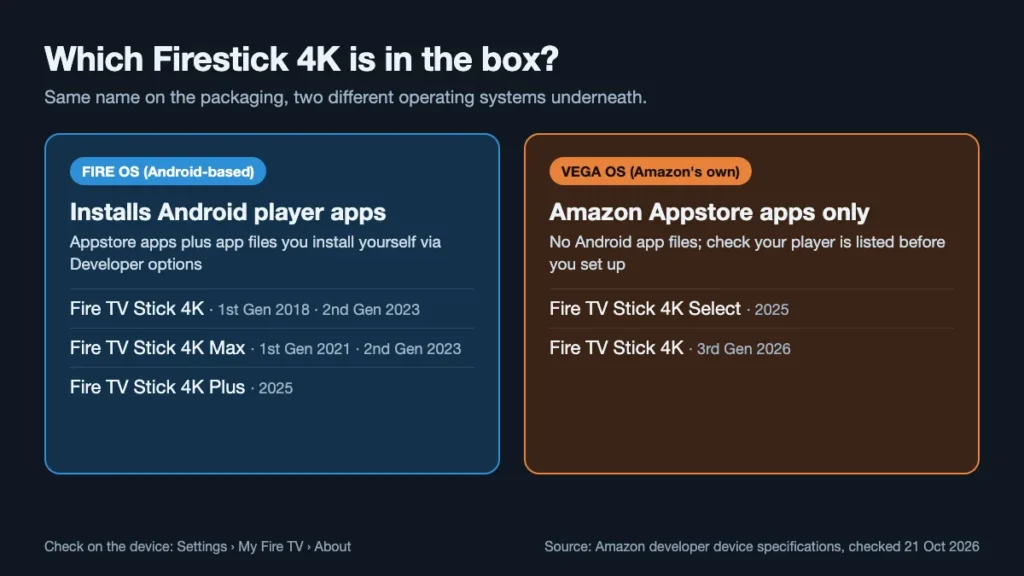
- 2018 – Fire TV Stick 4K (1st Gen). The original Firestick 4K: Fire OS 6, 1.5 GB of memory, Dolby Vision support. Still common on resale sites.
- 2021 – Fire TV Stick 4K Max (1st Gen). Fire OS 7, 2 GB of memory and Wi-Fi 6, which was a big step for a stick at the time.
- 2023 – the second-generation pair. The Fire TV Stick 4K (2nd Gen) and Fire TV Stick 4K Max (2nd Gen), both on Fire OS 8. The Max adds Wi-Fi 6E and doubles the storage to 16 GB.
- 2025 – a split in the family. The Fire TV Stick 4K Plus keeps Fire OS 8. The Fire TV Stick 4K Select is the first stick on Vega OS, Amazon’s own system.
- 2026 – Fire TV Stick 4K (3rd Gen). Same name as the 2018 and 2023 models, but it runs Vega OS 2.0 with 1 GB of memory.
The 2026 model is the one that catches people out. A listing that simply says “Fire TV Stick 4K” could be the 2023 stick on Fire OS or the 2026 stick on Vega OS, and the photos look much the same. Amazon’s developer blog announcing Vega OS describes the 4K Select as its first Vega device and says Fire OS devices continue to be supported, so nothing changes on a stick you already own.
Every Firestick 4K Model Side by Side
The table covers the five models you are most likely to find new or nearly new in 2026. Figures are copied from Amazon’s specification page; “not listed” means Amazon names HDR10, HDR10+ and HLG for that model but does not list Dolby Vision.
| Model (year) | System | Memory / storage | Wi-Fi | Dolby Vision |
|---|---|---|---|---|
| 4K, 2nd Gen (2023) | Fire OS 8 | 2 GB / 8 GB | Wi-Fi 6 | Yes |
| 4K Max, 2nd Gen (2023) | Fire OS 8 | 2 GB / 16 GB | Wi-Fi 6E | Yes |
| 4K Plus (2025) | Fire OS 8 | 2 GB / 8 GB | Wi-Fi 6 | Yes |
| 4K Select (2025) | Vega OS 1.1 | 1 GB / 8 GB | Wi-Fi 5 | Not listed |
| 4K, 3rd Gen (2026) | Vega OS 2.0 | 1 GB / 8 GB | Wi-Fi 6 | Not listed |
Three things stand out. Memory halves on the Vega sticks, which Amazon offsets with a lighter system. Storage only grows on the 4K Max, which matters if you keep several apps installed. And Dolby Vision disappears from the Vega models, so a Dolby Vision TV gets its best picture from one of the Fire OS sticks.
One Firestick 4K serves one TV. If you are equipping a living room and a bedroom, decide how many screens will watch at once before choosing a plan: the subscriptions on our pricing page are organised by the number of devices, from one to five, and come with a 7-day refund window.
Fire OS or Vega OS: The Firestick 4K Question That Matters for IPTV
An IPTV subscription gives you login details, not an app. You watch through a player app that you install on the device, and the player you can use depends on the system underneath. That is why the operating system matters more than the processor or the remote.
What a Fire OS Firestick 4K lets you install
Fire OS is built on Android. A Fire OS Firestick 4K installs apps from the Amazon Appstore and, if you switch it on, apps from other sources. Amazon’s own developer guide to connecting to a Fire TV device describes the route: Settings, then My Fire TV, then Developer Options, where you turn on Apps from Unknown Sources. On some software versions the Developer Options menu stays hidden until you go to Settings > My Fire TV > About, highlight your device’s name and press the centre of the remote’s navigation ring seven times.
That flexibility is why the Fire OS sticks are so widely used with IPTV services. It also puts responsibility on you: install only player apps from developers you trust, and switch the setting off again afterwards if you prefer.
What a Vega Firestick 4K limits you to
Vega OS is not Android. Amazon’s announcement says Vega apps are built with React Native and web technologies, so an Android app file is not something a Vega stick can open. Amazon’s Vega documentation does describe a Developer Mode for sideloading, but activating it requires an Amazon Developer Account and reboots the device; it exists for people building Vega apps, not for installing everyday Android players.
In practice, a Vega Firestick 4K runs whatever is in the Amazon Appstore for Vega and nothing else. Some services will work perfectly well with that. Others recommend players that are not there. The only reliable test is to search the Appstore on the stick itself for the exact player your provider names, within the retailer’s return period.
Checking the Firestick 4K you already own
- Read the About page. Go to Settings > My Fire TV > About. A Fire OS stick names its Fire OS version there.
- Look for Developer Options. If My Fire TV offers Developer Options and Apps from Unknown Sources, you are on Fire OS.
- Match the model name. Compare the name on the About page with the table above; “3rd Gen” or “Select” means Vega.
If the Firestick 4K turns out to be a Vega model and your player is missing, that is not the end of the road. Our guide to the best device for IPTV compares the alternatives, from other sticks to Android TV boxes and smart TVs.
Is Your TV Ready for Firestick 4K Picture?
A Firestick 4K only delivers 4K when every link in the chain supports it. Amazon’s UK help page on watching video in 4K Ultra HD on Fire TV lists the requirements, and they are worth checking before blaming the stick or the service.
The HDMI port
Your TV needs at least one HDMI input that supports the HDCP 2.2 copy-protection standard. Not every port on a 4K TV does. Amazon notes that ports labelled “HDCP 2.2”, “UHD”, “4K” or “MHL” typically support it, and your TV’s manual will confirm which. Plug the stick into that port, not simply the most convenient one.
Soundbars and receivers in between
If the Firestick 4K connects through an AV receiver or soundbar, that device must support HDCP 2.2 as well. An older soundbar in the middle of the chain is a common reason a 4K TV shows only HD.
The connection
Amazon asks for a connection of at least 15 Mbps for 4K and notes that some apps, Netflix for example, recommend 20 Mbps. Our own FAQ recommends 16 Mbps for a smooth IPTV stream. Those are figures for the stick itself, so a busy household needs headroom on top.
Wi-Fi is where most problems start. The 4K Max (2nd Gen) supports Wi-Fi 6E, but its extra 6 GHz band only helps if your router supports 6E too; otherwise it connects like any Wi-Fi 6 stick. Distance and walls matter more than the badge on the box, so if live channels stall in the evenings, work through our IPTV buffering diagnosis before replacing anything.
Setting Up a Firestick 4K for IPTV in Three Passes
Doing the setup in three separate passes – hardware, display, then player – makes it obvious which stage caused a problem if something does not work.
Pass one: the hardware and your Amazon account
Plug the Firestick 4K into the HDCP 2.2 port you identified, connect the power cable and adapter supplied in the box, and switch the TV to that input. Pair the remote, join your Wi-Fi network and sign in with your Amazon account. Let the stick install any software update it offers before you do anything else; updates often arrive in the first few minutes and restart the device.
Pass two: display and sound
Open Settings > Display & Audio > Display > Video Resolution and choose Auto. Amazon’s help says a notification appears at this point if HDCP 2.2 is not detected, which makes it the quickest port test there is. Then run Settings > Display & Audio > Audio/Video Diagnostics, where available, to see which resolutions, refresh rates and HDR formats your TV reports.
Pass three: the player app
Ask your provider which players they support. Our installation page names IPTV Smarters Pro, TiviMate and SmartOne. Search the Amazon Appstore on the stick first; whatever is available there is the simplest option on either system. On a Fire OS Firestick 4K, players outside the Appstore can be installed after enabling Apps from Unknown Sources as described above. On a Vega Firestick 4K, the Appstore is the only route.
Once the player is installed, enter the login details from your welcome email, usually Xtream Codes details or an M3U link. Our IPTV player guide explains the login formats and the settings worth changing on day one.
Firestick 4K Problems After the First Evening
Most complaints in the first week fall into four patterns. Each has a check you can run in a couple of minutes.
“The picture never goes above HD”
Set Video Resolution to Auto and watch for the HDCP warning. If it appears, move the Firestick 4K to a different HDMI port or take the soundbar out of the chain to test. Remember too that a channel only looks 4K if it is broadcast in 4K; most live channels are HD.
“HDR or Dolby Vision is not switching on”
Amazon’s guide to Dolby Vision or HDR not working on Fire TV starts with the Audio/Video Diagnostics tool. It also explains that a stick may choose 1080p at 60 Hz on a TV that only accepts Dolby Vision at 4K 30 Hz, for smoother playback. And if you own a Vega model, Dolby Vision is not on its specification list at all.
“The stick is slow and storage is full”
Every Firestick 4K except the 4K Max has 8 GB of storage, shared between the system and your apps. Uninstall apps you no longer use, and clear the cache of the player app from Settings > Applications > Manage Installed Applications. On a 1 GB Vega stick, keeping only a few apps open helps as well.
“My player has disappeared from the install list”
If a player you installed yourself will not reinstall or update on a Fire OS stick, open Developer Options first and confirm that installing from unknown sources is still allowed. If the stick has no Developer Options at all, check the About page: you may be holding a Vega model rather than the Fire OS stick you expected.
“Live channels stall at the same time every evening”
A fault that appears at 8pm and disappears by midnight is rarely the stick. It points to shared bandwidth at home, a crowded Wi-Fi channel or a busy service. Try one evening with other devices off the network, or with the stick moved closer to the router, and note whether the stalls follow the time or the room. That one comparison tells you whether to look at your network or contact your provider.
Which Firestick 4K Suits Your Home?
You already own a Fire OS Firestick 4K from 2023 or later. Keep it. It has the memory, the Wi-Fi and the app freedom most IPTV players need, and Amazon says Fire OS devices continue to be supported.
You have a 2018 Firestick 4K. It still runs Fire OS and installs players, but Fire OS 6 and 1.5 GB of memory make it the slowest of the family. If menus lag or the player stutters while changing channels, an upgrade is reasonable.
You are buying new for the main TV. The 4K Max (2nd Gen) is the strongest Fire OS stick in Amazon’s list: 16 GB of storage, Wi-Fi 6E and Dolby Vision. The 4K Plus is the other Fire OS option on the current list. Confirm the exact model name in the listing, not just “Fire TV Stick 4K”.
You were given a 4K Select or a 3rd Gen Firestick 4K. Search the Appstore for your provider’s recommended players before setting anything else up. If they are there, the stick will do the job. If not, swap it within the return window. Our comparison of TiviMate vs IPTV Smarters helps you decide which player to look for.
You are buying second-hand. Ask the seller for a photo of the About page, which shows the model and system, rather than relying on the listing title. When it arrives, reset it from Settings > My Fire TV > Reset to Factory Defaults so the previous owner’s account and apps are removed, then sign in with your own account. Check the remote pairs and the power adapter is the one supplied for that model; a weak phone charger can cause restarts that look like software faults.
The TV is older or HD only. A Firestick 4K still works on an HD television and simply outputs HD. It is a sensible buy if you plan to upgrade the TV later, but you will not see a 4K benefit until then.
A Short Note on Apps and Rights
A Firestick 4K is a legal, mainstream device, and installing apps from outside the Appstore is a feature Amazon documents for Fire OS. What matters is what you watch. Use services that hold the rights to the channels they offer, avoid apps from unknown developers, and do not install anything that asks for unusual permissions. None of the settings in this guide change the rights position of the content you stream.
The Firestick 4K Rule to Remember
Buy the Firestick 4K by its full model name, check the About page on the first evening, and search for your player before the return window closes.
The hardware differences between these sticks are modest; the software split is not. Get the system right, plug into an HDCP 2.2 port and give the stick a reliable connection, and a Firestick 4K remains one of the simplest ways to bring an IPTV service to a UK living room.