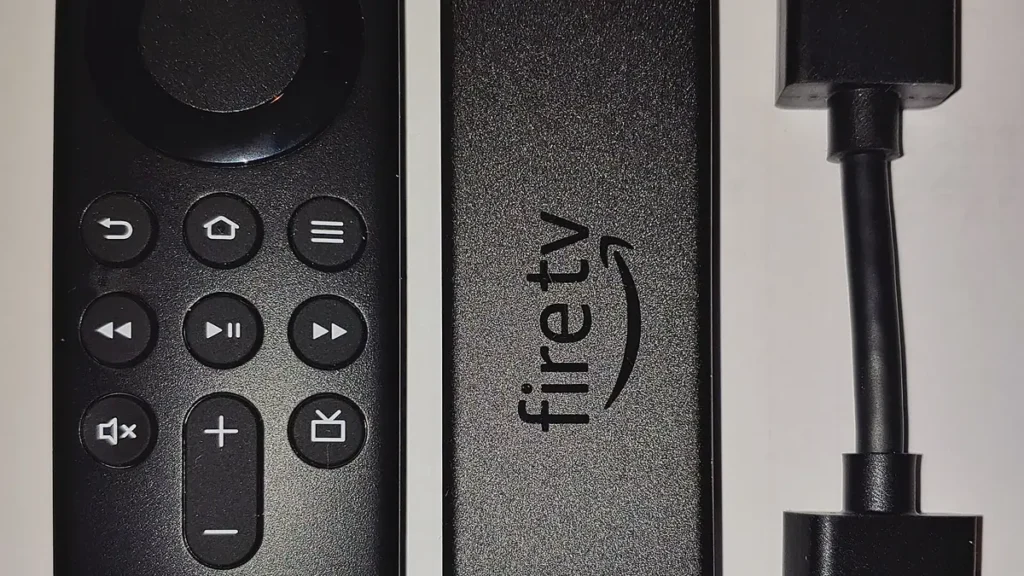
Buying an IPTV subscription for Firestick is the easy part; the stick behind your TV decides how smoothly the rest goes. Most Amazon Fire TV Sticks can install the player apps IPTV services recommend in a few minutes. The newest models run a different system and cannot, and the box rarely makes that obvious. Check the stick first, then choose the plan, and the evening you spend setting up will be short.
This guide takes you through that order: identifying your Firestick, choosing an IPTV subscription for Firestick households of one to five screens with our prices exactly as displayed on 3 November 2026, picking a player app, and getting from the welcome email to your first channel. We sell IPTV subscriptions ourselves, so read it with that in mind; the British IPTV Sub homepage explains what the service includes and how to ask for a free trial.
Check Which Firestick You Have Before You Pay
Amazon’s Fire TV Sticks now run one of two operating systems. Fire OS is built on Android, and a Fire OS stick can install an Android player app from outside the Amazon Appstore once you allow it. Vega OS is Amazon’s newer system; it is not Android, so it runs only what the Appstore offers for Vega devices. For an IPTV subscription for Firestick use, that difference matters more than processor speed or 4K support.
Amazon’s Fire TV device specifications list the system for every model. These are the sticks you are most likely to own or buy in the UK in 2026, as listed when we checked on 3 November 2026:
| Stick | System | Can it install an outside player? |
|---|---|---|
| Fire TV Stick 4K (2nd Gen, 2023) | Fire OS 8 | Yes |
| Fire TV Stick 4K Max (2nd Gen, 2023) | Fire OS 8 | Yes |
| Fire TV Stick 4K Plus (2025) | Fire OS 8 | Yes |
| Fire TV Stick 4K Select (2025) | Vega OS | No, Appstore only |
| Fire TV Stick 4K, 3rd Gen (2026) | Vega OS | No, Appstore only |
| Fire TV Stick HD (2026) | Vega OS | No, Appstore only |
Watch the names. A listing that just says “Fire TV Stick 4K” could be the 2023 model on Fire OS or the 2026 model on Vega OS. To check a stick you already own, open Settings, then My Fire TV, then About: a Fire OS stick shows its Fire OS version there, and the model name tells you the rest.
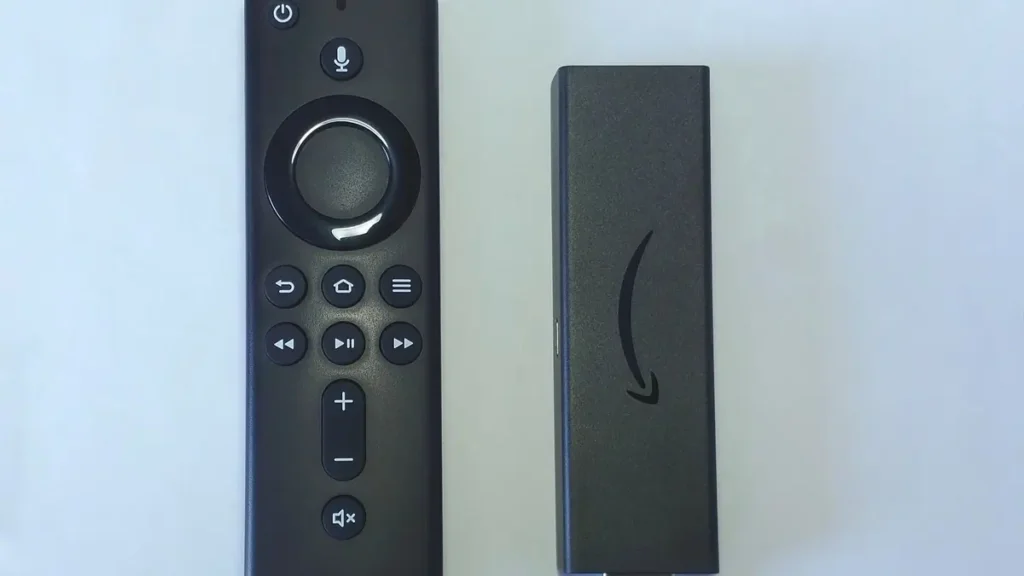
If your stick turns out to be a Vega model, search the Appstore on the stick for the exact player your provider recommends before you buy anything. If it is not there, an IPTV subscription for Firestick use is the wrong purchase for that stick, and a Fire OS model, a smart TV with a supported player or another streaming device is the better route.
Choosing an IPTV Subscription for Firestick Households
Once you know the stick can run a player, the plan comes down to how many screens will be watching at the same time and how long you want to pay for. Our pricing page organises plans by device count; these are the prices as displayed when we checked on 3 November 2026:
- One Firestick (1 device): £9.99 for 1 month, £23.99 for 3 months, £34.99 for 6 months, £49.99 for 12 months. Online checkout.
- Two Firesticks, or a stick and a phone (2 devices): £18 for 1 month, £44 for 3 months, £66 for 6 months, £95 for 12 months. Online checkout.
- Three devices: £61 for 3 months, £91 for 6 months, £134 for 12 months. Ordered through WhatsApp.
- Four devices: £90 for 3 months, £124 for 6 months, £182 for 12 months. Ordered through WhatsApp.
- Five devices: £103 for 3 months, £156 for 6 months, £229 for 12 months. Ordered through WhatsApp.
Every card is labelled “One time payment”, and the pricing page does not describe automatic renewal. The device count is about screens in use, not sticks in drawers: a household with a Firestick in every room but only one person watching at a time may need fewer devices than it owns. Our site does not set out exactly how a device is counted, so ask our team if you sit between two sizes.
If this is your first IPTV subscription for Firestick viewing, a shorter plan after the free trial is the sensible start. Once the stick, the app and your broadband have proved themselves, a longer plan saves you reordering.
A Second Firestick for the Bedroom
Firesticks are cheap enough that many homes end up with one on the main TV and another in a bedroom. That is where an IPTV subscription for Firestick households most often goes wrong: the second stick gets set up months later, by someone else, on a plan sized for one screen.
Decide whether both will be on at once. If the bedroom stick is used while the living-room TV is on, you need a 2-device plan or larger. If it is only used when the main TV is off, one device may be enough, but confirm that with our team first.
Check the second stick’s system too. An older Fire OS stick in the bedroom and a new Vega stick in the living room is a common mix, and only one of them may run your player.
Use the same player on both. The same app on each stick means one set of instructions for the whole house and the same favourites layout in every room.
Mind the bedroom Wi-Fi. Bedrooms are often furthest from the router. A stick that buffers upstairs but not downstairs has a signal problem, not a subscription problem. For a fuller way of counting screens across a home, see our guide to IPTV for multiple devices.
Which Player App Goes on the Stick
An IPTV subscription gives you login details, not an app. On a Firestick, the player app turns those details into a channel list and programme guide, so it shapes how the service feels every evening. Our installation tutorial names IPTV Smarters Pro, TiviMate and SmartOne Player, and our FAQ also lists IBO Player, Smart STB and Smart IPTV among the players that work with the service.
A few points help when choosing a player for an IPTV subscription for Firestick use:
- Look in the Appstore first. Search the Amazon Appstore on the stick for the player by name. If it is listed, install it like any other app.
- Get anything else from the developer’s official source. If the player is not in the Appstore, a Fire OS stick can install the developer’s own Android file. Never install a player from a forum link or a modified “pre-loaded” version.
- Expect optional paid features. Some players charge separately for extras such as a fuller guide or recording. That payment goes to the app developer and is not part of your subscription.
- Pick one and learn it. Switching players every week means re-entering logins and rebuilding favourites. Choose the one whose layout your household likes during the trial.
Our explainer on choosing an IPTV player compares the main options in more depth, including the login formats each one accepts.
From Order to First Channel on a Firestick
The whole route from ordering an IPTV subscription for Firestick viewing to watching your first channel splits into three stages.
Before you pay
- Confirm the stick runs Fire OS, or that your chosen player is in the Appstore for a Vega stick.
- Ask for the free trial on WhatsApp and test it on the stick you will actually use.
- Choose the device tab and length on the pricing page and order: online checkout for one or two devices, WhatsApp for three to five.
When the email arrives
- Watch your inbox and spam folder. Our FAQ says activation usually takes between 15 minutes and 6 hours after payment is confirmed.
- Find your login format. Our tutorial says the details arrive as an M3U link or Xtream Codes (a server address, username and password). Most Firestick players accept Xtream Codes, which are easier to type with a remote.
- Keep the email safe. You will need it again for every extra stick and every reinstall.
On the stick
- Install the player from the Appstore if it is listed there.
- If it is not listed (Fire OS only), install Downloader from the Appstore, then allow outside apps. Amazon’s developer guide gives the route: Settings, then My Fire TV, then Developer Options, then Apps from Unknown Sources. On some software versions the Developer Options menu only appears after you press the centre of the remote seven times on Settings, My Fire TV, About, with your device’s name highlighted.
- Download the player from its developer’s official site in Downloader and install it.
- Open the player and enter your details exactly as the email shows them, then let the channel list and guide load.
- Build a favourites list of the channels you watch, so nobody has to scroll through everything.
Once the player is installed, you can switch Apps from Unknown Sources off again; the app stays on the stick. With the setup done once, an IPTV subscription for Firestick use needs no more than opening the app.
Getting a Steady Picture From the Stick
A Firestick is small, and it sits behind the TV, which is not the best place for a Wi-Fi signal. Most picture problems on an IPTV subscription for Firestick viewing come from the connection rather than the service.
Speed. Our FAQ recommends at least 16 Mbps for stable streaming. Measure it on the stick itself, in the evening, rather than on a phone next to the router in the morning.
Position. Using the short HDMI extender that comes in the box with many sticks moves the Firestick away from the back of the TV, which can help its Wi-Fi reception.
A wired connection. Where the router is close enough, an Ethernet adapter made for Fire TV takes Wi-Fi out of the picture altogether.
4K. A 4K stick only shows 4K when the TV port, the source and the connection all support it. Amazon says the TV needs an HDMI input that supports HDCP 2.2, so plug the stick into the port your TV manual marks for 4K. For stutters and freezes, our IPTV buffering guide walks through where the fault usually is.
Use the Trial to Test the Whole Household
Our homepage invites you to ask for a free trial on WhatsApp to check the channels and streaming quality on your own device. For an IPTV subscription for Firestick households, that trial is worth more than any review, provided you test the right things.
- Test on every stick you plan to use, not just the newest one.
- Let the least technical person in the house try it. If they can find a channel with the Firestick remote and the player’s guide, the setup is right.
- Watch at the busiest hour of an ordinary evening, when the most people in your street are online.
- Check the channels you actually watch rather than scrolling through totals.
- Send support a question and see how quickly and clearly it is answered.
If all of that works, buy the plan size the trial showed you need. If something fails, fix it or ask about it before paying for an IPTV subscription for Firestick use, not after.
Messages Firestick Owners See, and What They Mean
“App not installed.” Usually the wrong file for the stick, or a Vega stick that cannot open Android apps at all. Check the system in Settings, then My Fire TV, then About, and download the player’s version meant for Fire TV or Android TV from its developer. Our guide to every Firestick 4K model shows how to tell the sticks apart.
“Authorisation failed” or “Invalid login”. Almost always a typing error. Server addresses are long, and a missing “http://” or port number stops the login. Re-enter the details slowly, character by character, from the email. If they still fail, contact us: our refund policy asks customers to report non-working login details within 48 hours of purchase.
“No guide data.” The channels play but the guide is empty. Give the player time to download the guide after the first login, then check its settings for a guide or EPG option.
“Storage almost full.” Firesticks have limited storage. Remove apps you no longer use and the installation files left in Downloader, then restart the stick.
If one stick misbehaves and another in the house does not, the fault is with that stick or its Wi-Fi rather than your IPTV subscription for Firestick viewing.
Moving Your IPTV Subscription for Firestick Viewing to a New Stick
Sticks fail, get dropped or are replaced by a newer model, usually halfway through a plan. Moving an existing IPTV subscription for Firestick use to a new stick is mostly a matter of repeating the setup, with two checks first.
- Check the new stick’s system before you open the box, using the table above. Replacing an old Fire OS stick with a new Vega model is the most common way people lose the player they rely on.
- Remove the player from the old stick if it is staying in the house, so it does not count as an extra screen in use.
- Install the same player on the new stick from the Appstore or the developer’s official site, exactly as before.
- Enter the login details from your original email. This is why that email is worth keeping.
- Rebuild your favourites and check the guide loads.
If you have lost the email or the details no longer work on the new stick, contact our team on WhatsApp with your order details rather than buying a second plan.
When a Firestick Is Not the Best Screen for It
A Firestick is the most common way to watch IPTV in the UK, but it is not always the best one, and an IPTV subscription for Firestick households should not lock you into the stick if something else suits the room better.
Your TV already runs a supported player. Many smart TVs can install an IPTV player directly. If yours can, a stick adds another remote and another input to switch between.
You only have a Vega stick. If your preferred player is not in the Appstore for Vega, a Fire OS stick or an Android TV device will run it; the Vega stick can stay as it is for other apps.
The TV is far from the router. A small stick behind the TV can struggle with a weak signal. A box with an Ethernet port, or a stick with a wired adapter, may be steadier.
Whatever you watch on, the subscription is the same: the device count on the plan is about screens in use, and every screen needs a compatible player app.
Refunds and the TV Licence, Briefly
Our plan cards mention a 7-day refund, and our refund policy page sets out the detail: a full refund if an order has not been delivered or activated, and no refund once an account has been activated, so test with the trial first. Separately, the GOV.UK TV Licence guidance says you need a licence to watch or record live TV on any channel and any device, including a Firestick, or to use BBC iPlayer.
Your Firestick, Your Next Step
| If your stick is… | Do this next |
|---|---|
| A Fire OS model (4K 2nd Gen, 4K Max, 4K Plus) | Ask for the trial, then choose your IPTV subscription for Firestick households by screens in use |
| A Vega model (4K Select, 4K 3rd Gen, HD 2026) | Search the Appstore for your player before ordering anything |
| Not identified yet | Open Settings, My Fire TV, About and check the model name |
| One of two or more in the house | Check each stick’s system and size the plan for the busiest evening |
Get the stick right and an IPTV subscription for Firestick viewing is one of the simplest ways to watch: one small device, one app and one set of login details. Check the system, run the trial on the stick you will use, and then pick the plan that matches the screens in your home.