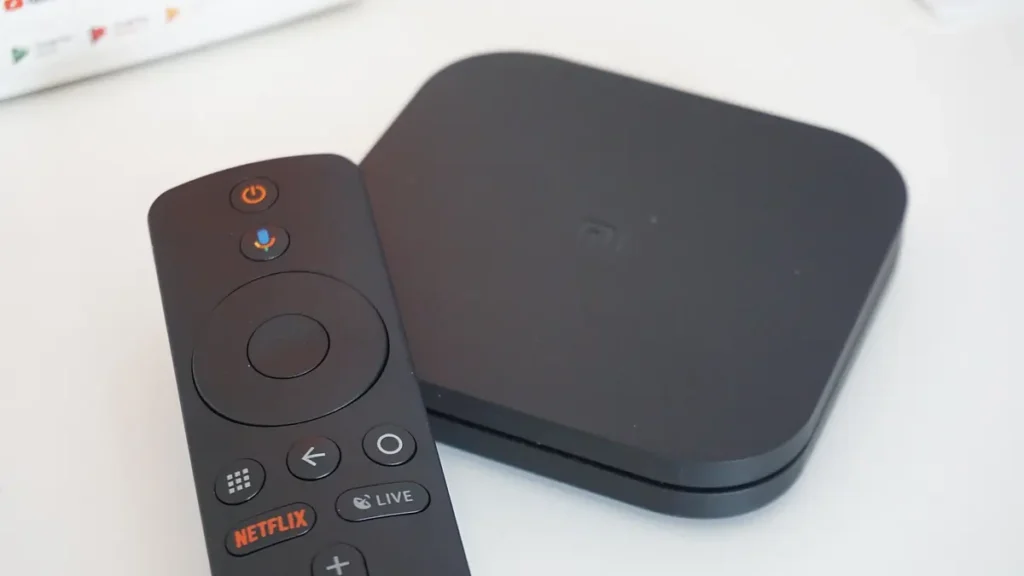
Two boxes can sit side by side in an online listing, both black, both promising 4K and “Android TV”, at very different prices. One runs Google’s tested, licensed system and keeps getting security fixes. The other may run a modified copy of Android with unlicensed apps and, in the worst cases, malware installed before it leaves the factory. An Android TV box is a small media player that connects to your television over HDMI and runs apps from Google Play. It’s one of the most flexible ways to watch IPTV in the UK, as long as you buy the right one.
This guide explains what separates a genuine Android TV box from a risky lookalike, how to check certification in a couple of minutes, which specifications actually matter for live TV streaming, and how to get one set up properly. Readers new to British IPTV Sub can use it as the hardware half of getting started. The other half is the subscription itself.
What an Android TV Box Is, and What Sets It Apart
An Android TV box runs Android TV OS, the version of Android that Google builds for televisions, or Google TV, the newer home screen that sits on top of it. Apps come from the TV edition of Google Play. Google tells developers that TV apps must be usable from across the room with only a direction pad and a select button, so the apps you find there are built for a remote rather than a touch screen.
The name causes confusion because “Android box” is also used for very different products. The comparison below separates the options UK buyers usually weigh up.
| Option | System | Where apps come from |
|---|---|---|
| Certified Android TV box | Android TV OS or Google TV | Google Play (licensed) |
| Uncertified “Android box” | Modified open-source Android | Often unofficial stores or unlicensed Play copies |
| Amazon Fire TV device | Fire OS, or Vega OS on the newest models | Amazon Appstore |
| Smart TV’s built-in apps | The TV maker’s system (e.g. Tizen, webOS) | The manufacturer’s own store |
For IPTV, a certified Android TV box gives you the widest choice of player apps, a proper remote and regular updates, and it works with almost any television that has a spare HDMI port. The box only plays what a service provides, though. The subscription is bought separately, and our subscription plans and prices cover one to five devices. When checked on 20 October 2026, the 1-device 3 Month Subscription costs £23.99, the 6 Month Subscription £34.99 and the 12 Month Subscription £49.99, all through online checkout. The 2-device 12 Month Subscription costs £95, also online, and 3, 4 and 5-device plans are ordered through WhatsApp. A 7-day refund window gives you time to test everything on your own Android TV box.
Certified or Not: The Check That Matters Most
Google’s certification is formally called Play Protect certification. According to Google’s Android Help page on certification, certified devices include Google’s proprietary apps under licence and have passed Android compatibility testing. The same page lists what you lose without it:
- devices that aren’t certified “may not be secure”;
- they may not get Android system updates or app updates;
- Google apps on them “aren’t licensed and aren’t real Google apps”;
- apps and features may not work correctly, and data may not have a secure backup.
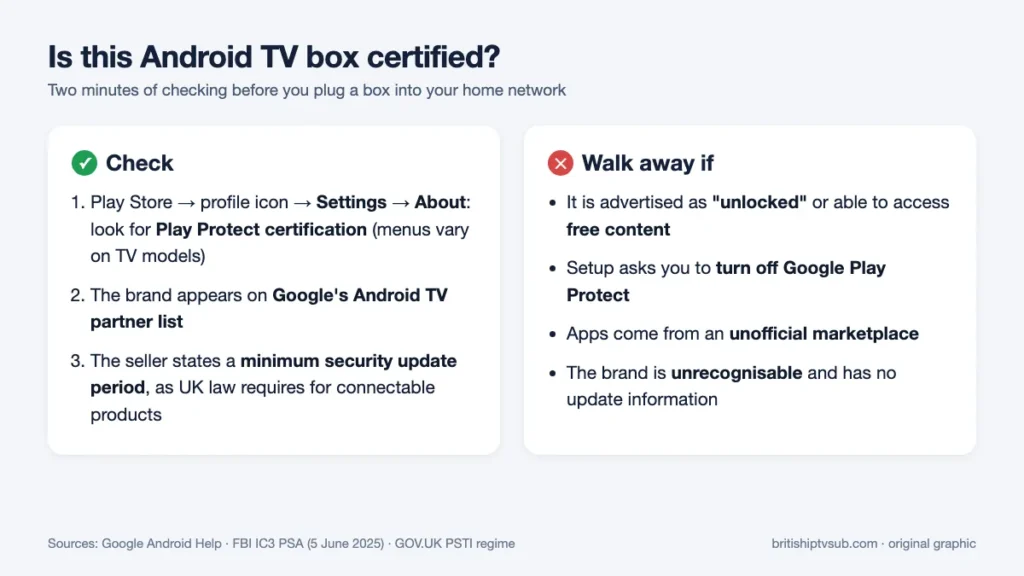
This isn’t a theoretical risk. In July 2025, Google announced legal action against the BadBox 2.0 botnet, which it says compromised over 10 million uncertified devices running Android’s open-source software, many with malware pre-installed. A month earlier, the FBI’s public service announcement listed the warning signs. They include generic streaming devices “advertised as unlocked or capable of accessing free content”, devices from unrecognisable brands, setups that require Google Play Protect to be disabled, and Android devices that are not Play Protect certified.
How to check a box you already own
Google’s own method is in the Play Store app: open your profile, go to Settings, then About, and look for the Play Protect certification line. On an Android TV box the menus are laid out for a remote and can differ slightly by model, but the certification status sits in the Play Store’s settings. If it says the device is not certified, Google’s advice is to check whether the model appears on its list of certified devices.
How to check before you buy
Look the brand up on Google’s Android TV partner list. Familiar names on it include NVIDIA, Xiaomi, Sony, TCL, Philips and Hisense. A brand that isn’t listed, or a listing full of model codes rather than a brand you recognise, is a reason to keep looking. Our guide to the best device for IPTV compares certified boxes with sticks and smart TV apps if you are still deciding on the category.
Reading an Android TV Box Spec Sheet With IPTV in Mind
Live TV makes different demands from occasional film streaming. Channels change constantly, the programme guide holds thousands of entries, and a dropped connection is noticed immediately. These are the lines on a specification sheet that matter most.
| Specification | Why it matters for IPTV | What to look for |
|---|---|---|
| Ethernet port | A cable avoids Wi-Fi drop-outs during live events | A built-in port, or support for a USB adapter |
| Wi-Fi | Needed if a cable isn’t practical | Dual-band (2.4 GHz and 5 GHz) at minimum |
| Video output | Matches the box to your TV’s picture | 4K and the HDR formats your TV supports |
| Memory and storage | Large playlists and guides need room | More is better; compare models from one brand |
| Update information | Security fixes keep the box safe | A stated minimum security update period |
The network connection comes first
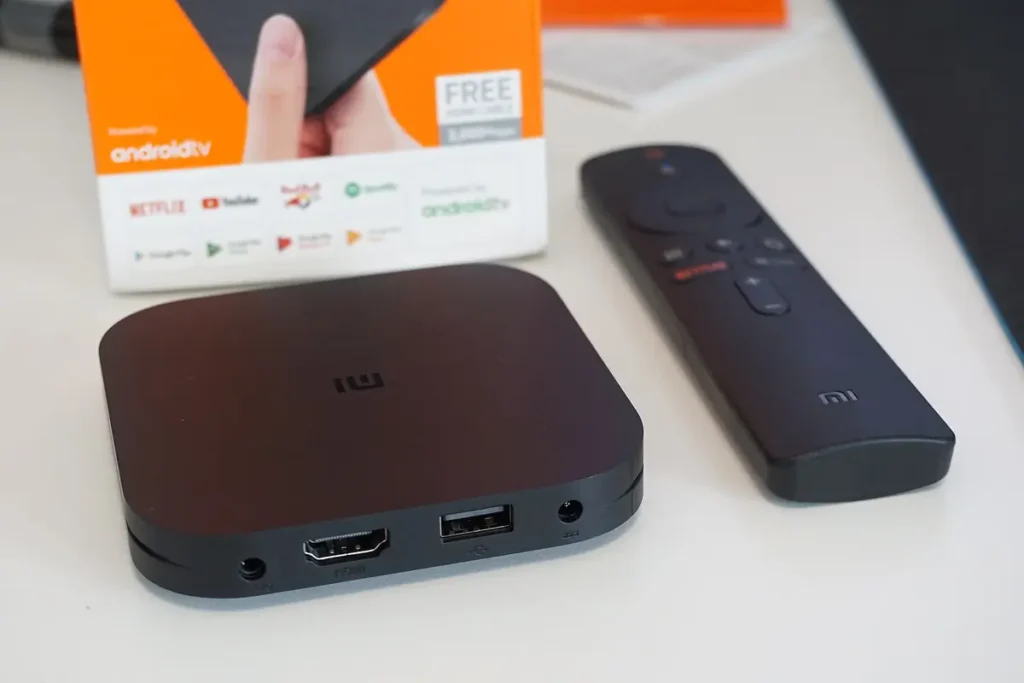
Many compact boxes have no Ethernet socket at all, as the photo above shows: the Mi Box S has HDMI and USB, but no network port. If your router is in the same room, a wired connection is the single most reliable upgrade for live streaming, and our FAQ recommends a 16 Mbps connection. Where a cable isn’t possible, a strong 5 GHz Wi-Fi signal is the next best thing. When the picture freezes despite a good box, the cause is usually somewhere on the network, and our guide to fixing IPTV buffering walks through how to find it.
Picture formats and the TV you own
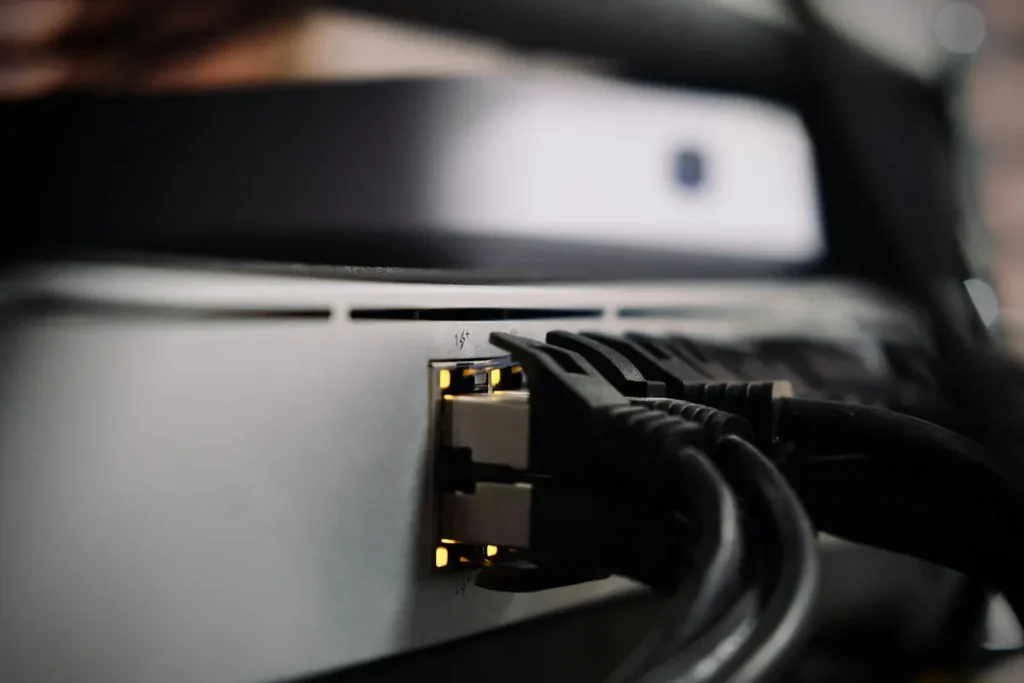
A 4K box connected to a Full HD television gains nothing in sharpness, and an HDR format your TV doesn’t support won’t appear. Check your TV’s manual for the HDR formats it handles and match the box to those. If you plan to upgrade the television soon, buying a 4K-capable Android TV box now is sensible.
The UK security update rule
Since 29 April 2024, the UK’s product security regime has required businesses selling consumer connectable products to publish the minimum period for which security updates will be provided, with an end date. A seller that can’t tell you how long an Android TV box will receive security updates is telling you something useful about the product.
Setting Up an Android TV Box for IPTV
Setup takes around half an hour, most of it spent waiting for downloads. Work through the stages in order and confirm each one before moving on.
Stage one: connect and sign in
Plug the box into the TV’s HDMI port and its own power supply rather than a TV USB port, which may not supply enough power. Connect the network cable if you have one, then sign in with a Google account when prompted. Many boxes let you finish this step from a phone. Done when: you reach the home screen and the Play Store opens.
Stage two: update everything
Open the system settings and install any pending system update, then update the apps in the Play Store. A brand-new Android TV box has often sat in a warehouse for months. Done when: the system reports it is up to date and the Play Store has no pending updates.
Stage three: check the picture output
In the display settings, confirm the resolution matches your TV and switch on HDR only if the TV supports it. If menus look washed out or stretched, try the TV’s own picture mode as well. Done when: the home screen fills the display edge to edge and looks sharp.
Stage four: install a player and sign in to your service
Install your chosen player from the Play Store, then enter the login details from your welcome email. Copy them from a phone or laptop where you can, because long server addresses are easy to mistype with a remote. Our IPTV player guide explains each login type and the settings worth changing on day one. Done when: channels load and the guide shows the right programmes at the right times.
Stage five: tidy the home screen
Move the player app to the front row of the home screen and remove preinstalled apps you won’t use. Some boxes also let you set an app to open automatically at start-up. Done when: anyone in the house can turn the TV on and reach live channels in two or three button presses.
Picking the Player App for Your Android TV Box
Remote-friendly players are where this platform shines. TiviMate’s Google Play listing describes it as “designed for Android TV and remote control navigation”, with a TV guide, catch-up, recording and multiview. Our installation page also names IPTV Smarters Pro and SmartOne. If you are weighing up the two most popular choices, our TiviMate vs IPTV Smarters comparison sets out the differences. Whatever you choose, install it from Google Play on the Android TV box itself rather than from a file downloaded elsewhere.
One Remote for Everything: HDMI-CEC and Everyday Comfort
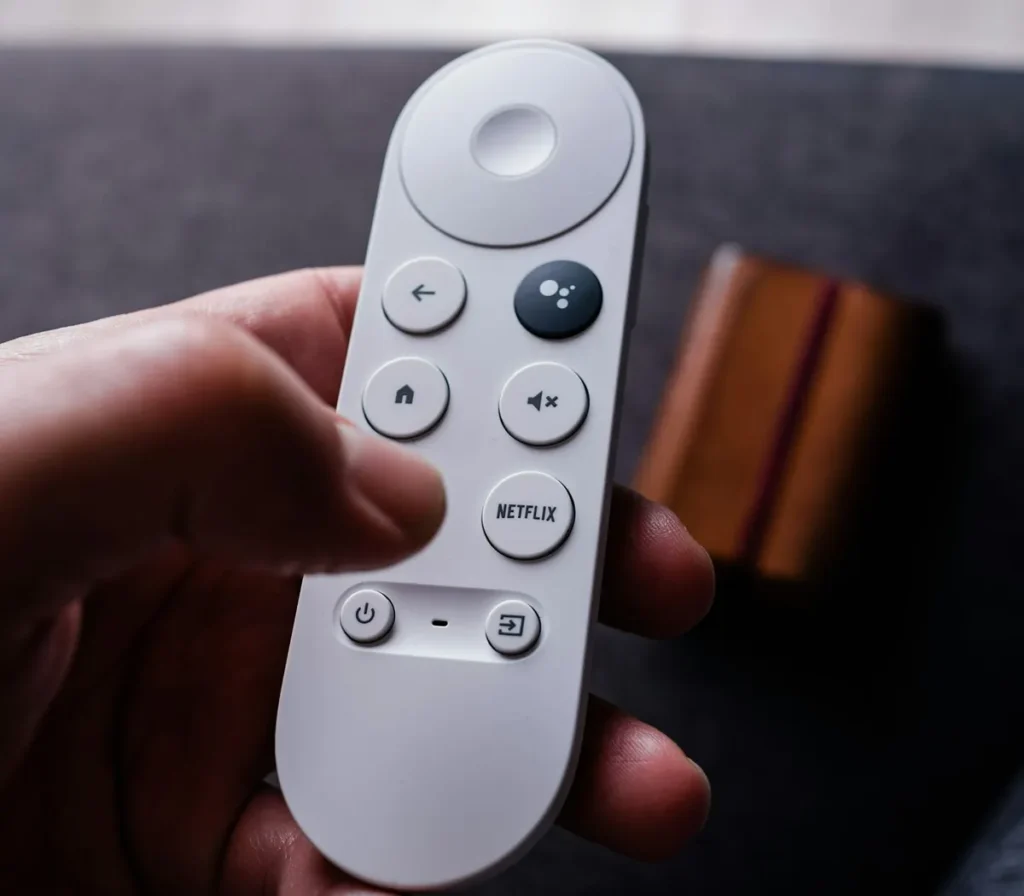
Juggling two or three remotes is the quickest way to make a new box unpopular with the rest of the household. Most televisions support HDMI-CEC, a feature that lets devices connected by HDMI control each other. With it switched on, the box’s remote can turn the TV on and off and often change the volume, and the TV switches to the right input when you press a button on the box remote.
TV makers rarely call it CEC in their menus. Samsung uses the name Anynet+, LG uses SimpLink and Sony uses Bravia Sync. Look in your TV’s general or external-device settings. Then check the box’s own settings for a remote and accessories or “HDMI control” section, where you can usually tell the remote which TV brand to control for volume.
A few other comfort settings are worth a minute. Set the screensaver to start after a sensible delay so a paused channel doesn’t burn a static image into an OLED screen. Turn off autoplaying trailers on the home screen if they distract you. If the remote has a voice button, try searching by voice once: finding an app or a setting is far quicker than typing with arrow keys.
First-Week Problems and Quick Fixes
The remote stops responding. Many remotes pair over Bluetooth rather than infrared. Replace the batteries first, then re-pair from the box’s remote and accessories menu. The pairing button combination is usually given in the quick-start leaflet or on the maker’s support page.
No sound through the soundbar. Check whether the soundbar is connected to the TV’s eARC/ARC port and whether the box is set to pass audio through automatically. Switching the box’s surround-sound setting from “auto” to a fixed format sometimes fixes silent channels.
A brief black screen when changing channel. This often comes from the box switching the TV’s refresh rate or resolution to match each programme. It’s harmless, but if it annoys you, turn off automatic frame-rate or resolution matching in the box or the player app.
The box turns out not to be certified. If the Play Store reports the device as uncertified, don’t keep using it with your accounts. Contact the retailer about a return and replace it with a model from a brand on Google’s partner list.
Channels buffer at busy times only. Problems that appear in the evening or during big live events, but not in the morning, usually come from the network or the service rather than the box. Test with a cable before blaming the hardware.
Keeping It Running: Updates, Storage and Restarts
- Leave automatic app updates switched on. Player fixes often arrive quietly through the Play Store.
- Check for system updates every month or two. Some boxes only check when you open the menu.
- Watch the free storage. Guide data, cached artwork and recordings fill a small drive faster than you’d expect. Clearing a player’s cache from the app settings frees space without deleting your login.
- Restart occasionally. Many boxes go into standby rather than switching off, so a full restart now and then clears out memory.
- Keep it ventilated. A box tucked into a closed cabinet runs hot, and heat can cause stutter and crashes.
When the stated security update period ends, it’s time to plan a replacement, even if the Android TV box still seems to work. An unpatched device on your home network is the kind of risk the UK update rule was written to make visible.
Android TV Box Myths That Cost People Money
- “It has the Play Store, so it must be certified.” Not necessarily. Google warns that Google apps on uncertified devices aren’t licensed and aren’t real Google apps. Check certification itself.
- “A pricier box will stop buffering.” If the fault is weak Wi-Fi or a busy broadband line, a faster processor changes nothing. Fix the connection first.
- “A fully loaded box replaces a subscription.” Boxes advertised as unlocked or able to access free content are exactly what the FBI warned about. They also don’t make unlicensed content lawful.
- “Android TV and Google TV need different apps.” Google TV is a newer interface on the same Android TV operating system, and both get their apps from Google Play.
- “Every Android TV box needs sideloaded apps for IPTV.” Mainstream player apps are on Google Play, so on a certified Android TV box there’s no need to install apps from unknown files.
A Checklist to Take Shopping
Before you add an Android TV box to your basket, run through these points:
- The brand is on Google’s Android TV partner list, and the listing doesn’t promise “unlocked” or free content.
- The seller states a minimum security update period.
- There’s an Ethernet port, or you have a strong 5 GHz Wi-Fi signal where the TV sits.
- Video output matches your TV’s resolution and HDR formats.
- Your chosen player app appears in Google Play for Android TV.
A box that ticks all five will serve you well for years, and the rest of the experience comes down to a good connection, a well-set-up player and a reliable subscription.