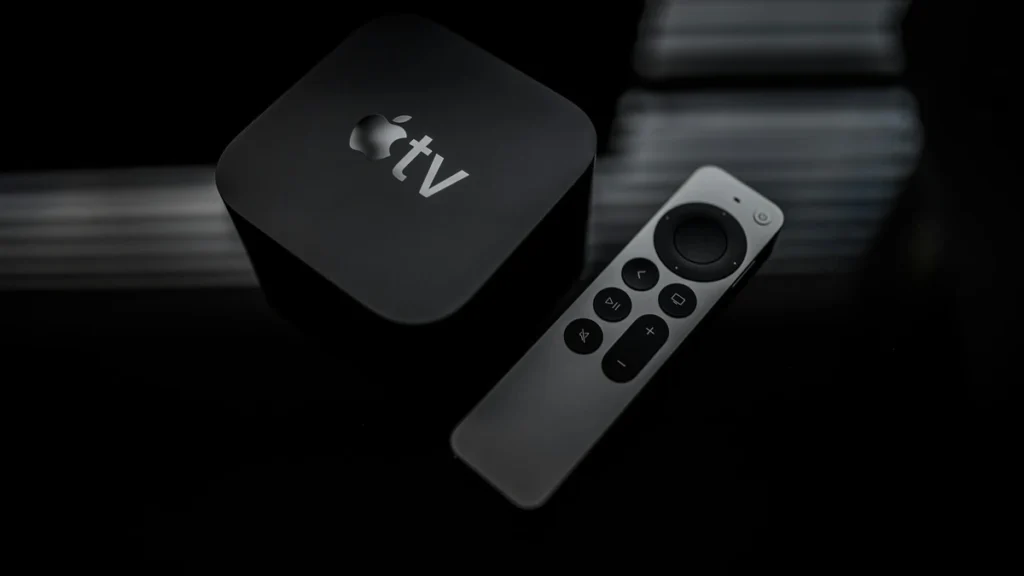
Search for “Apple TV” today and you get three different things: a streaming service, an app that sits on phones and smart TVs, and the small black Apple TV box that plugs into your television. This page is about the box: which model you have or should buy, how to set it up, which settings matter, and how to watch an IPTV subscription on it, since Apple’s system works differently from the Android-based devices most IPTV guides assume.
Every model detail below comes from Apple’s own UK specification and support pages, checked on 28 October 2026, a fortnight after Apple announced a new model. We sell IPTV subscriptions, and the British IPTV Sub homepage explains what ours includes.
The Apple TV Box, the App and the Service Are Three Different Things
Apple has made the naming harder than it needs to be. In October 2025 it renamed its subscription service, previously Apple TV+, to plain “Apple TV”. The Apple TV app, which collects films and shows from several services, has carried the same name for years and runs on many smart TVs, games consoles and streaming sticks. Neither of those is hardware.
The Apple TV box is the physical device, sold today as the Apple TV 4K. It runs Apple’s tvOS system, comes with the Siri Remote and connects to the television by HDMI. You don’t need the box to watch Apple’s service, and buying the box doesn’t include a subscription to it.
The same applies to everything else you watch on it. An Apple TV box is a player: films, sport or live channels come from the services you sign in to, whether that is a streaming platform or an IPTV plan such as those on our IPTV pricing page.
Which Apple TV Box Do You Have?
All recent models look almost identical: a small black square with an Apple logo. Apple’s support page “Identify your Apple TV model” lists them by model number, which is printed on the underside of the box. These are the ones still worth using:
| Apple TV box | Year | Model no. | How to tell it apart |
|---|---|---|---|
| Apple TV 4K (4th gen) | 2026 | Not yet listed | A19 chip, Wi-Fi 7, Gigabit Ethernet, one 128 GB version |
| Apple TV 4K (3rd gen) Wi-Fi + Ethernet | 2022 | A2843 | Ethernet port, 128 GB |
| Apple TV 4K (3rd gen) Wi-Fi | 2022 | A2737 | No Ethernet port, 64 GB |
| Apple TV 4K (2nd gen) | 2021 | A2169 | Ethernet; no HDR10+ |
| Apple TV 4K (1st gen) | 2017 | A1842 | HDMI 2.0a; remote with glass touch surface |
| Apple TV HD | 2015 | A1625 | HD only (HDMI 1.4), USB-C service port |
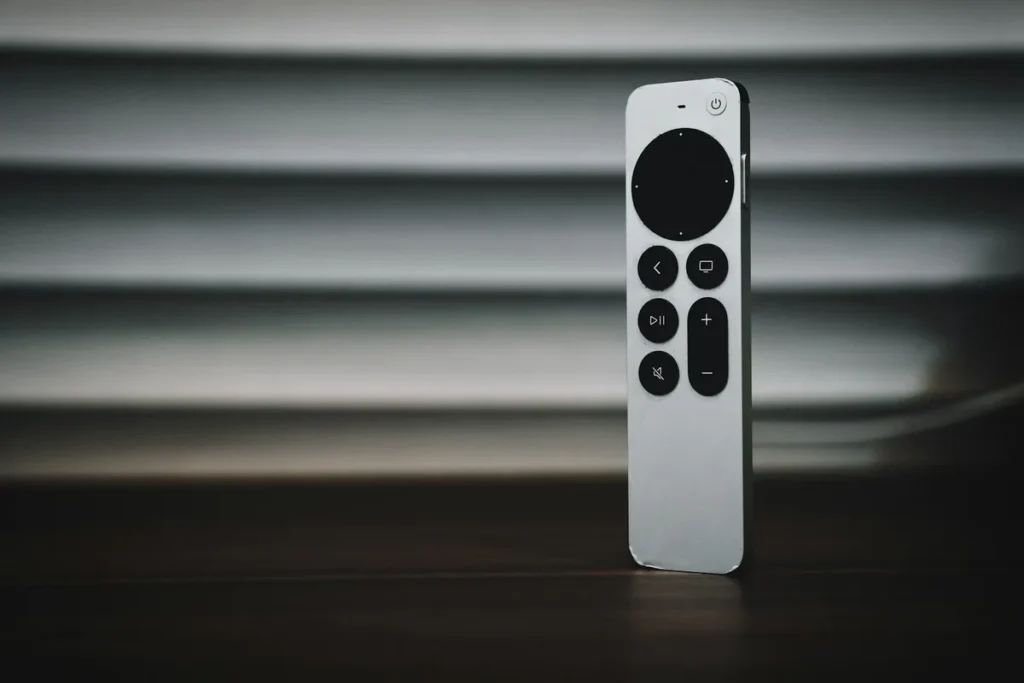
The remote is a quick clue. A silver remote with a circular clickpad came with the 2021 and 2022 boxes; the 2017 model and the Apple TV HD came with a black remote that has a glass touch surface at the top. Anything older than the Apple TV HD can’t install apps, so it is no use for a modern IPTV player.
What the 2026 Apple TV Box Changes
Apple announced the fourth-generation Apple TV 4K on 13 October 2026, with availability from 13 November. Its UK specifications page lists one version only, and the changes that matter for everyday viewing are these:
- A19 chip with a dedicated AV1 decoder. Apple quotes up to 50 per cent faster CPU performance than the previous generation. AV1 is a newer, more efficient video format used by some streaming services.
- Gigabit Ethernet on every unit. The 2022 range split into a Wi-Fi-only model without Ethernet and a dearer one with it. The new box has a single 128 GB version with an Ethernet port.
- Wi-Fi 7 and Bluetooth 6, where your router and accessories support them.
- Three far-field microphones for hands-free Siri, plus a Siri Remote that can be located with Find My.
- The same picture formats as before: Dolby Vision, HDR10, HDR10+ and HLG over HDMI 2.1.
What hasn’t changed is the box contents. Apple lists the Apple TV 4K, the Siri Remote, a power lead and documentation; the HDMI cable is sold separately, and so are the USB-C cable and charger for the remote.
Apple also says its new Siri, which it calls Siri AI, is available at launch in the UK in English, as a beta in tvOS 27.2, and needs an iPhone or iPad that supports Apple Intelligence in the home. For watching television, the more practical gain is the AV1 decoder: as more services adopt the format, a box that decodes it in hardware can show the same picture quality using less bandwidth.
If you already own a 2022 Apple TV box with Ethernet, there is no urgent reason to upgrade for IPTV: live channels don’t need the extra processing power. If you are choosing between a discounted 2022 model and the new one, the Wi-Fi-only 2022 version is the one to be careful with, because it has no Ethernet port at all.
Setting Up an Apple TV Box
Apple’s Apple TV 4K set-up guide asks for three things before you start: your Wi-Fi name and password, an Apple Account, and ideally an iPhone or iPad nearby, which makes the process quicker. For 4K HDR you need an Ultra High Speed HDMI cable.
The hardware part
- Connect the HDMI cable to the box and to a free HDMI port on the television.
- Connect the power lead to the box and a mains socket.
- If the router is within reach and your model has a port, plug in an Ethernet cable now.
- Switch on the TV and select the HDMI input the box is connected to.
The on-screen part
Use the remote to choose your language and connection. When the box offers Set Up with iPhone or iPad, accept it: hold your unlocked iPhone near the box and follow the prompts on both screens, and your Apple Account and Wi-Fi details are copied across. Without a phone, the same details are entered with the remote.
If the remote doesn’t respond, Apple’s support page for remotes says to hold it about three inches from the box and press and hold Back (or Menu) and Volume Up for five seconds. If that fails, unplug the Apple TV, wait six seconds, plug it back in and try again.
Once you reach the home screen, let tvOS install any update before installing apps. A fully updated system gives fewer surprises with newly released player apps.
Watching IPTV on an Apple TV Box
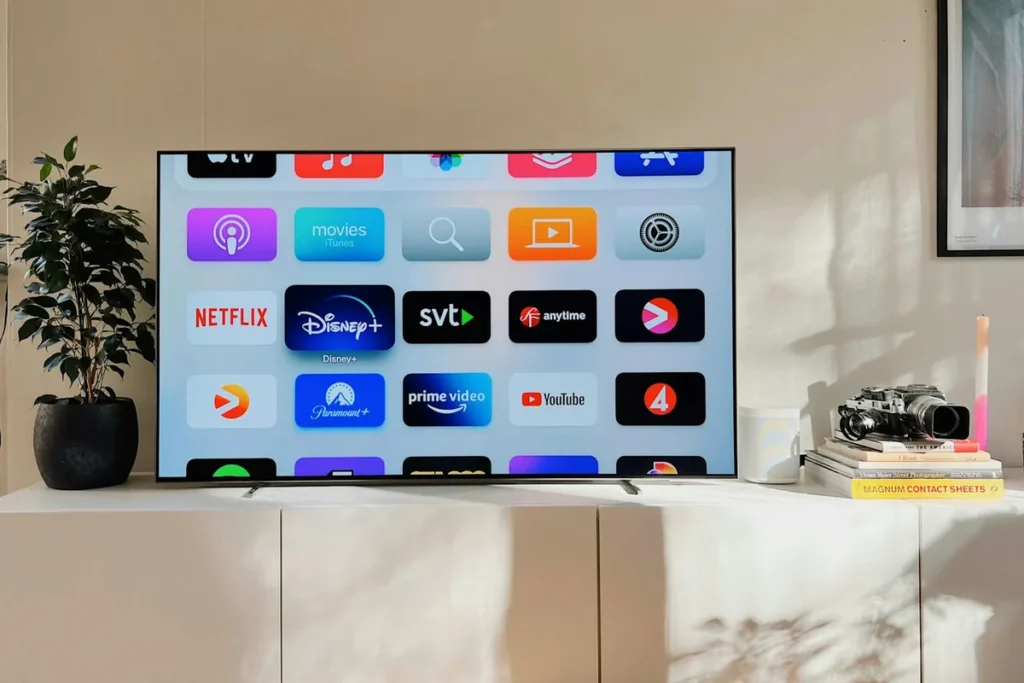
This is where the Apple TV box differs most from a Fire TV Stick or an Android box. Apps can only come from Apple’s App Store; there is no setting that allows installing apps from elsewhere. In practice that is less of a limit than it sounds, because the App Store carries a range of IPTV players that accept the usual M3U playlist and Xtream Codes logins.
Route one: a player app on the box
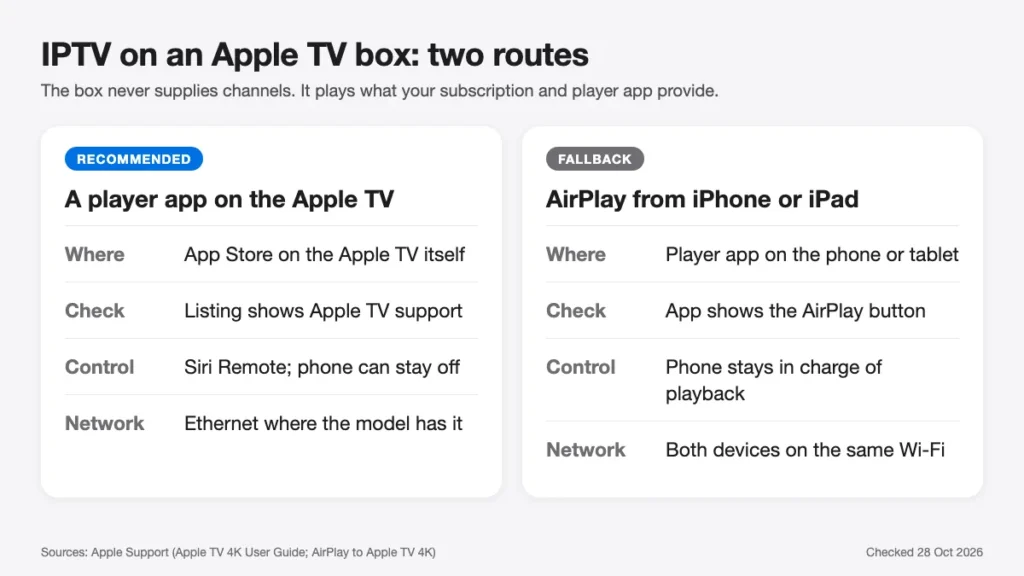
Open the App Store on the Apple TV and search for an IPTV or M3U player. Before installing, check the listing: it should say the app runs on Apple TV, not only on iPhone, and a reputable player states that it doesn’t supply any channels of its own. Some well-known Android players, TiviMate among them, have no Apple TV version at all, so ask your provider which tvOS players they support.
A good tvOS player should offer more than a channel list. Look for a programme guide (EPG) that loads alongside the channels, favourites you can reorder, support for more than one playlist, and catch-up if your service provides it. Free trials or free basic versions let you check how the app handles your channel list before paying for a premium tier.
Inside the app, enter the login details from your subscription: usually an M3U link or an Xtream Codes server address, username and password. Our guide to choosing an IPTV player explains the login formats and the settings worth adjusting afterwards.
Route two: AirPlay from an iPhone or iPad
If your provider’s preferred player only runs on iPhone or iPad, you can send the picture to the Apple TV with AirPlay. Apple’s AirPlay guide for Apple TV 4K describes it: start playing on the iPhone, tap the AirPlay button in the video and choose the Apple TV. Both devices need to be on the same network, and Apple notes that some video apps don’t support AirPlay.
AirPlay works, but it ties playback to the phone. For an evening of live channels, a player installed on the box itself is the more comfortable choice.
Apple TV Box or an Android-Based Device for IPTV?
Both work well with a good service. The differences are in the details:
Choose an Apple TV box if your household already uses iPhones and iPads, if you prefer a tidy, consistent home screen, or if you want one device that also handles AirPlay, Apple’s own service and HomeKit.
Choose a Fire TV or Google TV device if the player you want is Android-only, if you like having the widest choice of IPTV apps, or if you need several devices for different rooms on a tighter budget.
Keep using the TV’s own apps if your television is recent, already runs the player you need and feels quick. A separate box adds most value to older or slower sets, and least to a new TV that already does the job.
The player app usually settles it. Our TiviMate vs IPTV Smarters comparison shows how much the app shapes the experience; if your favourite isn’t on tvOS, an Apple TV box is the wrong device for you, however good the hardware.
Settings Worth Changing on Day One
A few minutes in Settings makes live TV on an Apple TV box look and behave better:
- Match Content. Under Settings, Video and Audio, Apple offers Match Dynamic Range and Match Frame Rate. With both on, the box switches to the format and frame rate of what you are watching instead of converting everything. Apple warns the screen may go blank briefly while the TV switches.
- A wired connection. On any Apple TV box with an Ethernet port, use it for live channels. Our FAQ recommends at least 16 Mbps for IPTV.
- TV control. Let the Siri Remote turn the TV on and off and control its volume, so one remote does everything.
- Automatic updates. Keep tvOS and apps updating automatically; player apps often fix bugs quickly.
If channels still pause or drop in quality on a good line, the fault is rarely the box itself. Our guide to tracking down IPTV buffering shows how to tell whether the Wi-Fi, the router or the service is responsible.
Sharing One Apple TV Box Around the Household
An Apple TV usually ends up in the main living room, used by everyone. tvOS has features that make that easier, and they are worth setting up before arguments start.
User profiles. tvOS supports several users, each with their own Apple Account, recommendations and “Up Next” list. Switching takes a couple of clicks from Control Centre, so one person’s viewing doesn’t fill another person’s suggestions.
Parental controls. Apple’s set-up guide links to its parental-controls settings, which can restrict purchases, app installs and content by age rating. If children use the TV, set a passcode for purchases at the very least. IPTV player apps usually have their own parental lock for adult or late-night channel groups, which is worth enabling as well.
A spare remote in every pocket. Apple supports using an iPhone or iPad as a remote for Apple TV 4K through Control Centre. It is handy for typing long passwords and server addresses when you set up a player, and it saves the evening when the Siri Remote has vanished down the sofa.
More than one TV. Each television needs its own box. Before buying a second Apple TV box, check how many devices your IPTV plan allows at the same time; plans are sold by number of connections, and two TVs watching at once count as two.
Fixing the Common Problems
The remote has stopped working. Charge it for 30 minutes with a USB-C cable (or Lightning on older remotes). Then restart it by holding the TV/Control Centre button and Volume Down together for about five seconds, until the status light on the box turns off and on again.
The picture flickers or goes black when a programme starts. That is usually Match Content switching formats. It is normal for a moment; if it happens constantly, turn Match Frame Rate off and check the HDMI cable is rated Ultra High Speed.
There is no 4K or HDR option. Check that the TV and its HDMI port support 4K HDR, that the cable is up to the job, and that you are using an Apple TV 4K rather than the Apple TV HD.
A player app won’t open a playlist. Re-enter the login details carefully, especially the server address. If another app opens the same details, the fault is in the first app; if no app does, contact your provider.
AirPlay can’t find the Apple TV. Make sure the iPhone and the Apple TV are on the same Wi-Fi network, not a guest network, and that AirPlay is switched on in the Apple TV’s AirPlay and HomeKit settings. Restarting the Wi-Fi on the phone often brings the Apple TV back into the list.
Sound plays from the TV speakers instead of the soundbar. Check which HDMI port on the TV is marked ARC or eARC and connect the soundbar there. The 2026 model lists ARC and eARC support in its specifications, so the TV, Apple TV and soundbar can share one remote and one sound path.
Everything is slow after years of use. Delete apps you no longer use and restart the box. If it is an Apple TV HD or 2017 model, it may simply be time for a newer one.
Before You Order: Three Checks
- Confirm the player. Ask your IPTV provider which tvOS app they support, and find it in the App Store before buying an Apple TV box.
- Check the connection. If you want Ethernet, choose the 2026 model or a 2022 or 2021 model with an Ethernet port, not the Wi-Fi-only 2022 version.
- Buy the cable. Neither the new model nor its predecessors include an HDMI cable, and 4K HDR needs an Ultra High Speed one.
Get those three right and an Apple TV box is one of the calmest ways to watch IPTV: quick, well supported and simple enough for everyone in the house to use.