The first surprise when you open a Google TV Streamer 4K is what isn’t in the box: there is no HDMI cable, and Google says you need a certified HDMI 2.1 one. The second is that it isn’t a stick at all. Google’s replacement for the Chromecast is a small, flat box designed to sit beside the television, with its own Ethernet port and a remote you can make ring when it disappears.
This guide explains what the Google TV Streamer 4K actually is, what its specifications mean in everyday use, how it compares with the Chromecast it replaced, and how to get live TV and IPTV running on it. Every specification comes from Google’s UK store and help pages, checked on 28 October 2026. We sell IPTV subscriptions; the British IPTV Sub homepage explains what ours includes.
What the Google TV Streamer 4K Is
Google announced the Streamer in August 2024, at the same time as it ended production of the Chromecast line. The two Chromecast with Google TV models stayed on sale for a while and then disappeared from the Google Store, which leaves the Google TV Streamer 4K as Google’s own streaming device for the living room.
It runs the same Google TV interface you find on many televisions, built on Android TV OS. That means the home screen gathers films and series from your streaming services into one place, apps come from Google Play, and voice search works through the remote. Google also gives it a second job as a smart home hub, which matters more if you already use Google Home or Matter devices.
Like any streaming device, it supplies none of the programmes itself. Films, series and live channels come from the services you sign in to, whether that is a catch-up app, a film service or an IPTV plan such as those on our IPTV pricing page.
The Spec Sheet, Translated for Live TV
Google’s UK specifications page lists the figures below. The right-hand column explains what each one means if you mostly watch live channels.
| Specification | Google’s figure | What it means for live TV |
|---|---|---|
| Resolution | Up to 4K HDR, 60 fps | Enough for any 4K television and every UK broadcast format |
| HDR formats | Dolby Vision, HDR10, HDR10+, HLG | Covers all the main formats; your TV decides which are used |
| Audio | Dolby Digital, Dolby Digital Plus, Dolby Atmos | Surround sound passes to a compatible soundbar |
| Memory / storage | 4 GB / 32 GB | Room for several apps and large programme guides |
| Network | Wi-Fi 802.11ac; Ethernet 10/100/1,000 Mbps | A wired option without an adapter |
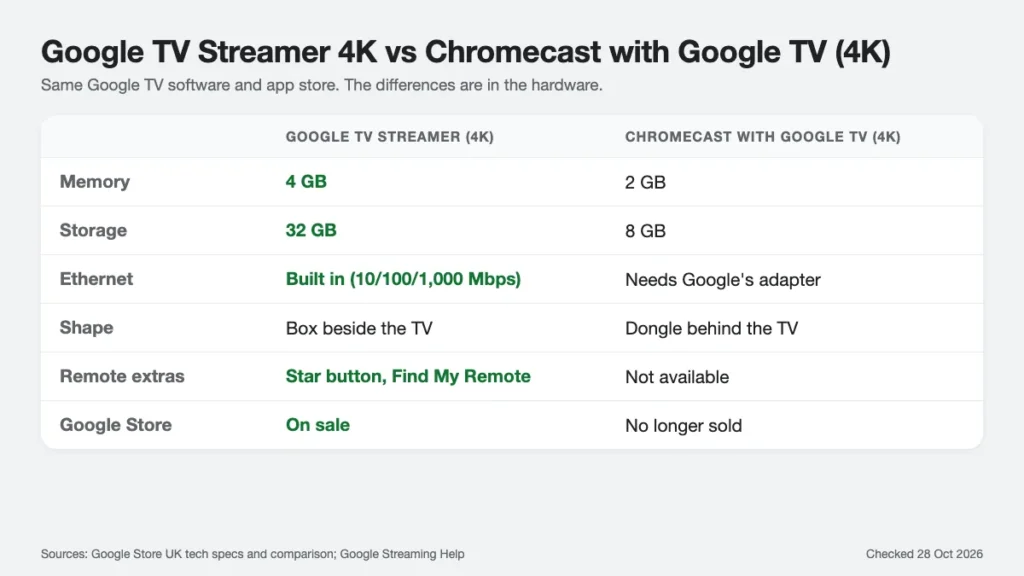
Two figures stand out for anyone who watches a lot of live TV. The 32 GB of storage is four times what the Chromecast with Google TV offered, according to Google’s own comparison, and it matters because IPTV players store programme-guide data that grows with every channel in your list. The built-in Ethernet port matters even more: a cable from the router removes the most common cause of picture drop-outs during busy evenings.
The Wi-Fi is the older 802.11ac standard rather than Wi-Fi 6. In most homes that makes no difference for streaming, because a single live channel needs far less than the connection can carry. If the router is in another room and the signal is weak, the Ethernet port is the better answer.
Ports, Cables and Where to Put It
The back of the Google TV Streamer 4K has three connections: HDMI 2.1 to the television, USB-C for power and data, and the Ethernet port. In the box Google includes the Streamer, the Voice Remote with two AAA batteries, a power adapter, a 1.8-metre power cable and a quick start guide.
- Buy the HDMI cable first. Google’s requirement is a certified HDMI 2.1 cable. An older cable may work at lower settings, but 4K HDR is where a weak cable shows itself, with flickering or a blank screen.
- Leave room beside the TV. Google lists the Streamer at 6.4 by 3.0 inches and 1.0 inch high (about 16 by 8 by 2.5 cm). It is designed to sit on the TV unit, not hang behind the screen.
- Run Ethernet if you can. If the router is in the same room, a short cable is the cheapest upgrade you can make for live channels.
- Use the supplied power adapter. Google includes its own adapter and a 1.8-metre cable; a spare USB port on the television is not a substitute, because it may not supply enough power and switches off with the TV.
- Keep it in view. The remote works over Bluetooth, so it doesn’t need line of sight, but a Streamer hidden in a closed cabinet is harder to reach when you need the button on its back.
For soundbars, Google’s set-up guide recommends connecting the audio system to the TV’s eARC HDMI port with an HDMI 2.1 cable, with the Streamer plugged into the TV itself.
Setting Up the Google TV Streamer 4K
Setup follows the same pattern as other Google TV devices. Plug in the HDMI cable, power and, if you have it, Ethernet; switch the TV to the right input; let the remote pair (hold Back and Home until its light pulses if the TV shows “Start pairing”); then choose your language and region.
From there you have two routes. Google recommends the Google Home app on a phone, which scans a QR code on the TV and copies your Wi-Fi and account details across. The alternative is Set up on TV, where you type the Wi-Fi password and sign in to your Google Account with the remote. Either way, the Streamer then installs your chosen apps and finishes with a welcome screen.
Our Chromecast and Google TV setup guide walks through every screen of that process, including what to do when the remote won’t pair or the app can’t find the device, so this page doesn’t repeat it.
Getting IPTV Running on the Streamer
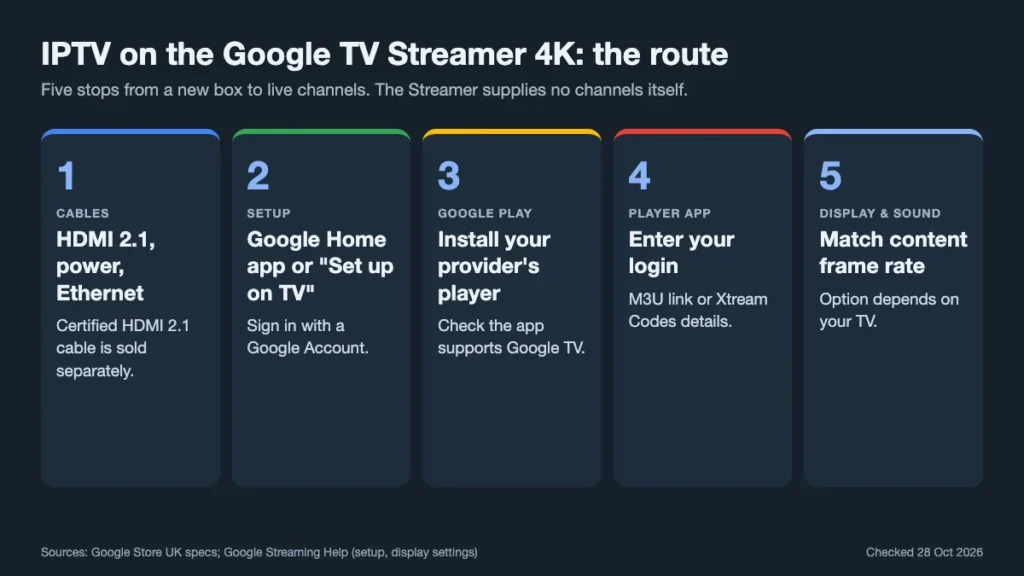
Because the Google TV Streamer 4K runs Android TV OS with Google Play, it can install the same IPTV players as an Android TV box. That makes it one of the easier devices for an IPTV subscription: there is no need to work around a closed app store.
- Ask your provider which player they support. Our installation guide names IPTV Smarters Pro, TiviMate and SmartOne.
- Install it from Google Play on the Streamer itself, using the Apps tab or voice search.
- Open the player and enter your login, usually an M3U playlist link or Xtream Codes server, username and password.
- Load the programme guide if your player asks for a separate EPG link, and give it a few minutes on first launch.
- Set the picture options described in the next section.
If you are unsure which player to choose or what the login formats mean, our guide to choosing an IPTV player explains M3U, Xtream Codes and the settings worth adjusting inside the app.
A word on apps from outside Google Play: Android TV allows them once you grant permission, but there is rarely a reason to on this device. Stick to apps from the store where you can; they update automatically and have passed Google’s checks.
Picture and Sound Settings Worth Changing
Google’s display settings page for Google TV devices lists the options under All settings and then Display & Sound. Two are worth a look on day one on the Google TV Streamer 4K:
Match content frame rate. This lets the Streamer switch to the frame rate of what you are watching rather than converting everything. UK television is produced for 50 Hz, so matching the source can make motion, especially sport, look smoother. Google notes that the options shown depend on what your TV supports.
Resolution and HDR. The default resolution is Automatic, which is right for most TVs. If the picture flickers or drops out, Google’s own troubleshooting suggests trying 1080p and turning off HDR formats to see whether the problem is the cable or the TV’s handling of HDR.
For sound, leave the audio format on automatic unless a soundbar is misbehaving. If speech drifts out of step with the picture, Google has a dedicated help page for audio sync on the Streamer, and most soundbars also have their own delay setting.
The Voice Remote: Star Button and Find My Remote
The remote is one of the clearest upgrades over the Chromecast. It keeps the familiar circular pad, Back, Home, voice and volume buttons, and adds two features that Google says only work with the Google TV Streamer 4K.
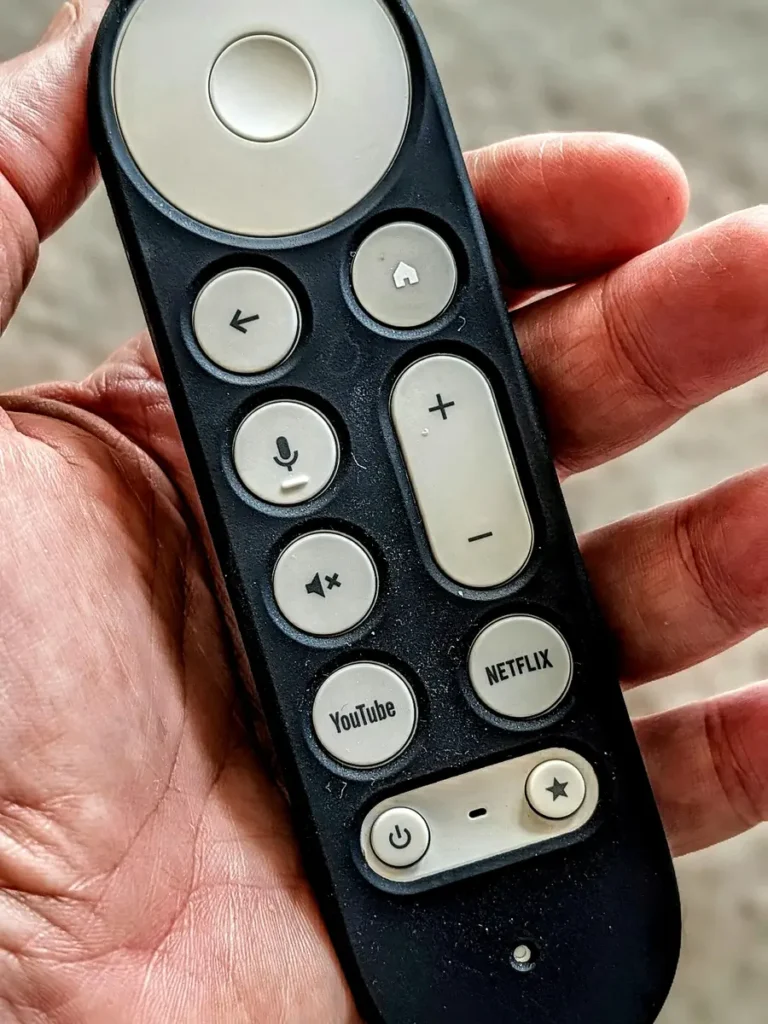
The customisable star button. Google’s help page for the customisable button explains that it can open the Google Home panel, a favourite app or the TV’s input list. Hold it for one to two seconds to change it. Setting it to your IPTV player turns it into a one-press shortcut to live TV.
Find My Remote. Press the button on the back of the Streamer and the remote plays a sound, so you can follow it to the sofa cushion it slipped under. Google’s Assistant speakers and Pixel phones can trigger the same search by voice.
During setup, or later in Settings, the remote can also learn to control the TV’s power, volume and input. Do it: a single remote for the whole evening is what makes a streaming box pleasant to live with.
The Smart Home Side
Google lists the Google TV Streamer 4K as a Matter device and a Thread border router. In plain terms, it can act as the central hub for compatible smart lights, plugs and sensors, and show a Google Home panel on the TV with cameras and controls.
The quickest way to reach those controls is the star button on the remote: set it to open the Google Home panel, and lights or a doorbell camera are one press away while you watch.
None of that affects how well it plays live channels, and you can ignore it completely if you have no smart home devices. If you do, it is a reason to choose the Streamer over a cheaper stick, because one box then handles both jobs.
Google TV Streamer 4K or Something Else?
Against a Chromecast with Google TV you already own. If yours works and you watch on Wi-Fi without problems, there is no urgent reason to replace it. The Streamer earns its place if you want Ethernet without an adapter, more storage for apps, or a remote you can find.
Against a Fire TV Stick. Amazon’s sticks are usually cheaper and also run most IPTV players. The newest Vega OS sticks, however, can’t install apps from outside Amazon’s store, and none of the sticks has an Ethernet port built in. The Streamer’s Google Play access and wired connection give it fewer limits.
Against an Apple TV 4K. Apple’s box is a strong choice for iPhone households, but its apps come only from Apple’s App Store, and some Android IPTV players have no tvOS version. Our Apple TV box guide covers that side in detail.
Against your TV’s own apps. If the television already runs Google TV and feels quick, the Streamer adds little beyond the remote and the Ethernet port. On an older or slower TV, it can feel like a new set.
When the Streamer Misbehaves
Google’s video quality help page lists the checks in order, and they work for live TV too:
- Check for updates and install any that are waiting.
- Restart the Google TV Streamer 4K by unplugging the power for a few seconds.
- Turn off the TV’s motion smoothing, which can cause stutter on sport.
- Try 1080p and turn off HDR formats to rule out a cable or TV compatibility problem.
If every app stutters, the cause is usually the network rather than the box: test with an Ethernet cable before anything else. If only one app has problems, the fault is in that app or the service behind it. Our guide to tracking down IPTV buffering walks through that diagnosis step by step.
Three problems come up often enough with any new 4K box to deserve their own answers:
No picture, or a black screen when 4K HDR content starts. Many televisions limit their HDMI ports to basic settings until you enable the full-bandwidth mode for that input. Samsung calls it Input Signal Plus, LG calls it HDMI Ultra HD Deep Colour, and other brands use similar names. Turn it on for the port the box uses, and make sure the cable is a certified HDMI 2.1 one.
The TV switches input or turns on by itself. That is HDMI-CEC doing its job when another device wakes up. If it becomes annoying, the TV’s CEC setting can be switched off for individual devices, at the cost of losing one-remote control.
The picture is fine on films but poor on live channels. Live streams can’t buffer far ahead, so they show network problems first. Move the router closer, use the 5 GHz band or, better, the Ethernet port, and check whether other people in the house are downloading or gaming at the same time.
If the remote stops responding, replace the two AAA batteries before trying anything else, then pair it again by holding Back and Home.
Moving From a Chromecast to the Google TV Streamer 4K
Many buyers are replacing a Chromecast with Google TV, and the move is mostly painless because both run the same software and use the same Google Account.
- Note your logins first. Write down the details for each paid service and your IPTV player before unplugging the old device. App logins don’t move across automatically.
- Set up the new box with the same Google Account. During setup, Google TV offers to install apps; your watchlist and recommendations follow the account.
- Reinstall and sign in to the IPTV player. Favourites and channel order live inside the player app; if it offers a backup or export option, use it on the old device first.
- Repeat the remote setup. The new Voice Remote needs to learn your TV’s power, volume and input controls again.
- Reset the old Chromecast before giving it away, so your accounts leave with you.
The old Chromecast doesn’t have to go in a drawer. It works well on a bedroom or kitchen television, where Wi-Fi is usually enough and the extra storage of the Google TV Streamer 4K matters less.
Accessibility and Family Use
Google publishes a separate guide for setting up its Google TV devices with TalkBack, the screen reader built into Android. It reads out each setup screen and menu, so a blind or partially sighted viewer can install and use the Google TV Streamer 4K without help from someone else.
For households with children, Google TV supports separate profiles, including children’s profiles where a parent chooses the apps and sets limits. Most IPTV players add their own parental PIN for adult or late-night channel groups. Set both: the Google TV profile controls which apps a child can open, and the player’s lock controls what they can watch inside it.
Voice search is the other everyday help. Pressing the voice button and saying the name of a film or series searches across your installed services at once, which is quicker than typing with the remote’s arrow keys. Inside most IPTV players, though, you will still browse channels with the guide rather than by voice.
How Long Will It Be Supported?
Google’s UK specifications page lists “Five years of security updates” for the Google TV Streamer 4K. That is the kind of commitment the UK’s product security rules require manufacturers to publish, so you know the end date before you buy.
Security updates are not the same as app support: apps decide for themselves which systems they support. Even so, app developers tend to follow the platform’s own support, so the five-year figure is a reasonable guide to how long the Streamer will stay useful.
Is the Google TV Streamer 4K Right for You?
Buy it if:
- you want Google Play apps, including the common IPTV players, without workarounds;
- you can run an Ethernet cable from the router;
- you use, or plan to use, Google Home or Matter devices;
- you are replacing an older or slow Chromecast, stick or TV system.
Skip it if:
- your TV already runs Google TV quickly and you watch on stable Wi-Fi;
- your household is built around Apple devices and your player has a tvOS version;
- you need the smallest possible device hidden behind a wall-mounted screen.
For most people watching live channels through an IPTV subscription, the Google TV Streamer 4K is a well-supported, uncomplicated choice. Just remember the HDMI 2.1 cable.