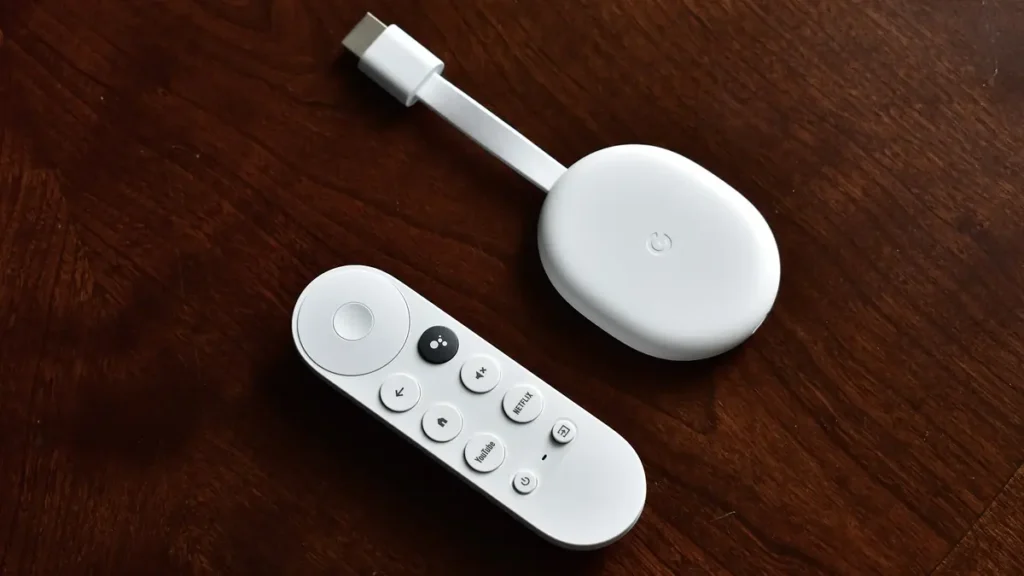
A smart TV box is a small device that plugs into your television’s HDMI port and gives it apps: streaming services, catch-up TV, music and, if you subscribe to one, an IPTV service. The TV becomes a screen, and the box does the thinking. Inside the packet you will normally find the box or stick, a power adapter, a remote and sometimes a short HDMI cable or extender.
Most people asking what a smart TV box is really want to know two other things: which kind to buy, and whether they need one at all if the TV already says “smart” on the front. This guide answers both, and points out what a box can’t do, which is where most disappointment comes from. We sell IPTV subscriptions, and the British IPTV Sub homepage explains what ours includes; everything else below applies whatever you plan to watch.
What a Smart TV Box Is, in Plain Terms
Think of a smart TV box as a small computer built for the living room. It has a processor, memory, storage and a network connection, and it runs an operating system designed to be used from a sofa with a remote. The picture and sound travel to the television over HDMI.
That operating system decides almost everything you will experience: how the home screen looks, which app store you get, how long updates continue and which apps you can install. Two boxes with similar hardware can feel completely different because they run different systems.
Most boxes also speak HDMI-CEC, the standard that lets devices connected by HDMI control each other. With it switched on in the TV’s settings (manufacturers give it their own names), pressing a button on the box’s remote can wake the television and switch it to the right input, and the TV’s volume can follow the box’s remote. It is the difference between one remote on the coffee table and three.
The shape varies more than the job. Some are sticks that hang off the HDMI port, some are flat boxes that sit on the TV unit, and a few hide behind the screen. A stick saves space; a box usually has more room for ports such as Ethernet. Both do the same job.
The Main Smart TV Box Families in the UK
Shops list dozens of models, but nearly all of them belong to a handful of platforms. The platform matters more than the brand on the box, because it decides where your apps come from.
| Platform | Typical devices | Main app store | Apps from outside the store? |
|---|---|---|---|
| Fire TV | Amazon Fire TV Sticks and Cube | Amazon Appstore | Fire OS models: yes, after a setting change. Vega OS models: no |
| Google TV / Android TV | Google TV Streamer, Chromecast with Google TV, certified Android boxes | Google Play | Yes, after granting permission |
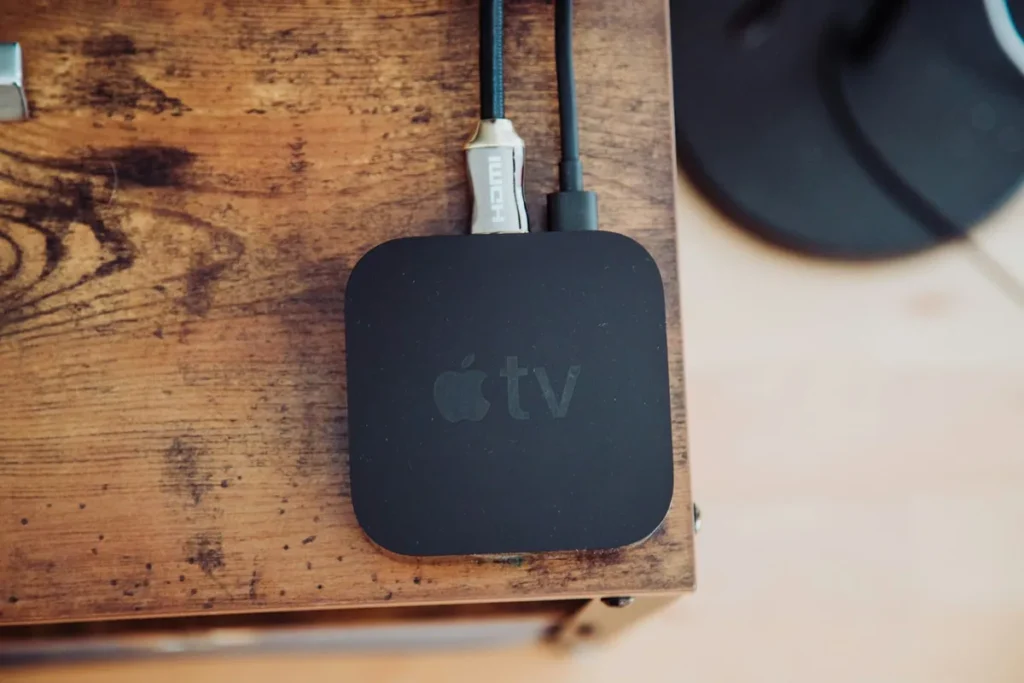
| Apple tvOS | Apple TV 4K | App Store | No |
| Roku OS | Roku sticks and players | Roku Streaming Store | Developer mode only, intended for app developers |
Fire TV
Amazon’s sticks are sold almost everywhere in the UK and are often discounted. Most models run Fire OS, which is based on Android and can install apps from outside the Appstore once you allow it. Amazon’s newest models run a different system called Vega OS, which can’t; Amazon’s Fire TV device specifications list which system each model uses. Check this before buying if you rely on an app that isn’t in the Appstore.
Google TV and Android TV
Google’s own Google TV Streamer, the older Chromecast with Google TV and many third-party boxes use Google’s TV software and the Google Play store. Android gives the widest choice of apps, including most IPTV players. The catch is quality control: cheap unbranded boxes sold as “Android TV” are not always certified by Google, and some ship with security problems.
Apple TV
Apple’s box is polished and fits neatly into a home full of iPhones. Every app comes from Apple’s App Store, with no exceptions, so check that the specific app you need is listed before you buy.
Roku
Roku is known for a simple home screen. Apps come from Roku’s own store. Roku does offer a developer mode, but its developer setup documentation presents it as a tool for building and testing apps, not as a way for viewers to add extra ones.
Whichever family you choose, a box only gives you the means to watch. Paid services still need their own subscription, whether that is a film service or an IPTV plan like those on our pricing page.
Do You Need a Smart TV Box If Your TV Is Already Smart?
Often you don’t. A recent smart TV from a major brand runs the big streaming and catch-up apps well. A smart TV box earns its place when the TV’s own software falls short, and five questions usually settle it:
- Is an app you want missing from the TV’s store? TV stores, particularly on older or budget sets, carry fewer apps than the Google Play or Amazon stores.
- Has the TV stopped getting updates? Apps eventually drop support for old TV software, and then they disappear or stop working.
- Is the menu slow? Budget TVs often have modest processors. A current streaming box is usually quicker to move around.
- Do you want the same system on every TV in the house? One platform means one set of logins and one way of doing things.
- Is the TV not smart at all? Any television with an HDMI input can use a smart TV box, which is the cheapest way to modernise an older set.
One more case is easy to miss: some televisions already run one of the box platforms. Many current Sony and TCL sets ship with Google TV, for example, and some Panasonic models run Fire TV. On those TVs, a box with the same platform adds nothing but a second remote, unless the TV’s processor is noticeably slower than the box you are considering.
If every answer is no, keep the money. Many owners of recent Samsung sets, for example, can install an IPTV player directly; our guide to IPTV on a Samsung TV shows how to check before you buy anything extra.
Stick, Box or Built-In: Matching the Device to the Room
The right answer often depends on where the TV is and who uses it, rather than on specifications.
The main living-room TV. This is where a full-size box earns its keep: room for an Ethernet cable, the fastest menus and the best picture formats if the TV supports them. It is also the screen where live sport and evening viewing happen, so reliability matters more than saving a little money.
A bedroom or kitchen TV. A stick is usually enough. These sets are often smaller HD models, so 4K and HDR features go unused, and a stick tucked behind the screen keeps the room tidy. Check the Wi-Fi signal where the TV sits, because these rooms are often furthest from the router.
A wall-mounted TV. HDMI ports on mounted sets can be hard to reach and close to the wall. A stick with a short HDMI extender, or a small box on a shelf below with one long cable, is easier than wrestling with the bracket every time something needs restarting.
An older relative’s TV. Simplicity wins. Choose the platform the family already knows, so help can be given over the phone, and set the box to open on the app they use most. A single remote that also controls the TV’s power and volume avoids most confused calls.
A second home or holiday let. A smart TV box keeps your accounts on a device you control and can take with you, rather than signing in on a TV you leave behind. Sign out of paid services before you go, and remember that some services limit how many devices can be used at once.
What a Smart TV Box Will Not Do
The marketing around boxes, especially on marketplaces, sometimes promises more than any device can deliver. Four limits are worth knowing before you pay:
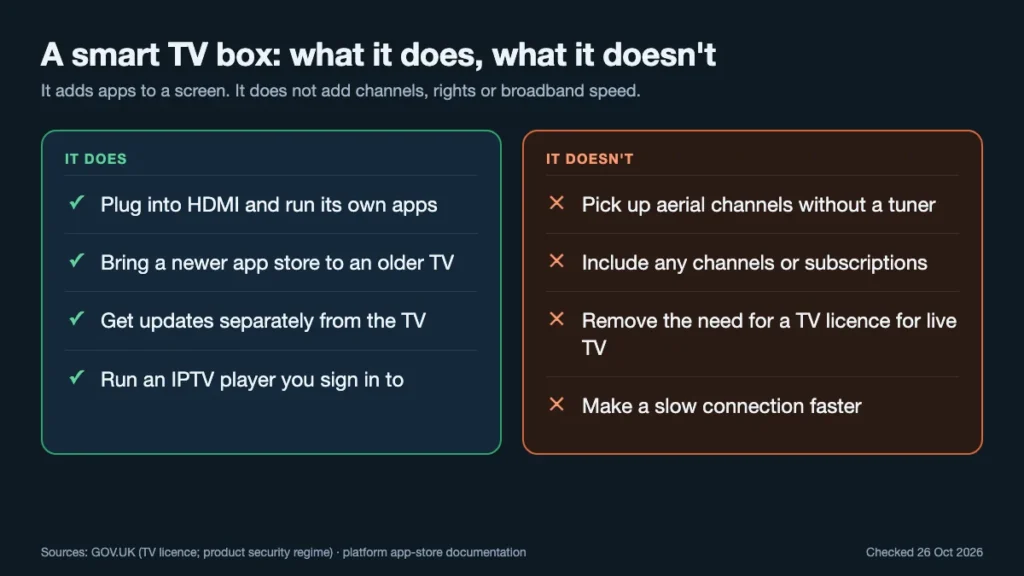
No aerial channels. A typical smart TV box has no TV tuner, so it can’t pick up Freeview from your aerial. You keep watching broadcast channels through the TV itself, or use the broadcasters’ own apps, such as BBC iPlayer and ITVX, over the internet.
Boxes sold as Freeview Play recorders are a different product: they contain an aerial tuner, often a hard drive for recording, and on-demand apps from the main broadcasters. If what you want is live Freeview channels with pause and record, that is the product to look at, not a streaming stick.
No content of its own. The box is the player, not the provider. A listing that describes a box as “fully loaded” or promises every channel for free is describing unlicensed apps added by the seller, which is exactly the kind of box to avoid.
No change to the TV licence rules. GOV.UK’s TV licence guidance says you need a licence to watch or record live TV on any channel or service, on any device, and to use BBC iPlayer. On-demand programmes from services such as Netflix or Prime Video don’t need one. The device you watch on makes no difference.
No extra speed. A faster smart TV box won’t fix a slow or unstable connection. Our FAQ recommends at least 16 Mbps for IPTV, and a wired connection helps more than any upgrade to the box.
Choosing a Smart TV Box for IPTV
For live channels over the internet, a few details matter more than headline specifications.
The player app comes first. Find out which IPTV player your provider supports, then check it exists on the platform. Our own installation guide names IPTV Smarters Pro, TiviMate and SmartOne; TiviMate, for one, is an Android app, so it needs a Fire OS or Google TV device rather than an Apple TV or Roku.
Certification on Android boxes. A Google-certified box gets Google Play and Google’s security protections; an uncertified one may not. Our guide to choosing a safe Android TV box explains how to check before you buy.
A wired option. Live TV is less forgiving than films, because there is little time to buffer. A smart TV box with an Ethernet port, or a stick with a compatible Ethernet adapter, removes Wi-Fi from the list of things that can go wrong.
Picture formats that match your TV. A 4K HDR box only helps if the TV supports 4K and the same HDR formats. If you have an HD television, a cheaper HD model loses nothing.
Enough memory and storage. Entry-level sticks have little storage, and IPTV players keep programme-guide data that grows with the number of channels. A model with more storage stays usable for longer, especially if you also install catch-up and film apps.
A remote you will actually use. Look for proper volume and power buttons that can control the TV, and a voice button if you search by speaking. Some platforms also offer a phone app that works as a spare remote, which helps when the real one disappears down the sofa.
A published update period. Since 29 April 2024, the UK’s product security regime requires makers of internet-connectable consumer products to publish how long they will provide security updates, ban easily guessed default passwords and explain how to report security issues. Look for that update period on the maker’s website; a device with no stated end date is a warning sign.
Setting Up Any Smart TV Box: The Common Pattern
Each platform has its own screens, but the order is almost always the same:
- Plug the box into a free HDMI input and into mains power using the supplied adapter.
- Switch the TV to that HDMI input and pair the remote if asked.
- Connect to the internet, by Ethernet if you can, otherwise Wi-Fi (5 GHz if the router is nearby).
- Sign in with the platform account: Amazon, Google, Apple or Roku.
- Let the system update before you do anything else; the first update can take a while.
- Install your apps from the store and sign in to each service.
- Set up the remote to control the TV’s power and volume, so one remote does everything.
Ten minutes on the settings menu afterwards pays off. Most platforms let you require a PIN for purchases, set up parental controls or a child profile, and turn off personalised adverts on the home screen. Give the device a clear name, such as “Living room”, so it is easy to pick out when you cast from a phone or manage devices from your account.
For a worked example of these steps on Google’s hardware, including what to do when the remote won’t pair, see our Chromecast setup guide. The same logic applies to every other smart TV box.
Keeping a Smart TV Box Running Well
Boxes are low-maintenance, but they are still computers. A few habits keep them quick:
- Leave automatic updates on. Updates fix security problems as well as adding features.
- Restart it now and then. Pulling the power for a few seconds clears memory on boxes that are rarely switched fully off.
- Remove apps you don’t use. Cheaper sticks have little storage, and a full box slows down.
- Keep it ventilated. A stick behind a wall-mounted TV can run warm; an HDMI extender moves it away from the hot back panel.
- Review player settings after updates. If channels start to stutter after an app update, check that the player’s settings, such as the video decoder, haven’t been reset.
If something goes wrong, work from the outside in: check the cables and the TV input, restart the box, restart the router, then look at the app. Problems that affect every app usually sit in the network; problems in one app usually sit in that app or the service behind it. Our guide to finding the cause of IPTV buffering walks through that process for live channels.
When a smart TV box stops getting updates altogether, apps will gradually stop supporting it. That is the point to replace it, not before.
Box or No Box? The Short Answer
A smart TV box is worth buying when your TV is missing apps, no longer updated, slow, or not smart at all. If your TV already runs everything you watch, it adds very little.
If you do buy one, choose the platform before the brand, check that your apps are in its store, prefer a model with a wired option and a published update period, and ignore any listing that promises free channels. A well-chosen smart TV box will outlast several years of app changes; a badly chosen one will be in a drawer by next summer.