Chromecast setup should take about ten minutes, yet the same complaints keep turning up: the Google Home app can’t find the device, the remote won’t pair, or the TV sits on a QR code that nothing seems to scan. Most of these problems start before anything is plugged in, because “Chromecast” covers two quite different kinds of device, and each one has its own Chromecast setup routine. This guide shows you which one you own, what each screen is asking for, and how to get live TV apps running once the setup is done.
Every step below follows Google’s own Chromecast Help pages, checked on 24 October 2026. We sell IPTV subscriptions, so the final sections cover IPTV in particular; the British IPTV Sub homepage explains what our service includes if you are new to us.
One Look in the Box Tells You Which Chromecast Setup You Need
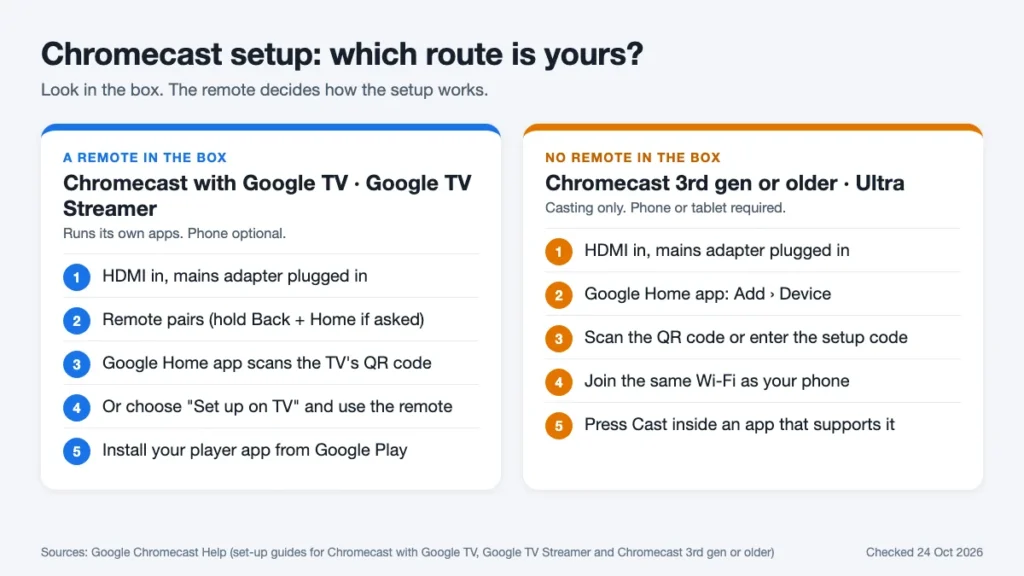
Ignore the model name for a moment and look for a remote control. If one came in the box, you have a device that runs Google TV and installs its own apps. If there is no remote, you have a casting-only Chromecast: it shows what your phone or tablet sends it, and nothing else.
That single difference changes the whole Chromecast setup. The Google TV models can be set up with the remote alone, while the casting models can only be set up from a phone or tablet. Google’s help page for the older models says it plainly: setting up on a computer is not supported.
| Device | Remote? | Chromecast setup route | Runs IPTV apps itself? |
|---|---|---|---|
| Chromecast with Google TV (HD or 4K) | Yes | Google Home app or TV remote | Yes, from Google Play |
| Google TV Streamer (4K) | Yes | Google Home app or TV remote | Yes, from Google Play |
| Chromecast (3rd gen or older), Chromecast Ultra | No | Google Home app only | No, casting only |
The very first Chromecast, from 2013, is a special case. Google ended its support: it no longer gets software or security updates, and Google offers no technical help for it. If yours is that old, a Chromecast setup may still work, but expect apps to stop supporting it.
Before You Start: What Chromecast Setup Asks For
Half the failed attempts people describe come from a missing permission or the wrong kind of network, not from the Chromecast itself. Gather these before you begin:
- A TV with a free HDMI input. Note its number (HDMI 1, HDMI 2…) so you can switch to it straight away.
- The supplied power adapter and a mains socket. Google’s instructions connect the power cable to an outlet, not to a USB port on the TV.
- The latest Google Home app on your phone or tablet, with location, Bluetooth and camera permissions switched on for it. The camera is used to scan the QR code on the TV.
- A Google Account. Google says a Gmail account gives the best results; work accounts run through Google Workspace can restrict app installs.
- Your Wi-Fi name and password. WPA2-Enterprise networks, the kind used in some offices and student halls, are not supported.
- A phone that can use 5 GHz Wi-Fi, if you want the Chromecast on your router’s 5 GHz band. Google’s UK page for the casting models lists Android 9.0 or later with 5 GHz support.
If the Chromecast is going to play IPTV, have your subscription login to hand as well, because it is the first thing the player app will ask for after Chromecast setup. Our IPTV plans and pricing page lists the current options by number of devices.
Chromecast Setup with Google TV: Following the Screens
Google’s guide for the Chromecast with Google TV (HD and 4K) runs in a fixed order, and each stage has a recognisable message on the TV. Switch the TV on, plug the Chromecast into the HDMI input, select that input, then connect the power adapter. An Ethernet connection can be used instead of Wi-Fi, which we come back to below.
“Start pairing”
The remote usually pairs on its own. If the TV shows “Start pairing” instead, press and hold Back and Home together until the light on the remote pulses. Then choose your language.
The QR code
When setup instructions appear on the TV, open the Google Home app. First-time users tap Get started, pick a Google Account and choose a home. Then tap Set up Chromecast; if that button is missing, tap Add, then Device. Once the app finds the Chromecast, allow camera access and scan the QR code on the TV, or type in the setup code if scanning fails. Keep following the app until it says “Setup here is finished”.
“Set up remote”
This part of the Chromecast setup is optional, but it lets one remote do the whole job. The TV walks through three tests:
- Volume: choose your TV or soundbar brand, play the test music and press the volume buttons while pointing at that device.
- Power: turn the TV off, wait eight seconds and turn it back on.
- Input: press the input button, cycle through the inputs, then return to the Chromecast’s HDMI input.
Some TVs and soundbars can’t be controlled this way. Choose Not now and you can come back to it later in Settings.
“Start exploring”
The Chromecast installs the apps you selected, then shows a welcome message. Select Start exploring and the Chromecast setup is complete. If you plan to install an IPTV player next, our TiviMate vs IPTV Smarters comparison explains how the two best-known players differ before you pick one.
No Phone to Hand? Finishing on the TV
The Google TV models don’t need a phone at all. On a Chromecast with Google TV, select Set up on TV instead when the setup screen appears; if you have already started on the phone, hold Back on the remote and choose the option to finish with the remote.
The Google TV Streamer follows the same pattern, with an option labelled Set up on TV at the bottom of the screen. Google lists its on-TV sequence as: language, region, Wi-Fi network (typed with the remote’s D-pad), Google Account, Terms of Service, Google Assistant, then app installation, ending with “Your Google TV Streamer is ready!”.
Two details catch Streamer owners out. Google’s Google TV Streamer setup guide calls for an Ultra High Speed HDMI 2.1 certified cable, sold separately, so check the box before you start. And for the best audio through a soundbar, Google advises connecting the sound system to the TV’s eARC HDMI port with an HDMI 2.1 cable.
Typing a long Wi-Fi password with a D-pad is slow but works. Doing the Chromecast setup this way still gives you a fully working device; you can add it to the Google Home app later to rename it or manage it from your phone.
Chromecast Setup for Casting-Only Models
The remote-free Chromecasts (third generation or older, plus the Ultra) depend completely on the Google Home app. Google’s set-up page for Chromecast 3rd gen or older gives this order:
- Plug the Chromecast into the TV and into mains power. If it has been used before, factory reset it first.
- Check that location, Bluetooth and camera permissions are on for the Google Home app.
- Open the app and tap Add, then Device. If a set-up card pops up for the right device, tap Set up or Next.
- Scan the QR code shown on the TV. If that fails, tap Use setup code, or Add a different way to search for the device.
- Wait for the “Connected” message, then follow the remaining steps in the app, including the Wi-Fi network. Tap Try again if the connection drops.
Pick the same Wi-Fi network your phone normally uses. A casting-only Chromecast and the phone that controls it have to be on the same network every time you cast, so a Chromecast setup on a guest network or a separate 2.4 GHz name often leads to “no devices found” later.
One warning about factory resets, which Google’s own troubleshooting suggests near the end. In March 2025 an expired security certificate stopped many second-generation Chromecasts and Chromecast Audio units from casting. Google pushed a fix over Wi-Fi and asked owners not to reset in the meantime, because reset units could not get through Chromecast setup again until a further fix arrived. The lesson holds for any older model: try a restart first, and treat a reset as the last step, not the first.
After Chromecast Setup: Getting IPTV Onto the Screen
How you watch an IPTV service depends on which half of the table at the top your device sits in.
Google TV models: install a player app
A Chromecast with Google TV or a Google TV Streamer installs apps from Google Play, just like an Android TV box. Search for the player your provider recommends; our own installation guide names IPTV Smarters Pro, TiviMate and SmartOne. Open the app, enter the login details from your subscription and the channel list loads on the TV itself, with no phone involved. If you are unsure what a player does and what it leaves to the provider, our guide to choosing an IPTV player explains the login formats and settings.
This is the better route for live TV. The Chromecast fetches the stream directly, the remote changes channels, and your phone stays free.
Casting-only models: send it from your phone
A casting-only Chromecast can’t install anything, so the IPTV player has to run on your phone or tablet. Whether that works depends on the app: look for the Cast icon (a rectangle with Wi-Fi waves in one corner) inside the player. If the app has no Cast button, it can’t send video to the Chromecast this way.
Casting has practical limits for an evening of live channels. The phone and the Chromecast must stay on the same network, and changing channels means picking up the phone each time. Households that watch a lot of live TV usually find that a Google TV model, rather than a better Chromecast setup, is what solves the problem.
Wired or Wireless: Network Choices That Matter
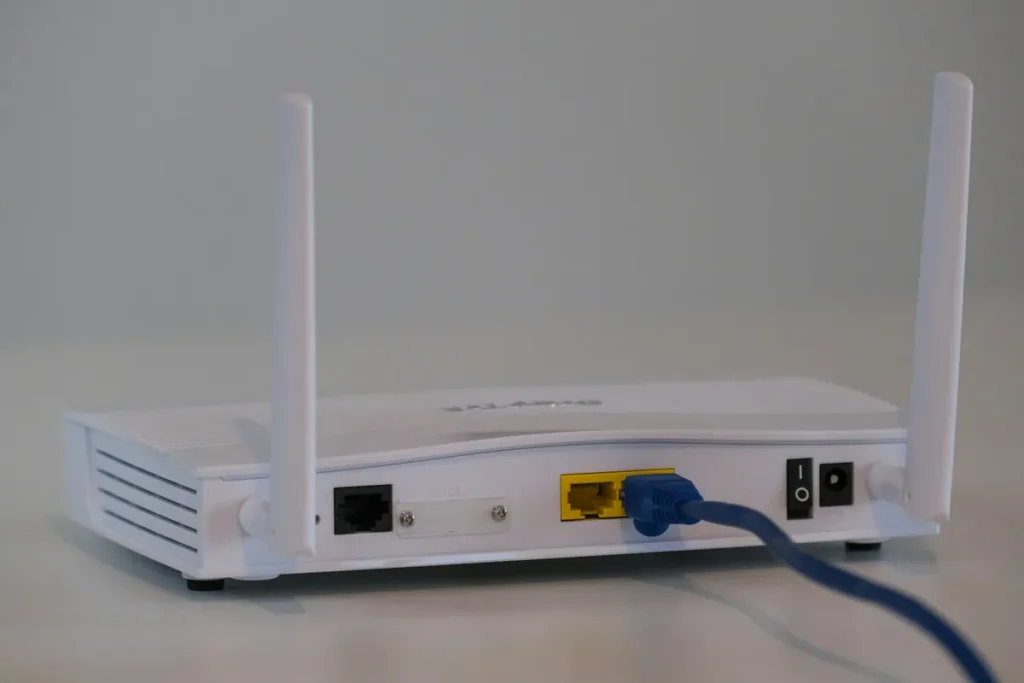
Wi-Fi is fine for most homes, but a Chromecast lives behind the TV, which is often the worst spot in the room for a wireless signal. For streaming live channels a wired connection removes one common cause of stuttering.
- Google TV Streamer: has an Ethernet port built in; Google’s Google TV Streamer specifications list it as 10/100/1000 Mbps.
- Chromecast with Google TV and Chromecast Ultra: no port of their own. Google’s Ethernet adapter quick start guide covers both, and notes that the adapter differs by model and supplies power as well as the network connection.
- Staying on Wi-Fi: choose the 5 GHz band during Chromecast setup if your phone supports it, and keep the router out of cupboards.
Speed matters as much as the connection type. Our FAQ recommends at least 16 Mbps for IPTV. If channels still freeze on a good line after Chromecast setup is done, our guide to tracking down IPTV buffering shows how to find out whether the fault is the Wi-Fi, the router or the service.
When Chromecast Setup Stalls: Work Down the Ladder
Google’s help pages list their fixes in the same order, from least to most disruptive. Work down the ladder and stop at the first rung that solves it:
- Check the phone. Bluetooth on, location on and allowed for the Home app; on an iPhone or iPad, the Home app also needs Local Network access. Missing permissions are the usual reason the app “can’t find” a Chromecast.
- Restart the Chromecast. Unplug it from the mains, wait a moment, plug it back in.
- Restart the router. Unplug it, then plug it back in and wait for the lights to settle.
- Casting models only: join the Chromecast’s own network. In your phone’s Wi-Fi settings, connect to the network the Chromecast broadcasts during setup, then retry in the Home app.
- Factory reset. Only after everything above, and only when you are sure the problem isn’t a known outage like the 2025 certificate fault.
- Contact Google support. If a reset doesn’t help, the device may be faulty.
A few problems sit outside the ladder:
The remote won’t pair. Hold Back and Home until the light pulses, keep the remote close to the Chromecast and check its batteries. Google has a separate troubleshooting article for remotes if that fails.
“Please use Gmail account”. This appears with Google Workspace accounts. You can tap OK and continue, but an account you don’t administer may limit app installs, YouTube or parental controls, so a personal Gmail account is the safer choice for Chromecast setup.
The Wi-Fi network never connects. Check it isn’t a WPA2-Enterprise network, and that the password has no typing errors; on the TV keyboard, capital letters are easy to miss.
The TV shows no picture at all. Confirm the TV is on the right HDMI input and that the Chromecast is on mains power. On a Streamer, try a certified HDMI 2.1 cable as Google specifies.
Should You Still Buy a Chromecast in 2026?
Google announced the end of Chromecast production in August 2024, when it launched the Google TV Streamer as its replacement, and the Chromecast with Google TV models later disappeared from the Google Store. Google said existing devices would keep receiving software and security updates, but it has not published an end date for each model.
If you already own one, there is no reason to replace it: everything in this guide still applies. If you are buying now, a leftover casting-only Chromecast is the weakest choice for IPTV, because it can’t run a player app. A Chromecast with Google TV found in stock, a Google TV Streamer, or a certified Android TV box all run the same apps. Our guide to choosing a safe Android TV box explains how to tell a Google-certified box from an uncertified one, which matters far more than the brand on the front.
A short note on content: a Chromecast plays whatever the app sends it. Use it with services you are entitled to watch.
Three Owners, Three Next Steps
You have a Chromecast with Google TV: finish the Chromecast setup with the phone or the remote, set up the remote’s volume and power controls, then install your IPTV player from Google Play and sign in on the TV.
You have a Google TV Streamer: the same, but find a certified HDMI 2.1 cable first and plug in an Ethernet cable if the router is within reach.
You have a casting-only Chromecast: set it up from the Google Home app on the same Wi-Fi as your phone, and check that your player app shows a Cast button before relying on it for live TV.